Fablekeep keeps two things apart: the world you build and the campaigns you play in it. Knowing which is which tells you what a change will affect.
World or campaign?
The world is your setting, the same for every group that plays in it:
- atlas maps and their hex grid, regions, places and paths;
- battle maps;
- the wiki: NPCs, factions, items, lore;
- random tables, handouts and the world’s history.
A campaign is one group’s story in that world:
- the fog of war — what this party has discovered;
- the party and where it is;
- the campaign clock, calendar and weather;
- sessions, quests, the treasury, encounters and the campaign timeline.
So you can run the same world for two groups — say, Tuesday and Saturday — and each has its own fog, clock and sessions, while sharing every map and NPC.
Your Worlds
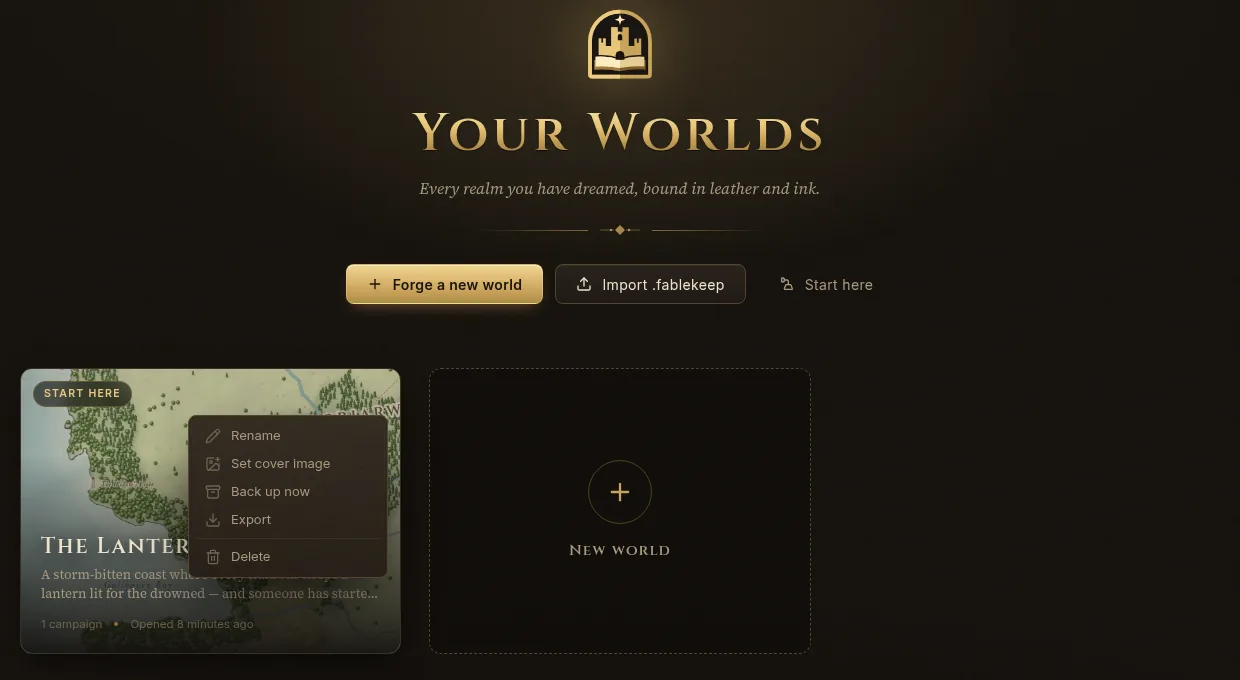
All your worlds are on the Your Worlds page. To get back to it from a world, open the world menu at the top left and choose All worlds.
- Forge a new world creates an empty world: give it a World name (and a Description if you like) and click Create.
- Import .fablekeep opens a world exported from another computer, a backup, or an adventure someone shared with you.
- Start here opens a fresh copy of the demo world, The Lantern Coast. You can open a new copy whenever you want to start it over.
Hover a world and click More (the three dots) for:
- Rename
- Set cover image
- Back up now — a copy of the whole world goes to your backups.
- Export — a
.fablekeepfile to move or share the world. See Backups, export and sharing. - Delete
Recently deleted
A deleted world isn’t gone right away. It moves to Recently deleted at the bottom of Your Worlds and stays there, untouched, for 7 days (change it in Settings → Backups → Keep deleted worlds (days)).
- Restore puts the world back in your list.
- Delete forever removes it now. Backups of it in Settings → Backups are kept.
Pick a campaign, or World mode
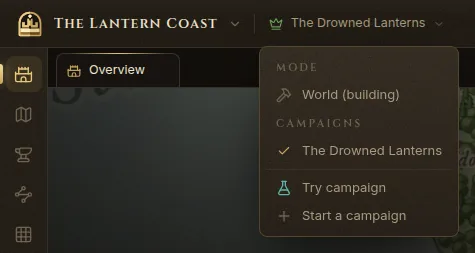
The campaign menu sits at the top left, next to the world’s name. Open it to:
- choose a campaign under Campaigns — the one you pick becomes the active campaign;
- choose World (building) under Mode to work on the world without any campaign;
- Start a campaign: type a name and click Create.
World mode
In World mode you edit maps, regions, places and the wiki with no campaign state at all: no fog, no party, no clock. It’s the right mode for building the setting before anyone plays in it.
Things that belong to a campaign — sessions, the party, encounters, journeys, the timeline — need one. If you open them in World mode, Fablekeep asks Which campaign? and switches for you. Play does the same.
While a campaign is active, a strip above maps shows its name; Exit to World there takes you to World mode.
The Overview
Overview (the first icon on the rail) is your campaign’s front page:
- Next session with Start Session 1 (or the next number) and Open prep;
- Last session, Active quests, Where the party is, Coming up, the Treasury and Factions;
- About this world, with Edit details, Change cover, Back up and Export;
- Campaigns: every campaign of this world, with Begin a new campaign. The current one is marked Active; click Make active on another to switch to it.
Campaign settings (on each campaign’s card, or the small button next to the date at the top of the Overview) holds the campaign’s options, and that’s where Delete campaign lives. Deleting a campaign removes its fog, party, sessions, quests, encounters, timeline, journeys and weather; the world itself isn’t touched. You have to type the campaign’s name to confirm.
Rehearse in a sandbox
A sandbox is a throwaway copy of a campaign. Use it to try an encounter, a journey or the TV before game night without touching the real game.
- Open the campaign menu and choose Try campaign — or, to rehearse one session, click Try this session on the Overview or on the session itself.
- Fablekeep copies the campaign and opens the copy. A teal SANDBOX bar across the top reminds you: “Nothing here affects” your campaign.
- Play as much as you like: reveal fog, run fights, show things on the TV.

The bar has:
- “TEST” tag on the TV — marks the TV picture as a test, so nobody mistakes it for the real thing.
- Edit the real world — off by default. World content (maps, places, wiki, bestiary, handouts) is shared with the real campaign, so while this is off every world change asks first. Turn it on only if you want those edits saved for real.
- Reset — throw away everything done here and copy the campaign again as it is now.
- Exit — back to the real campaign. The sandbox is kept, and you can open it again from the campaign menu under Sandboxes.
- Discard — delete the sandbox. The real campaign isn’t touched.