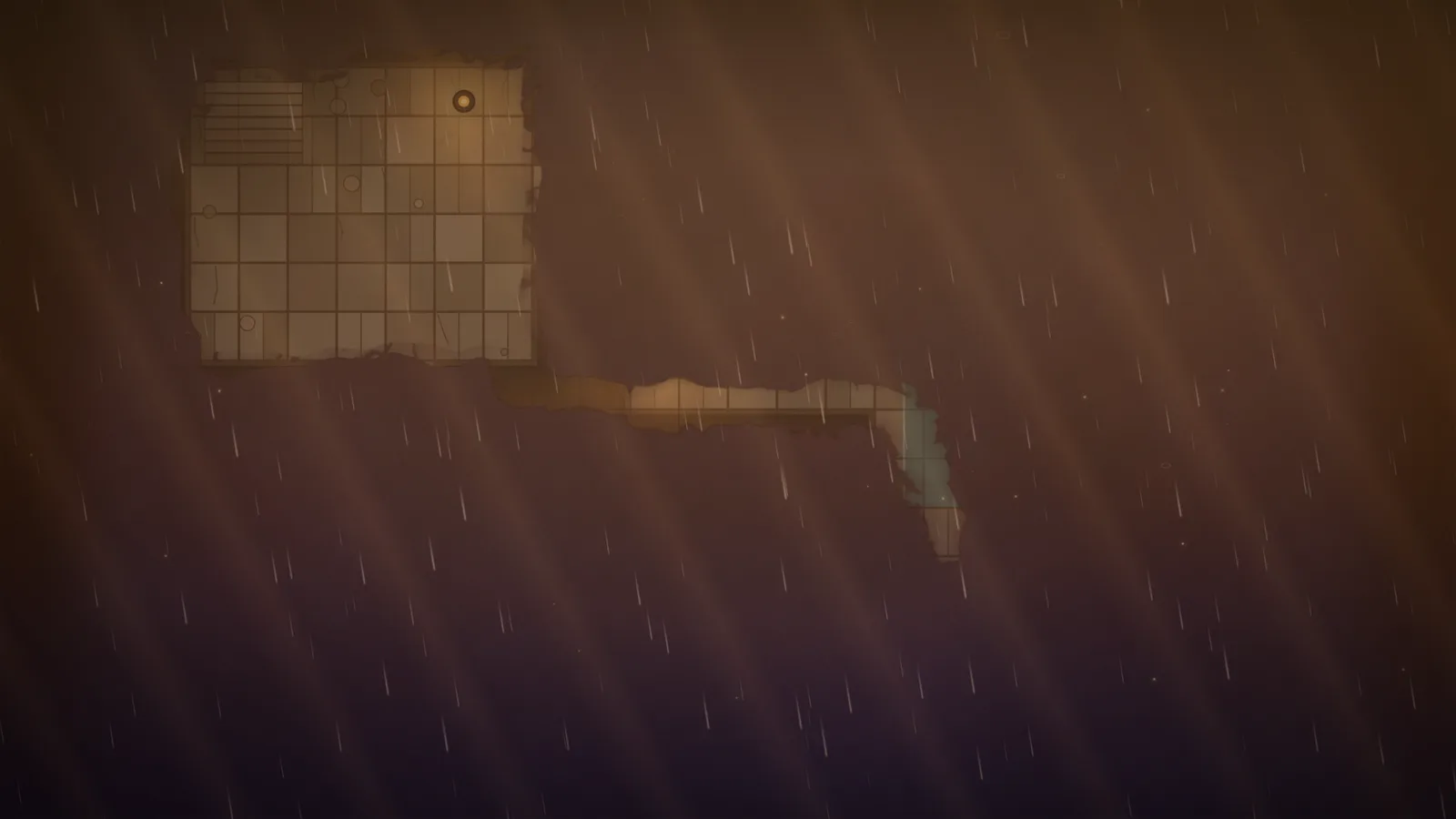
Fog of war hides what the players haven’t discovered yet. Fablekeep keeps two kinds: fog on the atlas (hex by hex, as the party explores the world) and fog on battle maps (painted away as they explore a dungeon). Both belong to the campaign, so two groups in the same world each have their own.
You always see everything; the TV and the players only get what you reveal.
Fog on the atlas
Each hex on an atlas map is in one of four states:
- Hidden — the players know nothing of it; clouds cover it on the TV.
- Rumored — seen through a thin mist. Players see its name and the markers you flagged as rumor.
- Revealed — fully visible: terrain, name and markers.
- Visited — the party has been here. It shows with a faint trail on the TV.
Paint the fog
- Open the map in Atlas and press F (or pick the fog tool on the left).
- Choose what to paint: Reveal, Rumor, Visited or Hide.
- Set the Brush radius ([ and ] change it).
- Click or drag over the hexes. The TV parts the clouds as you go. Hold Alt to do the opposite (hide instead of reveal).
Reveal all and Hide all do the whole map at once (you’re asked to confirm).
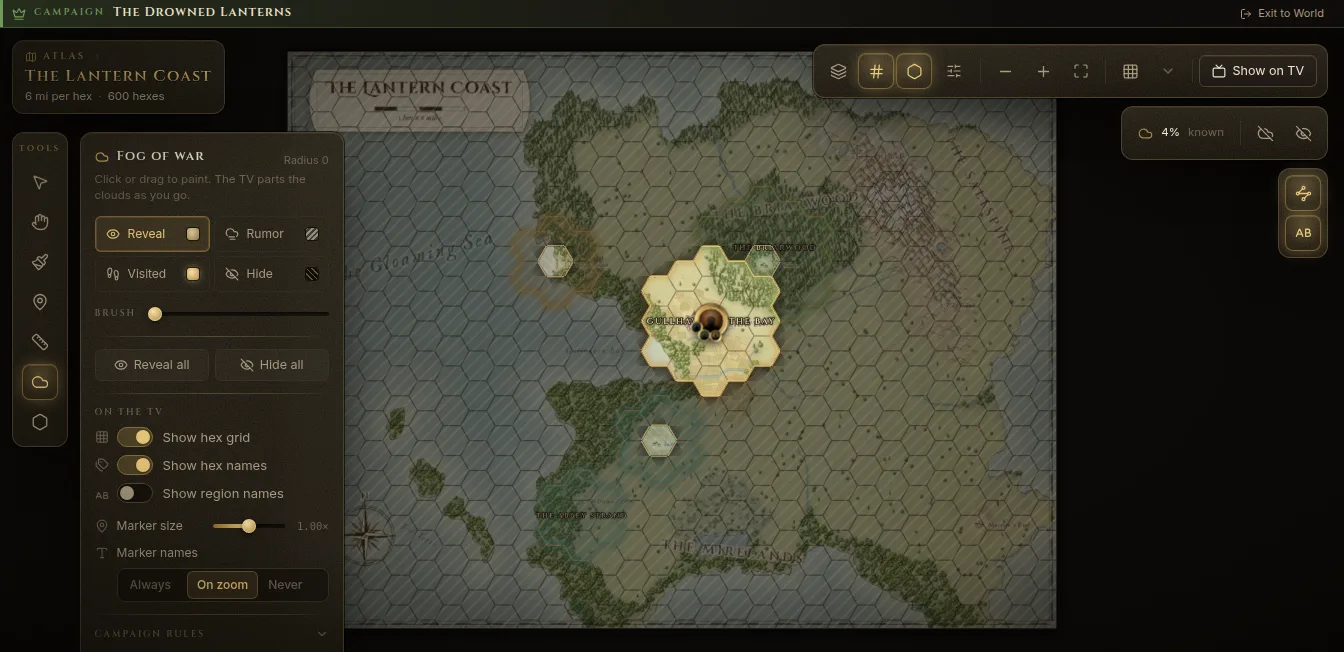
Under On the TV in the same panel you choose whether players see the hex grid, hex names and region names, the marker size, and when Marker names show (Always, On zoom or Never).
Let the party reveal as it travels
When the party moves, Fablekeep can reveal the land around it for you. In Settings → Campaign → Exploration:
- Reveal on arrival lifts the fog along the route and around the destination.
- Sight radius sets how many hexes around the party are revealed. Hills and mountains see one hex further; forest, jungle and swamp one less.
To move the party, drag its token on the atlas, or select a hex and use Move party here.
Markers
Each marker on the atlas has its own rule for the players:
- Auto — shown once its hex is revealed.
- Rumor — also shown while the hex is only rumored.
- Never — DM only, never shown to players.
A marker that is a location follows that location instead: it shows on the TV when the location is revealed.
Check what the players see
Press P (Preview as players) to see the map exactly as the TV shows it. Press O for the building view, which hides the fog on your screen while you work on the map. The badge at the top right shows how much of the map the players know.
Fog on battle maps
New battle maps start fogged or revealed depending on the map’s Scene properties. To reveal part of one:
- Open the battle map and press F.
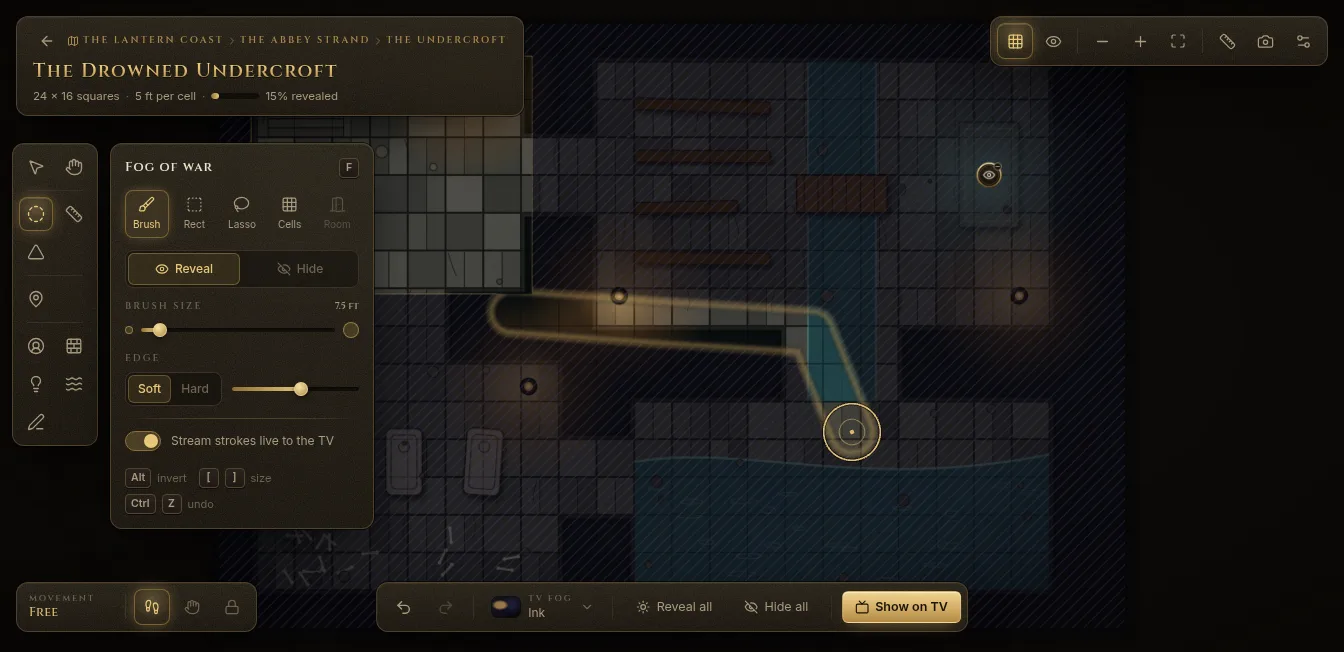
- Pick a tool:
- Brush — paint to reveal.
- Rect — a rectangle that snaps to the grid (hold Shift for a free one).
- Lasso — drag a shape, or click corner by corner and close it with Enter or a right-click.
- Cells — whole grid cells.
- Room — click inside a room and everything up to its walls and doors is revealed. It needs a map published from the Battlemap Forge.
- Choose Reveal or Hide (or hold Alt to invert), the Brush size and a Soft or Hard Edge.
With Stream strokes live to the TV on, the players watch the fog peel away as you paint. Turn it off to paint first and show the result when you let go.
Made a mistake? Undo fog (Ctrl+Z) and Redo fog (Ctrl+Shift+Z) are at the bottom of the map, next to Reveal all and Hide all.
How the fog looks on the TV
Pick the TV fog style at the bottom of the map:
- Void — pure black with soft, feathered edges.
- Smoke — animated clouds drifting over the map.
- Parchment — the map fades into blank, aged paper.
- Ink — an ink wash whose edge bleeds and creeps.
The default for new maps is in Settings → Campaign → Default fog style.