Handouts are the props of your game: a sealed letter, a proclamation on a scroll, a wanted poster, a magic item’s card. On the TV they don’t just appear — the seal cracks and the letter unfolds, the scroll unrolls, the poster slams onto the board. Open Handouts on the rail.
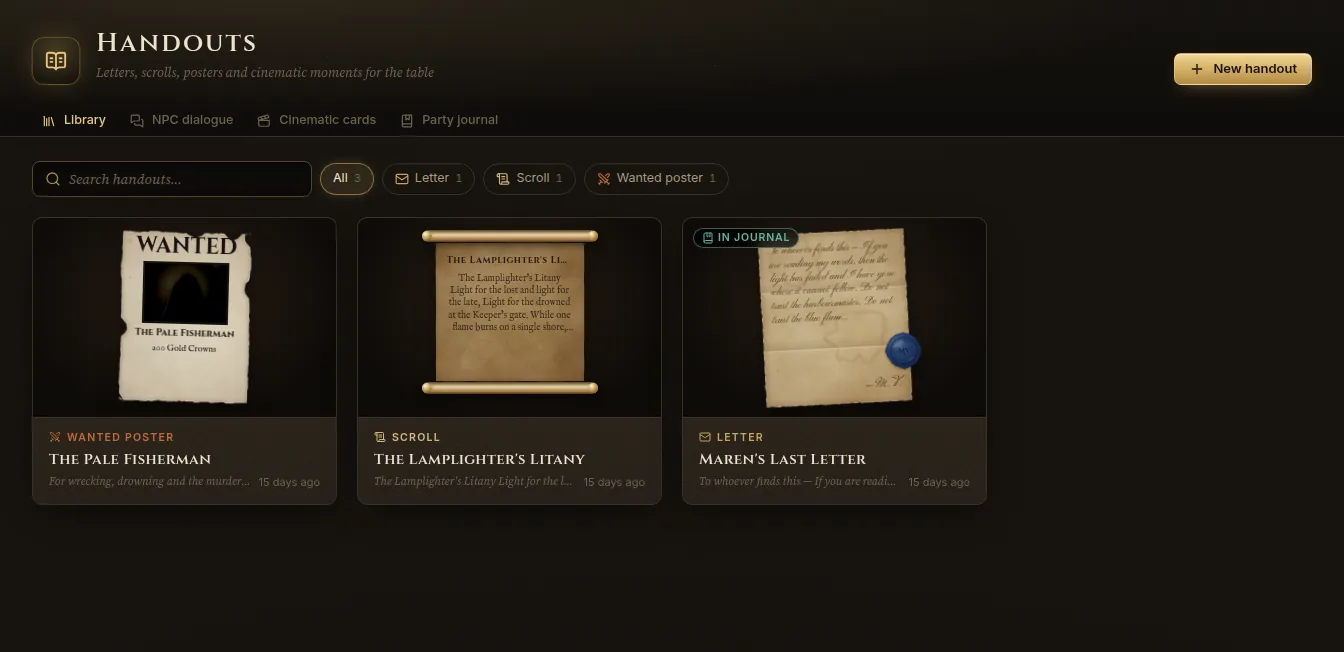
The page has four tabs: Library, NPC dialogue, Cinematic cards and Party journal.
Make a handout
- Click New handout and choose a kind:
| Kind | On the TV |
|---|---|
| Letter | The sealed letter slides in, the seal cracks, the sheet unfolds and the text writes itself. |
| Scroll | The scroll unrolls between its rods and the words bleed in like wet ink. |
| Wanted poster | The poster slams onto the board in a puff of dust. |
| Item card | The card flips from its sigil to the front, with a glimmer across the rarity frame. |
| Image / map | The fragment floats in on its torn mount. |
| Book page | An open tome rises and a page turns over. |
| Quote | The words appear one by one between gilded quotation marks. |
| NPC line | The portrait rises in its frame and the line is typed into a speech box. |
| Cinematic card | A chapter card or a location arrival card. |
- Give it a title and write the Text. Depending on the kind, add a Signature, a Headline and Reward (posters), a Caption, an Attribution, or link an item from the Compendium (an item card then takes its rarity, type, properties and rules text from the item).
- Write DM notes if you like — only you see them; they never reach the TV.
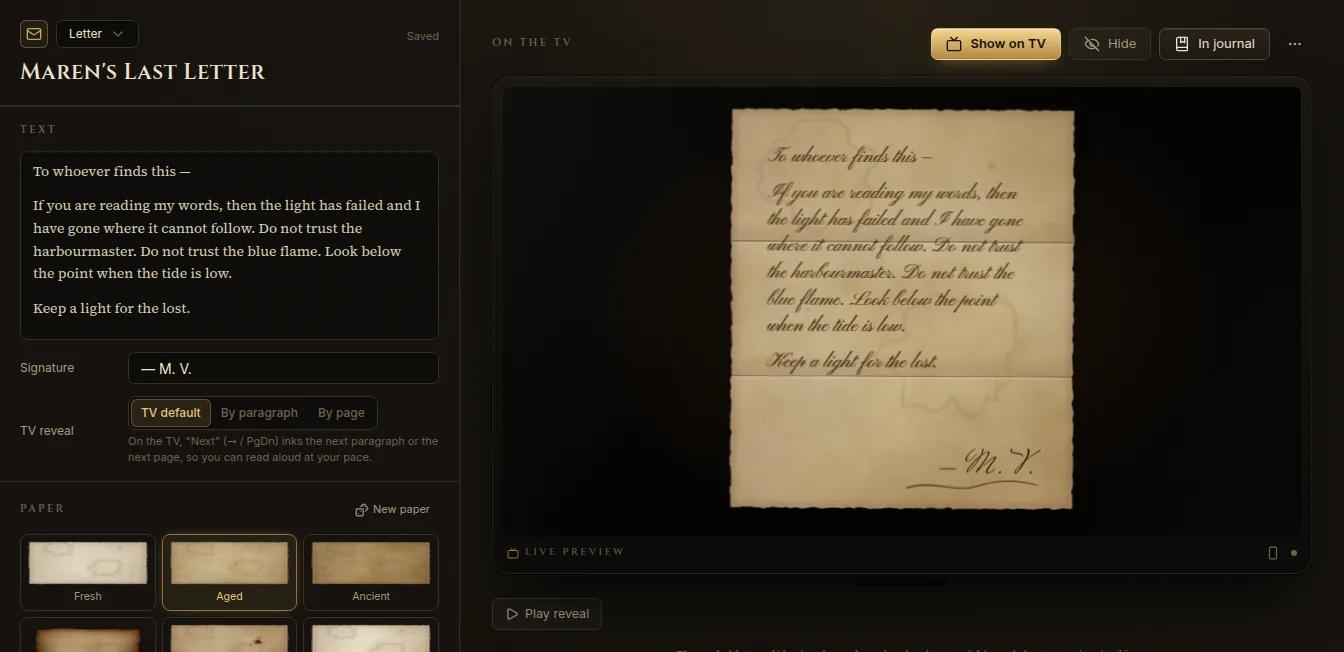
Everything saves as you type. Live preview on the right shows the handout as the TV will; Play reveal plays its animation, and you can preview it on a portrait or landscape TV.
Paper, ink and seals
- Paper — Fresh, Aged, Ancient, Burnt, Blood-stained or Royal vellum, with aging, edges (deckled, torn, burnt, clean), stains (foxing, coffee rings, water marks, blood) and fold creases. New paper reshuffles the texture.
- Hand & ink — the handwriting (from an elegant script to a rough hand, old print or blackletter), its size and the ink: iron-gall brown, lamp black, vermilion, violet, indigo, verdigris, gold or a custom colour.
- Wax seal (letters) — turn on Seal the letter and choose an emblem (crown, rose, skull, sword, tower, eye, moon, sun, dragon, key), an initial, or Upload an emblem.
Show it on the TV
Click Show on TV in the editor, or on its card in the library. Hide takes it off.
Long handouts reveal at your pace. TV reveal chooses By paragraph or By page (or the TV default from Settings → Displays). On the TV, press → or PgDn to ink the next paragraph or page, ← or PgUp to go back — so you can read aloud as the words appear. The Display Dock shows the page controls too.
Esc clears handouts and cards from the TV (with undo).
Give it to the party
Give to party adds the handout to the Party journal of the active campaign. Players then find it on their devices — on the phone, under Handouts in the World tab — and can reread it whenever they like. The library marks it In journal.
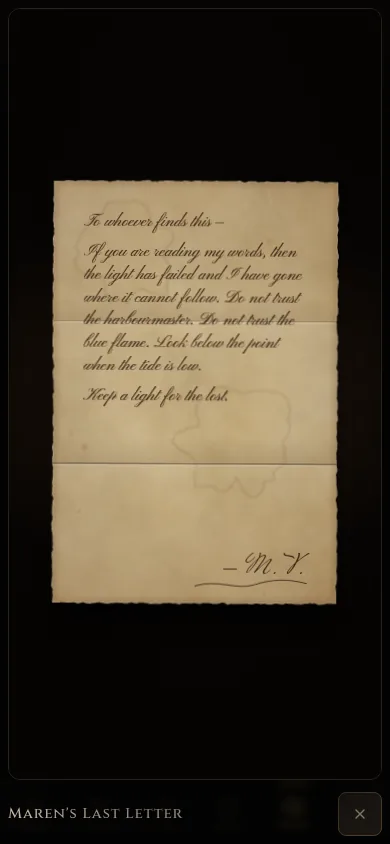
The Party journal tab lists everything the party has received. Show journal on TV opens it as a leather-bound book on the TV.
NPC dialogue
The NPC dialogue tab puts an NPC on the TV with a line of speech — perfect for the moment the villain finally speaks.
- Pick an NPC on the left (they come from your wiki).
- Choose a Mood — Neutral, Happy, Angry, Sad, Scheming or Afraid — which picks that portrait if the NPC has one, and a Side (Left or Right).
- Type the line and click Speak (Ctrl+Enter). Leave the line empty, or use Portrait only, to show just the portrait.
The portrait rises in its frame and the line is typed beneath. Put two NPCs on opposite sides to stage a conversation. Dismiss takes an NPC off; Save line keeps the line in the library to show again later.
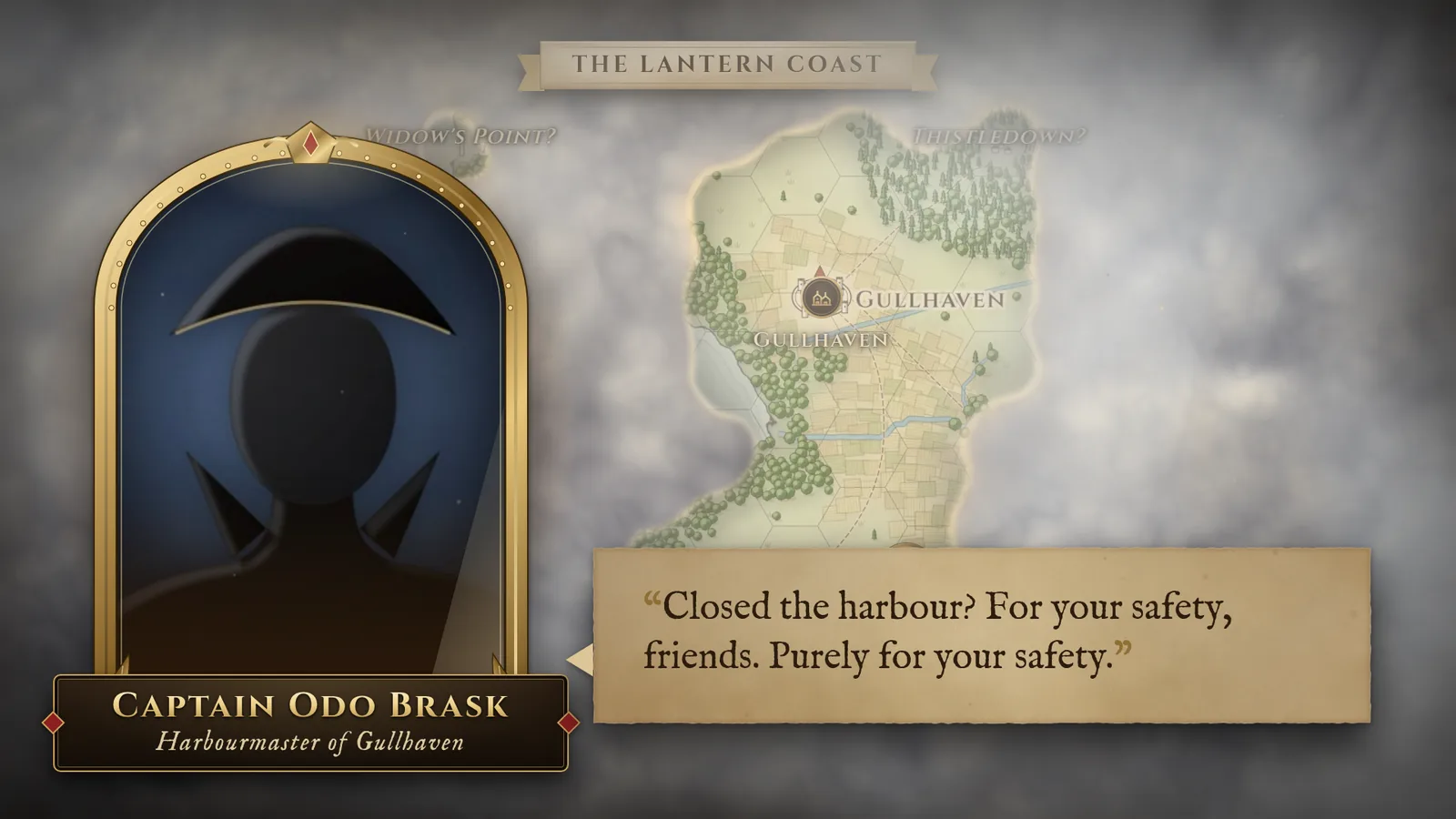
You can also start from anywhere: Ctrl+K → Speak as… (NPC dialogue), or “Speak as” followed by the NPC’s name.
Cinematic cards
The Cinematic cards tab composes two kinds of card:
- Chapter — an eyebrow (“Chapter III”), a title and a subtitle; the card draws its frame and gilds the title.
- Arrival — a location arrival card: pick a place, and the card fades up over its art (or a crop of the atlas showing only what the party has explored) with the region and, with Use the clock, today’s date, time and weather.
Save card keeps it in the library. Turn on Offer when the party arrives and, when the party reaches that place, Fablekeep asks whether to show the arrival card on the TV.
Sessions add their own title cards: “Session 2 — …” when you start a session and “To be continued…” when you end it. See Sessions, notes and recaps.