Fablekeep is built for a table with a TV, but your laptop also hosts the game for players who aren’t in the room. No account or cloud service is involved: players connect straight to the Fablekeep running on your computer.
Choose how the campaign is played
Open Settings → Players. Under How this campaign is played, pick one:
- At the table — everyone around the TV. You move the tokens; players roll real dice and you type the results (or they use their phone companion).
- Online — every player on their own laptop or PC: their own token, their own vision, an action bar and 3D dice.
- Hybrid — some at the table, some from home. At the start of each session you mark who is remote.
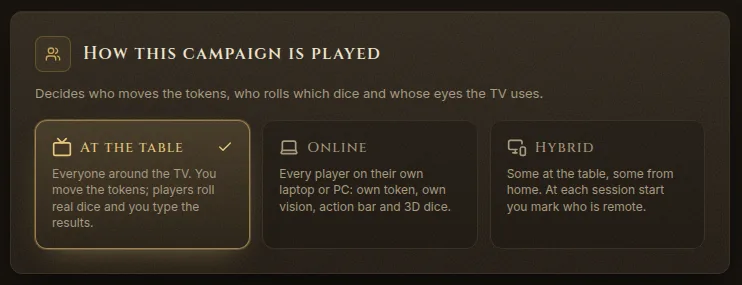
The mode decides who moves the tokens, who rolls which dice and whose eyes the TV uses. You can change it between sessions.
Hybrid: who’s at the table tonight?
In a Hybrid campaign, starting a session opens Who’s at the table tonight? Mark the characters played from home and click Start playing. You can change it later from Players on the quick tools rail. Remote players get their own map, vision and dice; you drive the characters at the table, and the TV’s party vision uses the ones in the room.
Let players connect
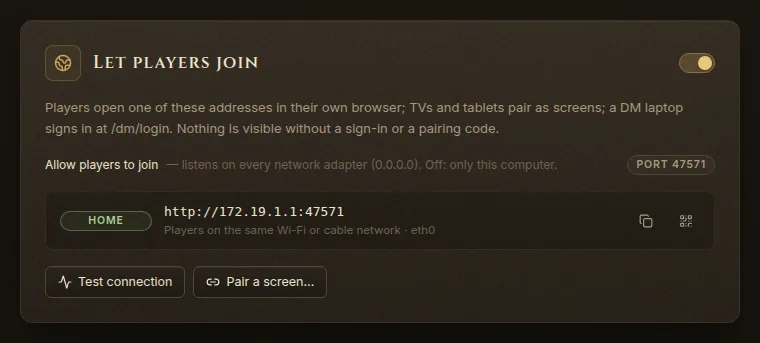
Open Settings → Network and turn on Allow players to join. While it’s off, only your own computer can reach Fablekeep.
Fablekeep then lists every address players can use, labelled by the kind of network:
| Label | Who can use it |
|---|---|
| Home | Players on the same Wi-Fi or cable network |
| Tailscale | Players in your tailnet |
| ZeroTier | Players who joined your ZeroTier network |
| Hamachi | Players in your Hamachi network |
| Radmin | Players in your Radmin VPN network |
| Internet | Anyone on the internet who knows it — turn on Internet mode |
Copy an address with its button, or show its QR code. Test connection checks that Fablekeep answers on each address and shows Reachable with the time it took, or the error.
Players from home
For players outside your house, the easiest and safest way is a virtual network that everyone joins. Ways to play online, further down Settings → Network, has step-by-step tabs:
- Tailscale — encrypted and free for small groups; works through any router, nothing to open.
- ZeroTier — the same idea: create a network, everyone joins it, you approve each member.
- Hamachi — encrypted; the free plan allows 5 people per network.
- Port forward — no extra software, but not encrypted without HTTPS. Some internet providers don’t allow it at all.
- Own server — Fablekeep on an always-on server with HTTPS.
The firewall
The first time Fablekeep started, Windows asked on which kinds of network to let it through. Hamachi, ZeroTier and many Wi-Fi networks count as “public”, so players there stay blocked until the port is allowed.
If a player can’t connect although Test connection says Reachable, go to Firewall in Settings → Network and click Allow port (followed by the port number). Fablekeep asks first, then Windows asks for administrator permission. Remove rule takes it away again.
Invite players
Players need an invite, whatever the mode. In Settings → Players, click Invite a player, tick their character, choose how long the code is valid, and click Create invite. Send them the Invite link or the Invite code. They choose their own name and a PIN of at least 4 digits.
Each player is then listed with Online now or when they were last seen. A player’s menu lets you Rename them, Set a new PIN… (for someone sitting next to you), make a New invite for this player (PIN reset), Sign out every device or Revoke access.
Players can ask to play a character after joining; the request appears under Requests with Approve and Deny.
The player client
Remote players open the address in a browser on their laptop or PC. They see:
- their character sheet, inventory, handouts and recaps;
- the battle map you send them, with their own token, their own vision and fog;
- an action bar for attacks and spells, and 3D dice.
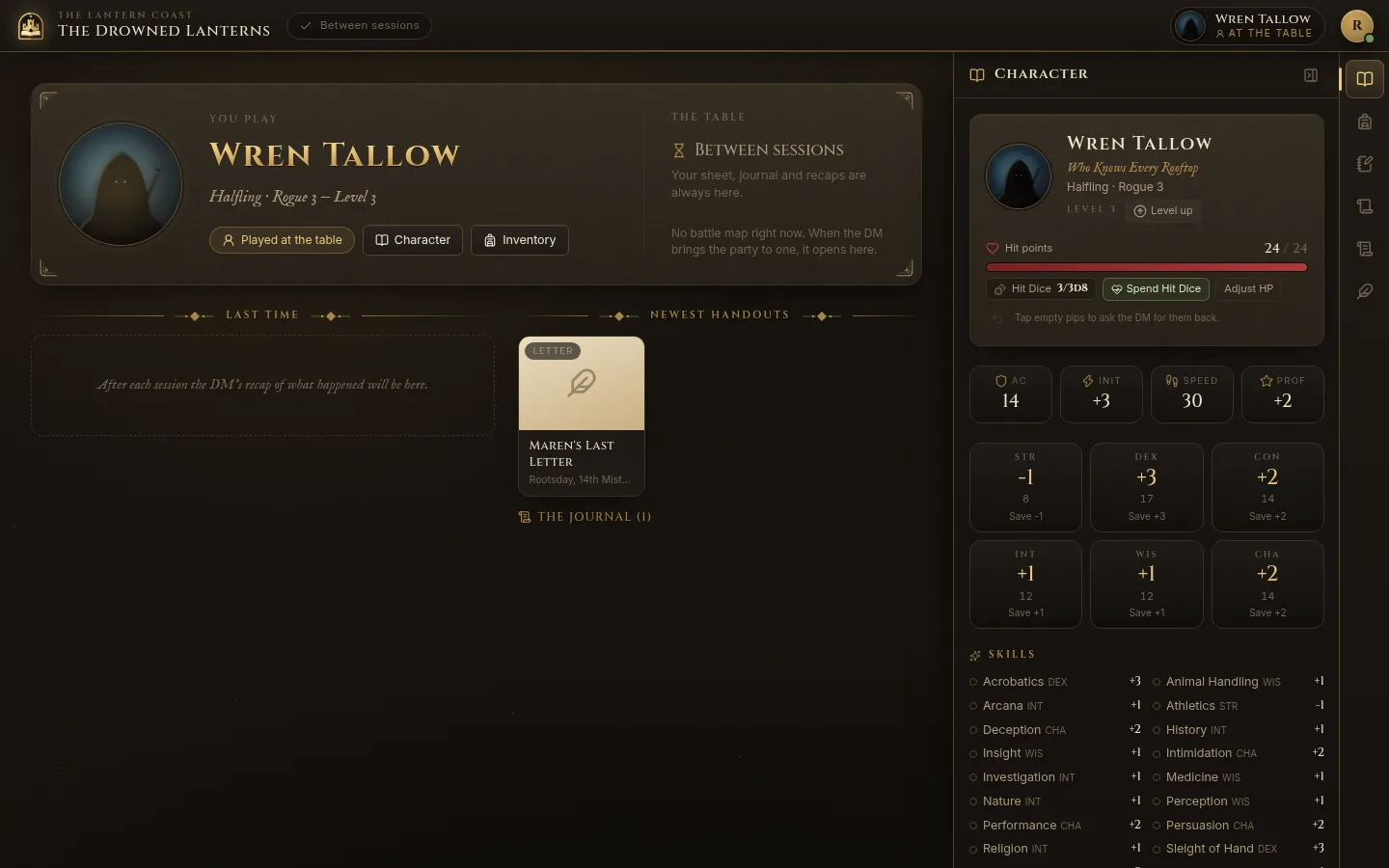
Remote players can also play from a phone: the phone companion adds a Map tab when its player is remote.
What you see
In Online and Hybrid campaigns, the Display Dock gets a TV / Players switch. Players shows a card for each player: what they’re looking at, and whether they follow the party, their own map or their token. Drag a battle map, a place, a wiki entry or a handout onto a card to show it to that player, or onto the party to show it to everyone. Split gives a group of players its own map, for when the party splits up.
Internet mode
Turn on Internet mode in Settings → Network when the table is reachable from outside your home — a port forward, a virtual network shared with people you don’t know well, or a server on the internet. It tightens security:
- sign-in lockout after repeated wrong passwords;
- DM passwords of at least 10 characters;
- secure cookies and strict browser security headers over HTTPS.
The card also shows whether the connection uses HTTPS. Without HTTPS, passwords and the game cross the internet unencrypted: prefer Tailscale or ZeroTier, which encrypt everything themselves.
A DM laptop elsewhere
Remote DM access in Settings → Network lets you run the DM desk from a second laptop that signs in at /dm/login with a password. See Set up the TV.