The atlas shows your world hex by hex. Regions zoom in: a region is a named group of hexes — a bay, a forest, a valley — with its own places (a town, a tavern, a ruin) and the paths between them, each with a travel time.
Create a region
There are three ways:
- From a hex — on an atlas map, click a hex and choose Enter region in the hex menu. If the hex has no region yet, Fablekeep asks you to Name the new region.
- With the brush — pick Region brush in the atlas tools and paint over hexes. When you finish the stroke, you name the new region. Hold Alt to take hexes out.
- From the Regions page — open Regions on the rail and click New region, choose the Atlas map and Create region. Assign hexes later.
To add or remove hexes later, select them on the atlas and choose Assign region (or right-click a hex for Add to region / Remove from region). A hex belongs to one region at most. In the region’s inspector, Edit hexes opens the map with the brush aimed at that region.
The region view
Open a region from the Regions page or with Enter region. The header shows how many places and paths it has and how many are known to players. The toolbar switches between two views:
- On the map — the region on its map, with places where they really are.
- Graph view — places as cards and paths as lines, on top of the map. Good for seeing at a glance how everything connects.
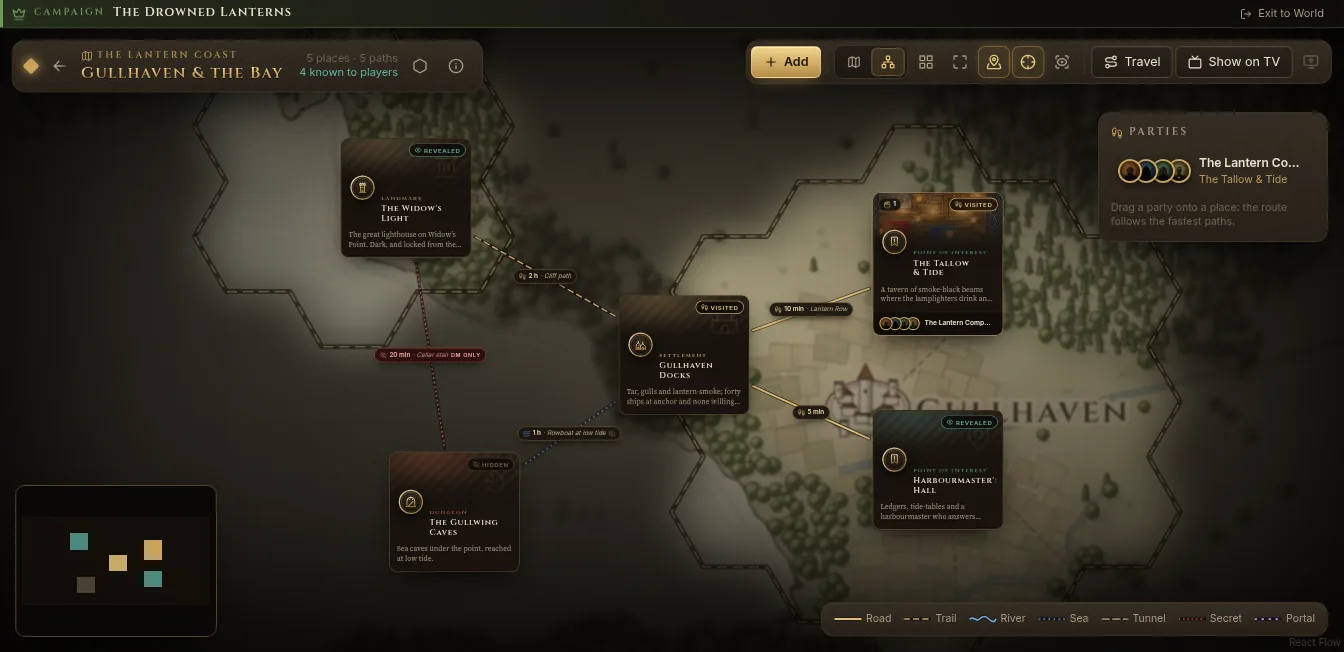
The other buttons depend on the view. On the map: Draw a path, Add a detail map (city / valley), Fit to view, Frame the places and Path times (always or on hover). In the graph: Auto-layout, Fit to view, Atlas backdrop and Minimap. Both have Preview as players, Travel and Show on TV.
Add places
- Click Add, or in the map view double-click where the place is (or press N).
- Type a Name and pick a Kind: Settlement, Dungeon, Landmark, Wilderness, Point of interest, Camp, Exit, District, Building, Shop or Tavern — or make your own with Custom….
- Click Create location.
A place that isn’t placed yet waits in the “places not on the map” tray: drag it onto the map to put it where it is.
The place inspector
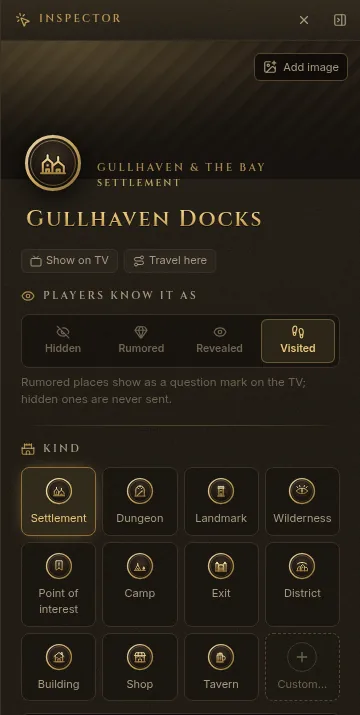
Click a place to open it in the inspector:
- an image (Add image), Show on TV and Travel here;
- Players know it as — Hidden, Rumored, Revealed or Visited. Rumored places show as a question mark on the TV; hidden ones are never sent.
- Kind;
- a one-line summary players see once the place is revealed;
- Read-aloud text, with Read to players;
- Player description — what the players may read about it on the TV (secret blocks are removed);
- DM notes — type
@to link NPCs — and Secrets; - Scenes — drop battle maps or images here to keep them with the place;
- People & links — the NPCs mentioned here, and the wiki pages that mention this place;
- Links — a Wiki page, a Sub-map (e.g. a city map) and the Atlas hex.
Connect places with paths
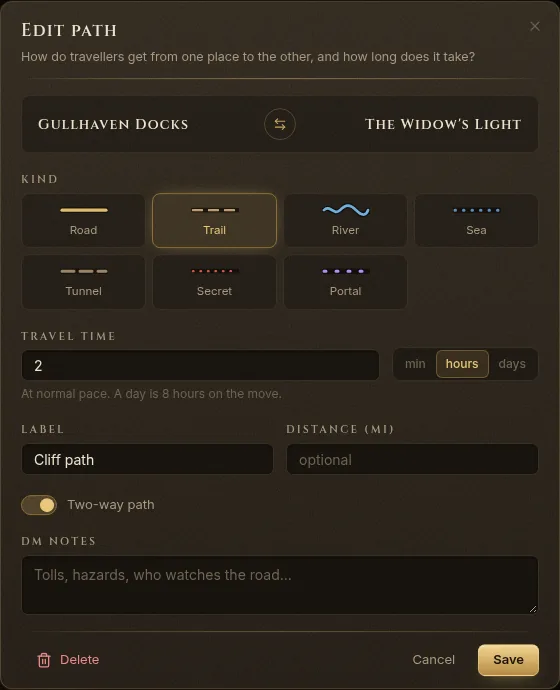
Drag from a place’s golden stud to another place, or use Draw a path on the map view. The New path window asks how travellers get from one to the other:
- Pick the Kind: Road, Trail, River, Sea, Tunnel, Secret or Portal.
- Set the Travel time in min, hours or days, at normal pace. A day is 8 hours on the move. On the map view, Measure on the map can work it out from the drawn path, the scale and the terrain.
- Add a Label (“King’s Road”) and a Distance (mi) if you like.
- Leave Two-way path on unless it only goes one way. Swap direction flips it.
- Write DM notes — tolls, hazards, who watches the road.
- Click Create path.
Secret paths are never shown to players unless you reveal them; on your map they’re marked DM only. Right-click a path for Edit path, Reveal path or Hide path.
What the players know
Every place has a reveal state, and the TV and the players’ devices only ever get what you’ve revealed. Right-click a place for Reveal to players or Reveal with known paths. Preview as players shows the region exactly as they see it.
When the party arrives somewhere, that place becomes Visited and the route it took is revealed.
Sub-maps, detail maps and exits
- Detail map — a region can have its own, closer map (a city, a valley). Add it with Add a detail map (city / valley) and align it with the world map; places then sit on the detail map, and a place can be Detail map only (hidden on the world map) — a shop inside the city, for example.
- Sub-map — a place can link to another atlas map under Links, such as the full map of a city.
- Exits — a place of kind Exit connects two regions. Set Leads to in its inspector; Follow exit opens the other region.
The party on the map
The Parties box shows where each group of the party is. Drag a party onto a place to travel there: Fablekeep finds the route along the fastest known paths and opens it in the travel planner, where you confirm the trip. If the party splits up, make a New group in Party; each group gets its own colour, position and, on the TV, its own pane if you want.
Show a region on the TV
Click Show on TV. The TV shows the region’s map with only the revealed places and paths. Rumored places appear with a question mark. To change what the TV frames, set your view and click Send this framing to the TV.