The desk is everything you see on your laptop: your world, your notes and your tools. The players never see it — they see the TV, which you control from the Display Dock at the bottom of the window.
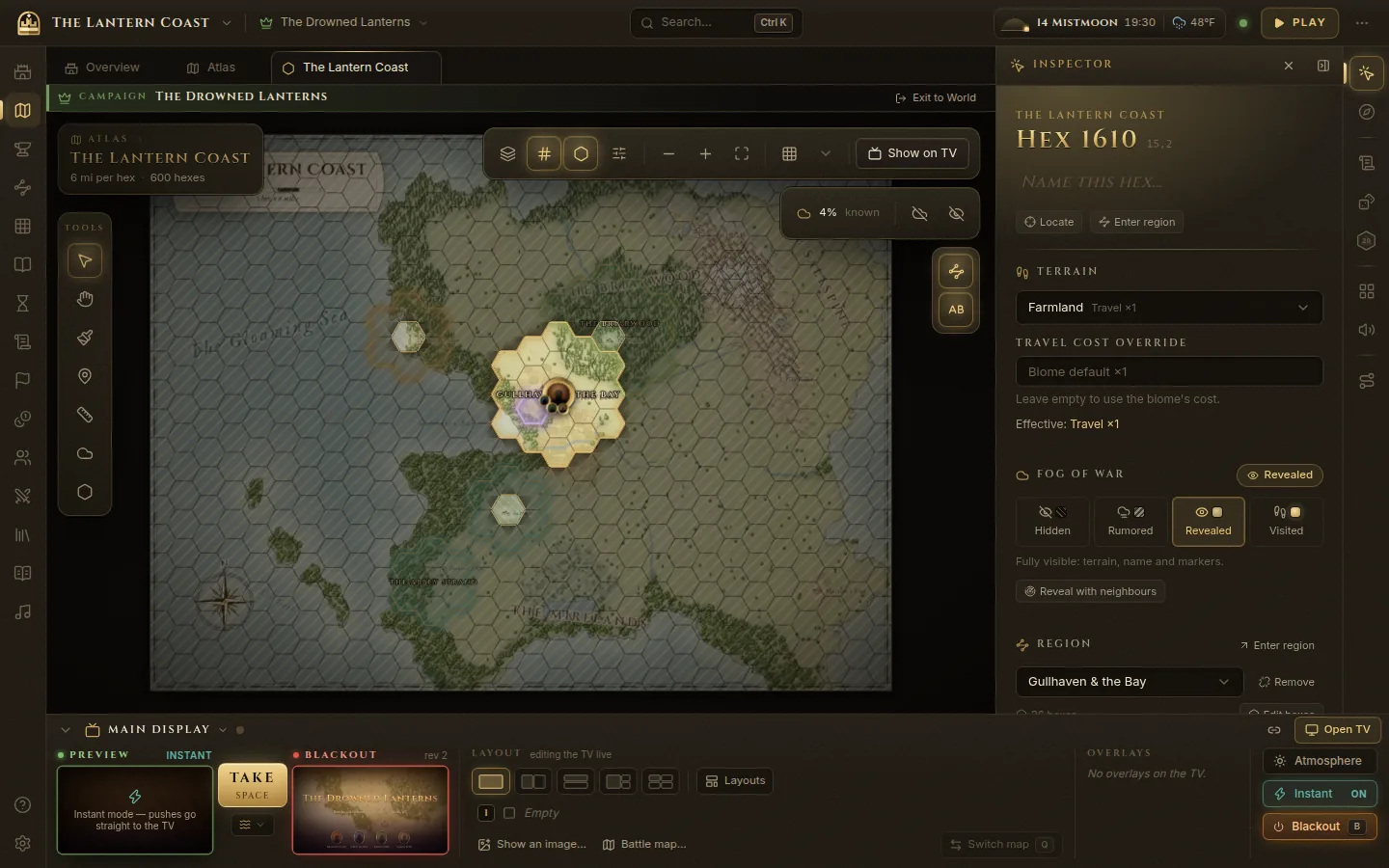
The top bar
From left to right:
- World menu — the world’s name. Open it and choose All worlds to go back to your list of worlds.
- Campaign menu — the campaign you’re playing, or World mode when you’re building the world without a campaign. See Worlds and campaigns.
- Search — opens the command palette (Ctrl+K, below).
- Campaign clock — the date, time and weather of your campaign. Click it to move time on. See Calendar, time and weather.
- Connection dot — green while the desk is connected to Fablekeep’s server. If it isn’t, the desk keeps retrying on its own.
- Play / Prep — switches between preparing and running a session. Play starts a session; see Sessions, notes and recaps.
- More (the three dots) — show or fold the side panel, Keyboard shortcuts, Settings and All worlds.
The rail
The column of icons on the left opens each part of your world. Hover an icon to see its name.
| Icon | What it opens |
|---|---|
| Overview | The campaign at a glance: next session, quests, where the party is, what’s coming up. |
| Atlas | Your world maps with their hex grid. See The atlas. |
| Map Forge | Draw a new world map. See The Map Forge. |
| Regions | Regions, places and the paths between them. See Regions, places and paths. |
| Battle maps | Tactical maps for fights and scenes. |
| Knowledge | Your wiki: NPCs, factions, items, lore. See The wiki. |
| Timeline | History, the campaign’s events and what’s scheduled. |
| Sessions | Session plans, logs and recaps. |
| Quests and Treasury | The quest board and the party’s shared loot. |
| Party | The player characters. |
| Encounters | Prepared fights and the initiative tracker. |
| Compendium | Monsters, spells and items (SRD 5.2 plus your homebrew). |
| Handouts | Letters, maps, title cards. See Handouts and title cards. |
| Audio | Music, ambience and sound effects. See Music, ambience and sound effects. |
At the bottom of the rail are Help & shortcuts and Settings.
Tabs
Everything you open appears as a tab, like in a web browser, so you can keep a map, an NPC and a quest open side by side.
- Click a tab to switch to it. Drag tabs to reorder them.
- Middle-click a link to open it in a new tab. Middle-click a tab to close it.
- Ctrl+W closes the current tab.
- Right-click a tab for Close tab and Close others.
- When there are many tabs, the All open tabs button lists them all.
The inspector
Click a hex, a place, a character, an NPC or a combatant and its details appear in the Inspector on the right, ready to edit without leaving what you’re doing. When nothing is selected it says Nothing selected.
To give the map more room, fold the side column with the button at its top right, or with More → Collapse side panel.
Quick tools
The narrow column at the far right holds tools you need at any moment. Click one to open it in the side column; click it again to fold the column away.
- Inspector — the details of whatever you selected.
- Session copilot — your session plan and the current step (Ctrl+J). See Session plans and the copilot.
- Log — rolls, chat and what happened (Ctrl+Shift+L).
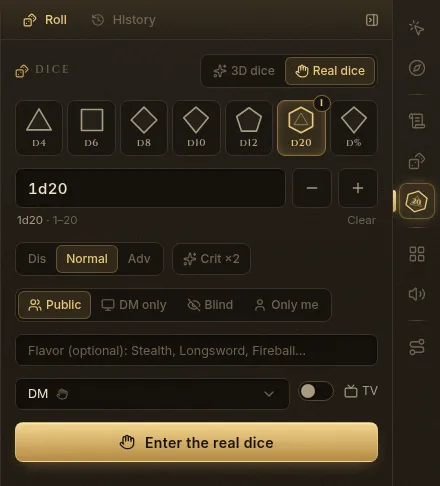
- Request a roll — ask players for a check or a save.
- Dice tray — roll dice yourself (Alt+D). See Dice, rolls and the log.
- Soundpad — your sound effects, ready to fire.
- Audio & atmosphere — music and ambience controls.
- Plan a journey — the travel planner. See Travel and journeys.
Some tools only appear when they’re useful: Players when players can join, and At the table while a session is running.
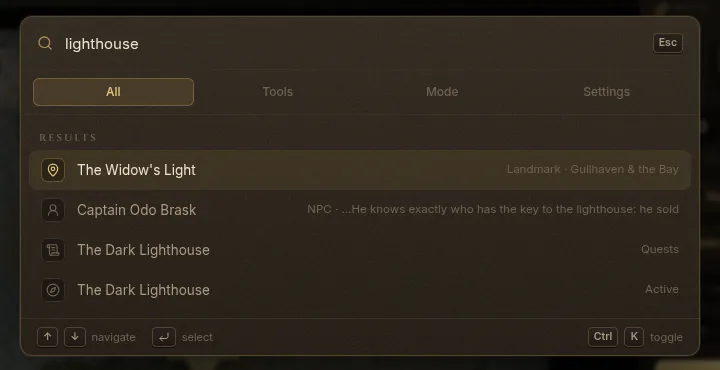
Find anything with Ctrl+K
Press Ctrl+K (or click Search… in the top bar) to open the command palette. Type part of a name to find any place, NPC, quest, hex or monster, or the name of a command: “reveal”, “advance 8 hours”, “show party on TV”…
- Type what you’re looking for.
- Move through the results with the arrow keys.
- Press Enter to open it or run it.
The tabs at the top (All, Tools, Mode, Settings) narrow the results.
Help, shortcuts and the tour
- Press ? anywhere (or click Help & shortcuts on the rail) to see every keyboard shortcut, with a search box. Shortcuts never fire while you’re typing.
- The guided tour starts the first time you open a world. To see it again, choose Take the guided tour in the shortcut sheet, or go to Settings → Help & tour.
- Settings opens with Ctrl+,.