Open Settings with Ctrl+,, the gear at the bottom of the left rail, or the … menu at the top right. Settings opens as a tab, with its sections listed on the left. Changes are saved as you make them.
Some settings belong to the open campaign (Campaign, Safety tools), some to the computer you’re on (Battery saver), and the rest to your Fablekeep.
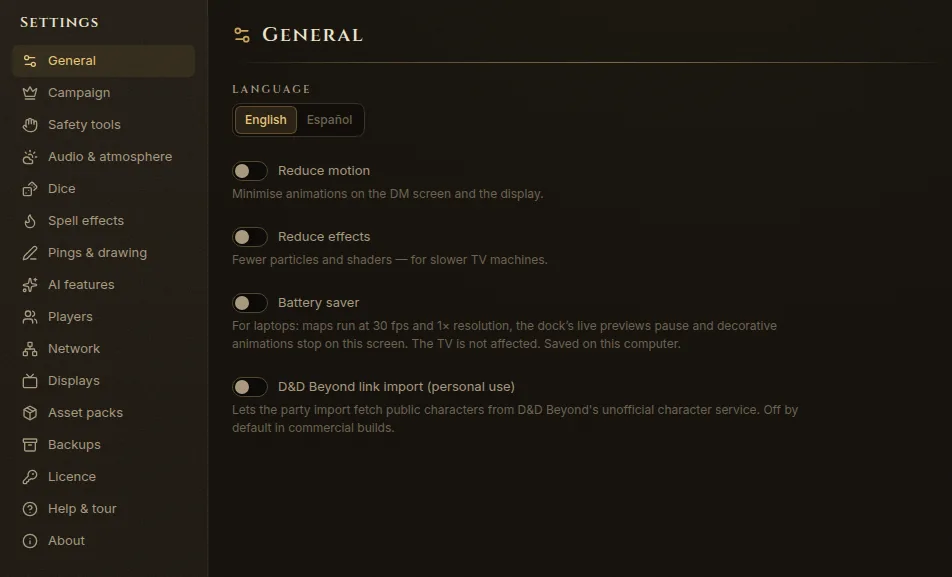
General
- Language — English or Español, for the whole app.
- Reduce motion — fewer animations on your screen and on the TV.
- Reduce effects — fewer particles and shaders, for slower TV machines.
- Battery saver — for laptops: maps run at 30 fps, the dock’s live previews pause and decorative animations stop on this screen. The TV is not affected. Saved on this computer.
Campaign
Rules and defaults for the open campaign. Changes are saved automatically.
- Overland travel — Default pace, Miles per day at each pace and Travel hours per day (beyond them the party is on a forced march).
- Exploration — the Sight radius revealed around the party when it arrives, Reveal on arrival, and the Default fog style for battle maps.
- Rules options — Diagonal movement (5 ft, the 2024 default, or 5 / 10 ft) and Area of effect coverage (half, any or center of a square).
- Clock — Clock format (18:30 or 6:30 pm), the Time-skip card on the TV for big jumps, and Log time jumps.
- Weather — Generate daily weather, the Default climate and Temperature units.
- Random encounter checks — Frequency (per day or per watch) and the Check die.
- Biome encounter tables — which table each biome rolls on during journeys. Copy a built-in table to make your own.
See Calendar, time and weather and Travel and journeys.
Safety tools
The X-card (Show on TV puts a calm “Let’s pause this scene” on the TV), your table’s Lines and Veils, and a Campaign bible for tone and house rules. See Sessions, notes and recaps.
Audio & atmosphere
Whether the TV’s sound follows the game by itself: Follow world weather & time, Thunder with lightning, and Auto, Suggest or Off for music when the party is Arriving somewhere, for Combat, and for Session plan steps. See Music, ambience and sound effects.
Dice
- Your dice — the 3D dice set you use on this screen and on the TV, Throw a test set, and Dice sounds.
- At the table — whether Your rolls and Players at the table default to Real dice (you type the result) or 3D dice, and whether Players may roll blind.
- On the TV — the Dice cinematic, Which rolls show on the TV, Real dice cards and how long the result card stays.
- This screen — turn off 3D dice on slow computers, and the Sound volume.
Spell effects
Animated spells and attacks on battle maps: Spell effects, On the TV, For players, Weapon effects, Damage numbers (DM) (only on your screen), and what happens to Templates of instant area spells (Auto, Remove or Keep).
Pings & drawing
Players may draw (Off, Temporary or All), how long temporary drawings last, and the Ping sound. Alt+click pings a spot for everyone; hold X for the laser pointer.
AI features
One switch, AI features, off by default. While it’s off, every AI button is hidden and AI requests are refused. Turning it on adds the AI text and Claude (MCP) sections. See AI features: what they are.
Players
How this campaign is played (At the table, Online or Hybrid), the World map for players, Player edits (Ask the DM, Free editing or Off) and weight tracking, the join links, invites and the players who joined. See The phone companion and Online and hybrid play.
Network
Allow players to join and the addresses players open, Test connection, Pair a screen…, Remote DM access, Internet mode, the Firewall and Ways to play online. See Online and hybrid play and Troubleshooting.
Displays
Your displays (each one a separate stage with its own Preview and Program), Add display, the screen the TV window opens on, and Paired screens (you can revoke them). See Set up the TV.
AI text
Shown when AI features are on. The provider, endpoint, model and API key for the small AI text helpers. See AI text helpers.
Claude (MCP)
Shown when AI features are on. Connect Claude Desktop or Claude Code to your world, and choose what Claude may do. See Connect Claude (MCP).
Asset packs
Every pack imported into your library: Import packs…, Export packs… (as one .fkassets file), Licence allows redistribution for each pack, and Send to server…. See Importing maps and asset packs.
Backups
Backups to keep per world, Keep deleted worlds (days), the Disk usage, and every world’s backups. See Backups, export and sharing.
Licence
Your licence, the computers it’s active on (Activations), offline use, updates and the update channel. See Install and activate.
Help & tour
Take the guided tour (a one-minute walk through the desk, the Display Dock and Play mode), Keyboard shortcuts, and Copy diagnostics for bug reports. See Getting help.
About
Your Fablekeep version and edition, the SRD 5.2 attribution, trademarks, and Credits & licenses for the fonts, icons and software Fablekeep uses. In the desktop app it also shows the Data folder and Logs, with Open data folder and Open logs.