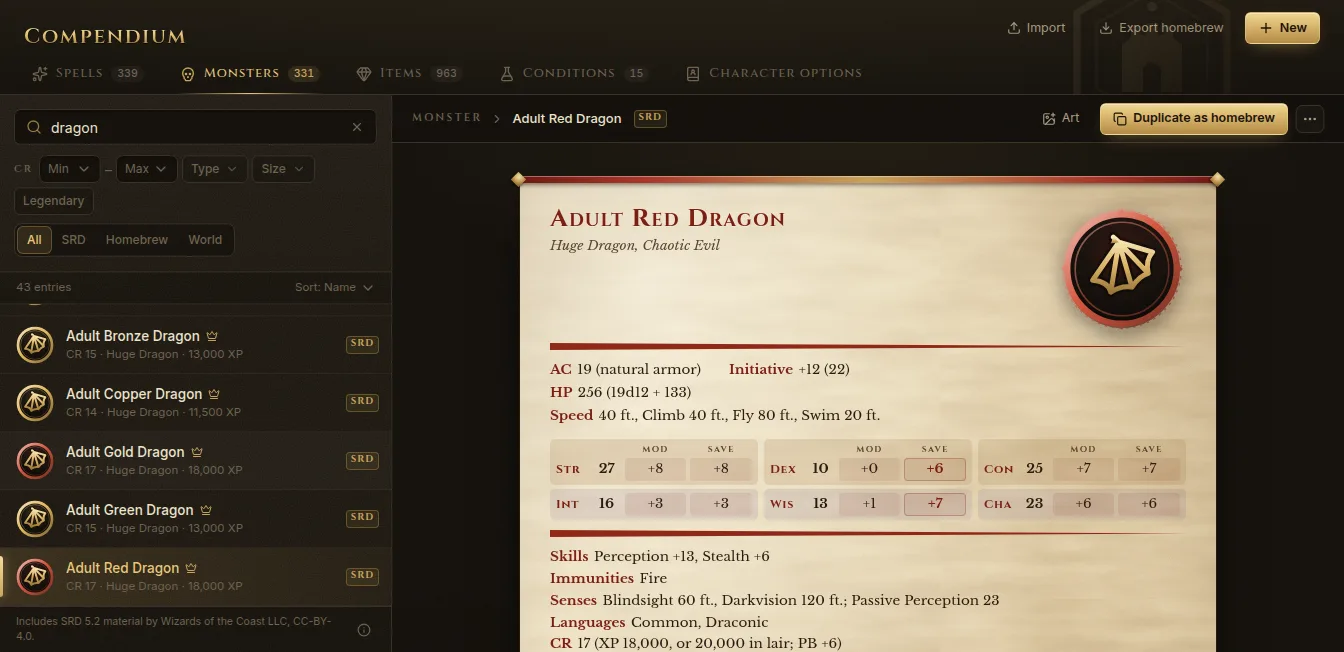
Compendium on the left rail is your rules library: every spell, monster, item and condition from the SRD 5.2 (the free 2024 rules content), ready to search, plus anything you add yourself. It works offline.
What’s included
- Spells, Monsters, Items (including magic items) and Conditions from the SRD 5.2, plus Character options (classes, species, backgrounds, feats) used by the character creator.
- Spell texts in English and Spanish; the app shows the language you chose in Settings.
- Only SRD 5.2 content is bundled. Anything else you add is your own homebrew.
The attribution to Wizards of the Coast (CC-BY-4.0) is at the bottom of the list and in Settings → About.
Search and filter
- Pick a tab: Spells, Monsters, Items, Conditions or Character options.
- Type in the search box. Results update as you type.
- Narrow it down with the filters: school and class for spells; challenge rating (Min, Max), Type, Size and Legendary for monsters; category for items.
- Choose All, SRD, Homebrew or World to see only one source.
Click an entry to open it. Monsters show as a full stat block; spells as a spell card with casting time, range, components and duration. From a spell with an area, Place template puts the template on the open battle map (see Battle maps).
Your own homebrew
Start from an existing entry
SRD entries are read-only. To change one, open it and click Duplicate as homebrew: you get your own copy to edit. Under More actions (…) you can also Copy to library homebrew or Copy to this world only.
Create a new entry
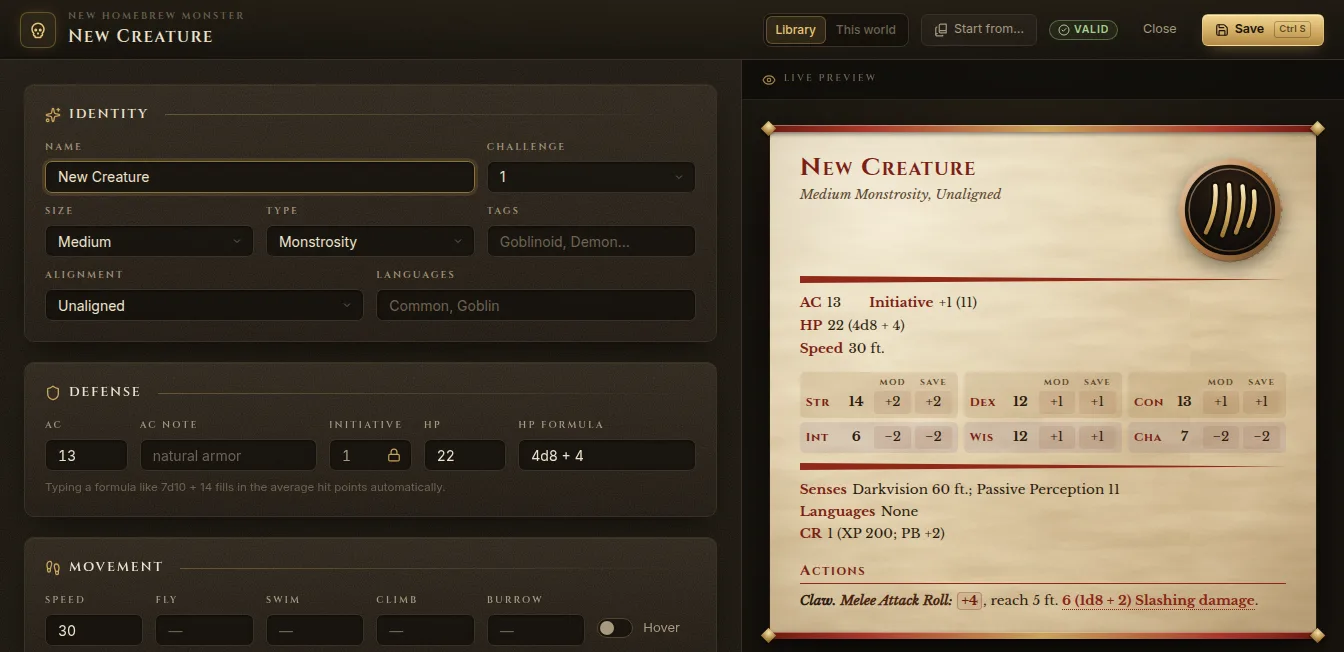
- Click New and choose New monster, New spell or New item.
- Choose where it lives: Library (shared across all your worlds) or This world (only in this one).
- Optional: Start from… any SRD or homebrew entry to copy it as your starting point.
- Fill in the form. The Live preview on the right updates as you write, and the badge says Valid or how many issues to fix.
- Click Save (Ctrl+S).
You can add your own art to any entry with Art (a portrait and a round token), shown in the compendium, in encounters and on the TV once revealed.
Import JSON
Into your library
Import → Import compendium JSON… takes Fablekeep exports and Open5e JSON. You see a preview of every entry marked New, Update, Unchanged or Invalid, choose what to do When an entry already exists (Skip it, Overwrite, Keep both), and confirm. Nothing is saved until you do.
Into this world (5etools homebrew and datasets)
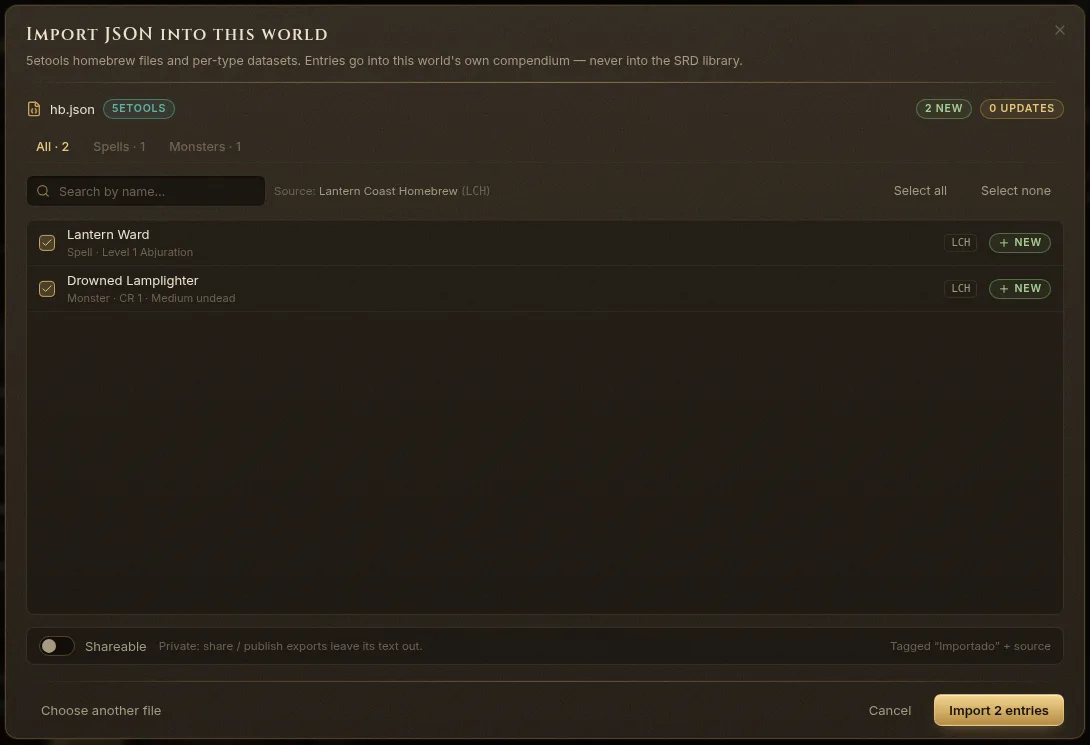
Import → Import JSON (5etools / datasets)… brings 5etools homebrew files (spells, monsters, items, species, classes, subclasses, backgrounds, feats…) and per-type datasets into this world’s own compendium — never into the SRD library.
- Drop the
.jsonfile, or click to choose it. - Check the list; untick what you don’t want.
- Click Import 2 entries (the number matches your selection).
Imported entries are tagged with their source; importing the same file again updates them. Recent imports lets you Undo this import.
Export
Export homebrew saves your homebrew to a JSON file, and Export as JSON (under … on an entry) saves one entry.
Art packs
Import → Import art pack… matches a folder of images you own to monsters, spells and items. See Importing maps and asset packs.