The Battlemap Forge builds battle maps from scratch: you paint the ground, raise hills and cliffs, run a river through it, lay paths, put up rooms and walls, place objects and lights. Then you publish it as a battle map, with its grid, walls, doors and lights ready for fog and vision.
Every map stays editable. Change it and publish again as often as you like: the fog, pins and templates on the scene are kept.
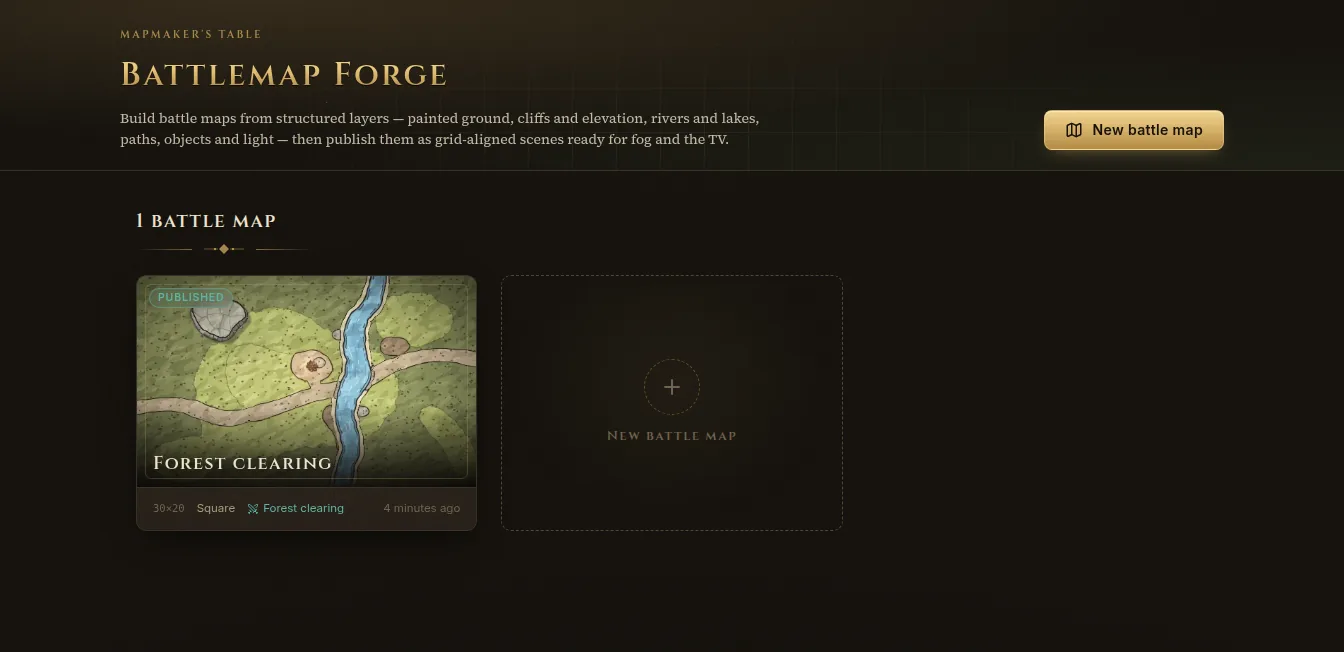
Start a new map
- In Battle maps, click Build a map. The Battlemap Forge lists the maps you’ve made, each marked Draft, Published or Changed since publish.
- Click New battle map.
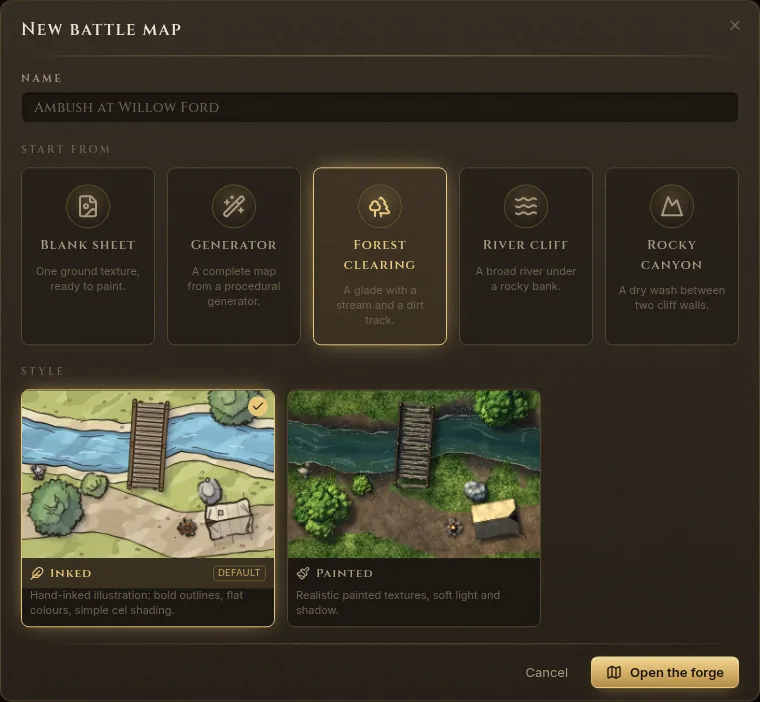
- Give it a Name and choose where to Start from:
- Blank sheet — one ground texture, ready to paint (you choose the size, grid and starting ground).
- Generator — a complete map from a procedural generator.
- Forest clearing, River cliff or Rocky canyon — a sample map to build on.
- Pick a Style: Inked (hand-inked illustration: rough ink outlines, watercolour shading) or Painted (realistic textures, soft light and shadow).
- Click Open the forge.
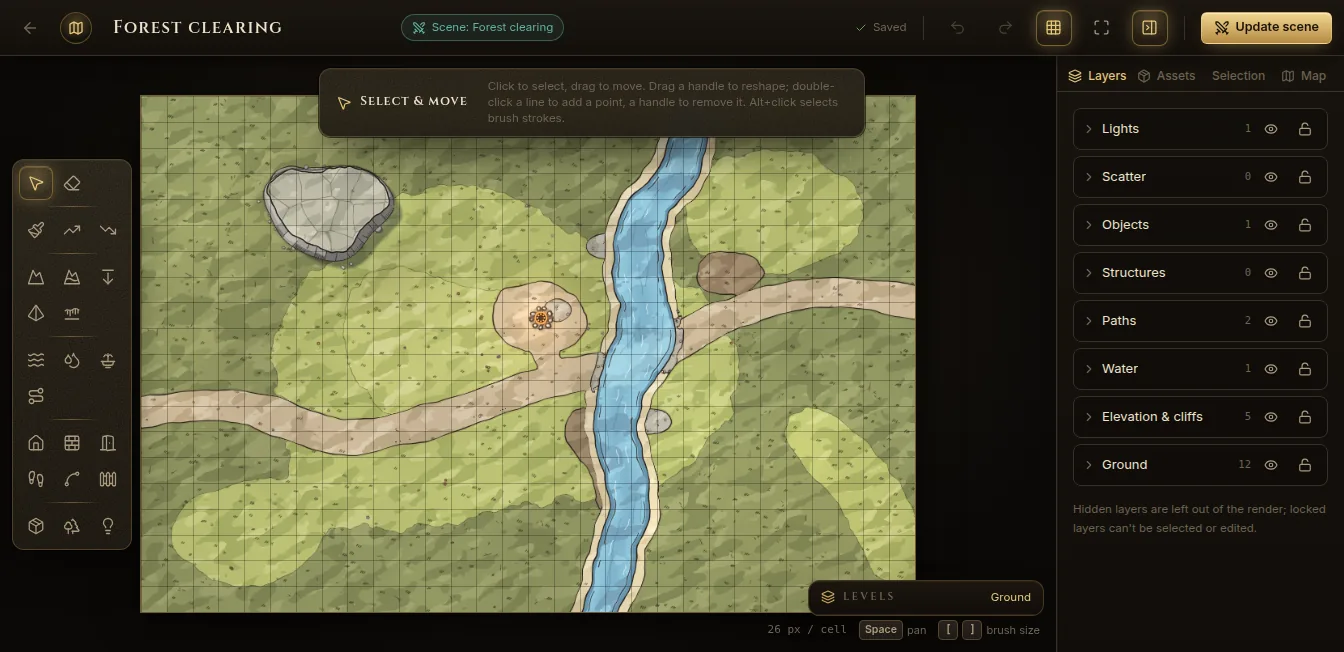
The editor
The tools are on the left, the map in the middle and the side panel on the right.
Tools
| Group | Tools |
|---|---|
| Select | Select & move, Eraser |
| Ground and relief | Texture paint, Raise ground, Lower ground, Cliff, Plateau / pit, Drop-off, Rock mass, Edge line |
| Water | River, Lake / pond, Pool / fountain |
| Paths | Path (dirt, gravel, cobbles, flagstones and more), Bridge |
| Buildings | Room, Wall, Door / window, Stairs, Fence |
| Life | Object, Scatter (trees, rocks, plants over an area), Light |
Hover a tool to see what it does; the hint bar above the map explains the current one. Brush tools take [ and ] for the size, Space+drag pans, Ctrl+Z undoes and Ctrl+Y redoes. Changes save by themselves (Saved at the top).
Layers, selection and assets
The side panel has four tabs:
- Layers — Ground, Elevation & cliffs, Water, Paths, Structures, Objects, Scatter and Lights. Hide a layer to leave it out of the render, or lock it so it can’t be selected.
- Assets — the objects you can place: built-in art and the packs you imported (see Importing maps and asset packs). Search them, mark favourites, and click or drag one onto the map. The Prefabs tab holds ready-made groups (a lamp post with its light, a market stall) and the ones you saved yourself.
- Selection — the properties of what you selected: size, rotation, style, and Duplicate, Up, Down and Delete.
- Map — the map’s own settings, such as its size, grid and style.
Levels
Buildings can have several floors. In Levels at the bottom of the map, Add a floor above or Add a cellar below, and use Stairs to link them. The published scene keeps the levels, and you choose which one is on the TV.
Publish it
- Click Publish to scene at the top right.
- Set the Scene name and the Location where it appears in Battle maps.
- Click Publish. Fablekeep paints the map at full resolution and saves it as a battle map with a matching grid, walls, doors and lights.
- When it says Scene ready, click Open scene.
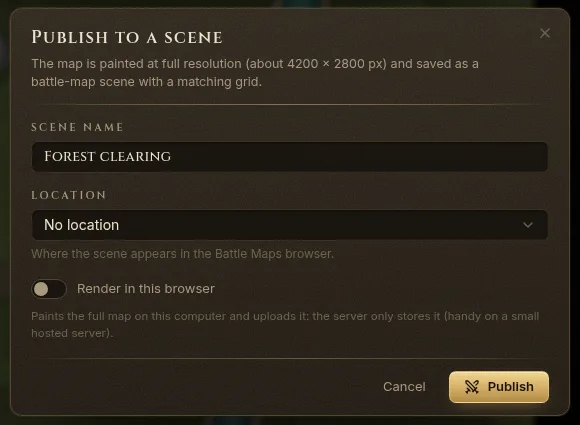
After a change, the button reads Update scene: it replaces the scene’s image and grid and keeps its fog, note pins, templates and snapshots. Turn on Publish as a new scene instead to keep the old one.