The atlas holds your world maps: a continent, a kingdom, a city. Each one gets a numbered hex grid, so “the party heads for hex 1610” means something, and every hex can carry a terrain, a name, notes and links.
Add a map
Open Atlas on the rail. You have two ways to get a map:
- Import map — use an image you already have (PNG, JPG or WebP, up to about 20,000 pixels per side).
- Forge a map — draw one in the Map Forge.
To import:
- Click Import map and drop your image in the window (or click to choose it).
- Give it a Map name.
- If it’s a detail of another map — a city inside a kingdom — choose that map under Nested under. Fablekeep then shows breadcrumbs like World › Continent › City.
- Click Import map.
The map opens right away. Large images are cut into tiles in the background (“Preparing deep zoom…”) so they stay sharp at any zoom.
Calibrate the grid
Next, line the hex grid up with your map. Click Grid & numbering in the map’s toolbar.
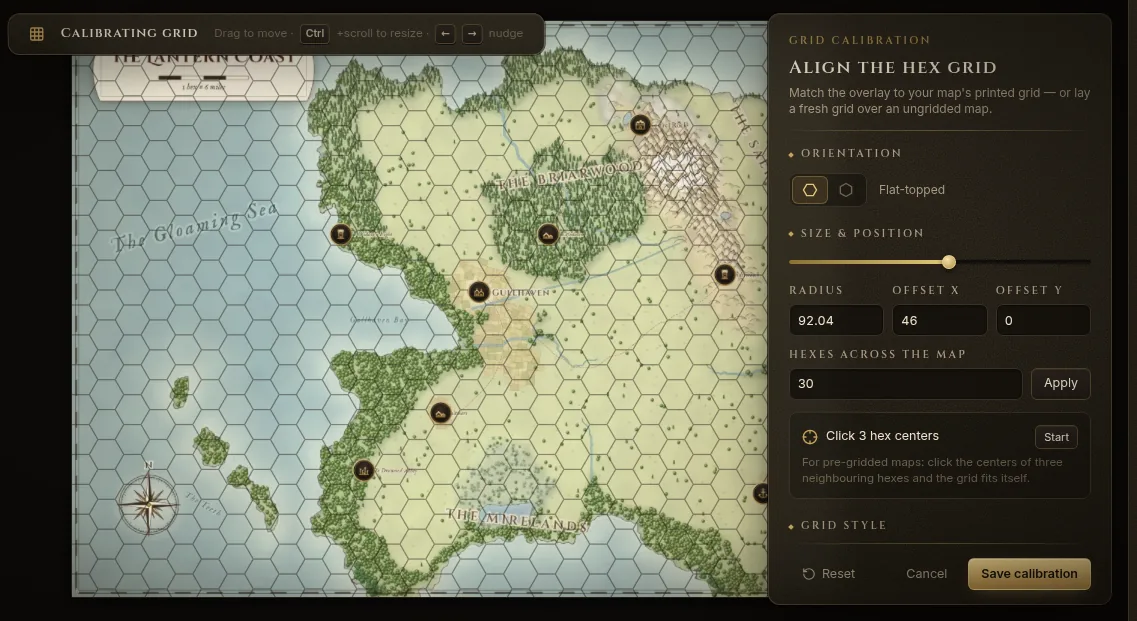
- Choose the Orientation: Flat-topped or Pointy-topped.
- Set the size: drag the grid on the map to move it, scroll with Ctrl to resize it, or type the Radius, Offset X and Offset Y. Hexes across the map sets the size by count instead; click Apply.
- If your map already has a printed grid, use Click 3 hex centers: click Start, then click the centers of three neighbouring hexes and the grid fits itself.
- Under Grid style, adjust opacity and line width.
- Set the Distance per hex (for example 6 miles) — it’s used for every distance and travel time.
- Choose the Numbering:
1, 2, 3,CCRR(column and row, like “1610”) or None, and whether to Show numbers on my screen and Show numbers on the TV. - Click Save calibration.
The toolbar then shows the scale, such as “6 mi per hex · 600 hexes”. A map that still needs it is marked Needs calibration in the Atlas.
Tools
The Tools column on the left of the map:
| Tool | Key | What it does |
|---|---|---|
| Select | V | Click a hex to select it; Ctrl+click adds more; Shift+drag lassoes several. |
| Pan | H | Drag the map (or hold Space and drag with any tool). |
| Biome brush | B | Paint terrain on hexes. [ and ] change the brush size; Alt+drag erases. |
| Marker | K | Choose an icon (city, ruin, cave, tavern…), then click a hex to drop it. |
| Measure | M | Distance and travel time between two points. |
| Fog of war | F | Reveal or hide hexes for the players. See Fog of war. |
| Region brush | Paint hexes into a region. See Regions, places and paths. |
With several hexes selected, you can Set biome, Assign region or Clear selection in one go.
The hex menu
Click a hex with Select and a ring of buttons opens around it: Details, Enter region, Reveal / hide, Move party here, Measure from here and Add marker.
Terrain and travel cost
Each biome has a travel cost that the measure tool and the travel planner use. Normal ground costs ×1; forest, swamp and badlands ×2; mountains and volcanic land ×3; ocean and lakes are Impassable on foot.
| Biome | Travel |
|---|---|
| Grassland, Farmland, Coast, Urban, Magical | ×1 |
| Hills, Desert, Tundra, River, Wasteland | ×1.5 |
| Forest, Swamp, Badlands, Arctic, Underdark | ×2 |
| Jungle | ×2.5 |
| Mountains, Volcanic | ×3 |
| Ocean, Lake | Impassable on foot |
A single hex can have its own cost: set Travel cost override in its inspector.
The hex inspector
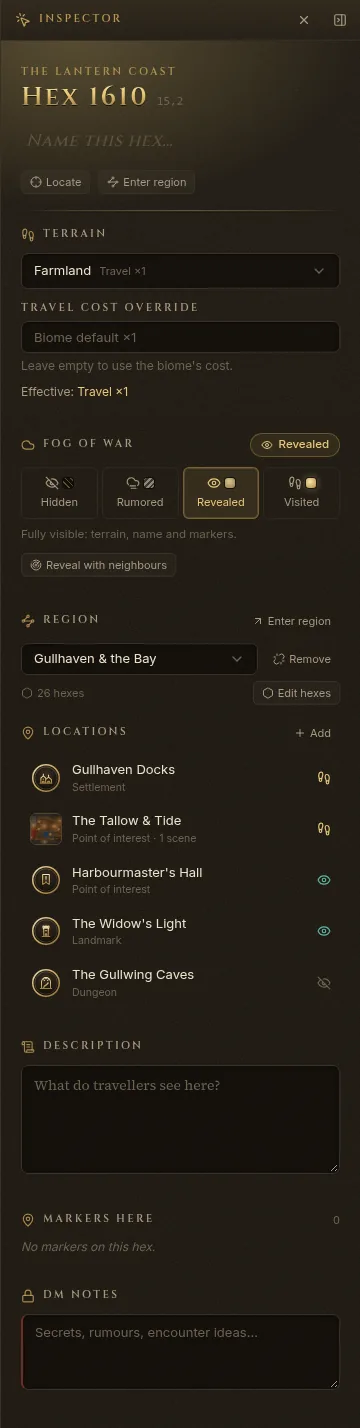
Choose Details in the hex menu (or select a hex) and the inspector shows it:
- a name (“Name this hex…”) and Locate;
- Terrain, and the Travel cost override;
- its fog of war state;
- its region, with Enter region;
- Description — what travellers see here;
- Markers here;
- DM notes — secrets, rumours, encounter ideas (never shown to players).
A marker’s own inspector lets you change its icon, its style on the map, and Link it to another atlas map, a location, a wiki entry, a battle map or a region.
Measure distance and travel time
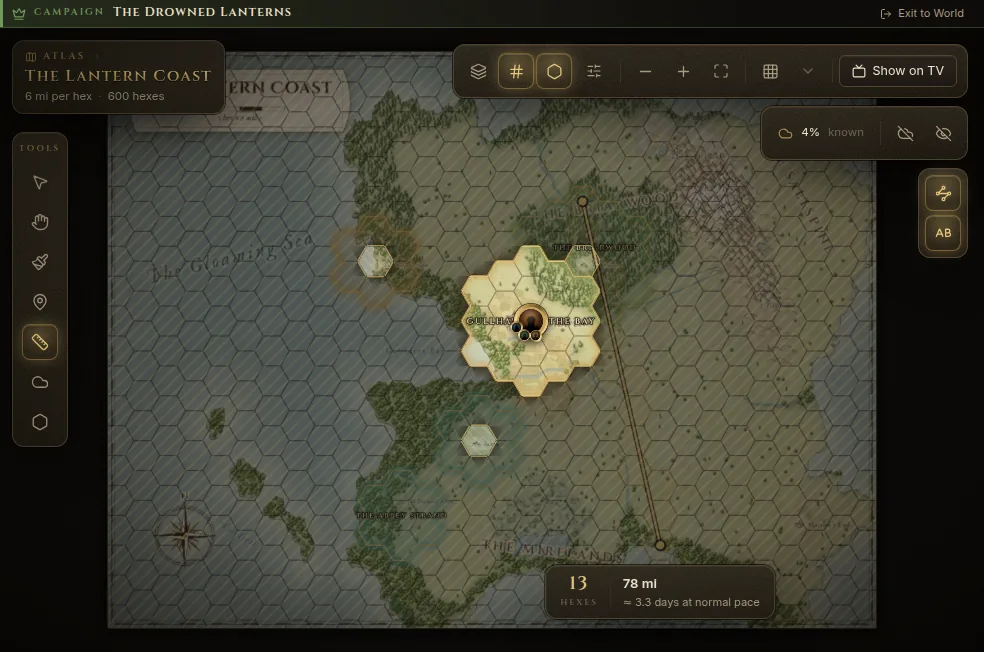
- Pick Measure (or press M).
- Click where you start, then where you’re going.
Fablekeep shows the hexes crossed, the distance and an estimate such as “≈ 3.3 days at normal pace”, using the distance per hex and the terrain on the way.
To plan a real trip with stops, rests and encounters, use the travel planner.
How the map looks
The toolbar above the map:
- Biome tint (T) — colour each hex by its terrain.
- Hex numbers (L) and Hex grid — show or hide the numbers and the grid lines. A grid painted into the image itself can’t be hidden.
- Map display — grid opacity, marker size, and when marker names show (Always, On zoom, Hover). Marker style sets how markers look on this map: Icon, Small icon, Dot, Name only or Hidden (DM only). If the illustration already shows the towns, Name only or Dot keeps it clean.
- Zoom out, Zoom in, Fit map (0).
- Region tints and Region names (Shift+L), on the right.
The fog box shows how much of the map the party knows. Preview as players (P) shows the map exactly as the players see it; Building view: hide the fog (O) hides the fog while you work.
Show the atlas on the TV
Click Show on TV. The players see the map with only what they’ve discovered: revealed hexes, known places and region names, and the party where it is. Hidden markers and your notes never reach the TV.
To frame what the TV shows, use TV View in the dock (see The Display Dock).