Fablekeep comes with its own built-in art for the Battlemap Forge. You can add the art you own or bought: packs of objects and tiles for the Battlemap Forge, art for monsters and spells in the compendium, and finished maps from other tools.
Import an asset pack
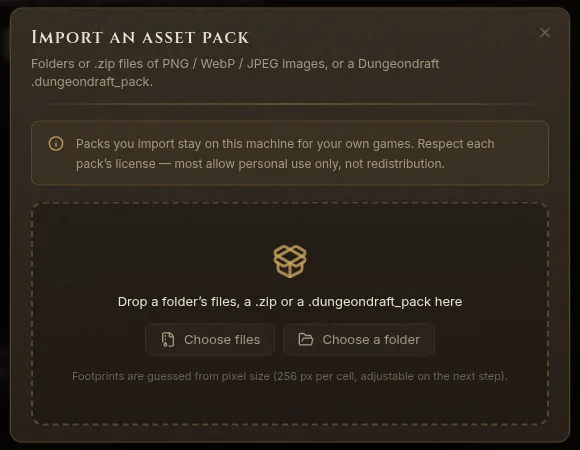
An asset pack is a folder or a .zip of PNG, WebP or JPEG images (barrels, tables, trees, rugs…), or a Dungeondraft .dungeondraft_pack.
- Open Settings → Asset packs and click Import packs…. (Or use the Asset packs section at the bottom of the Assets tab in the Battlemap Forge.)
- Drop the files on the dialog, or click Choose files or Choose a folder.
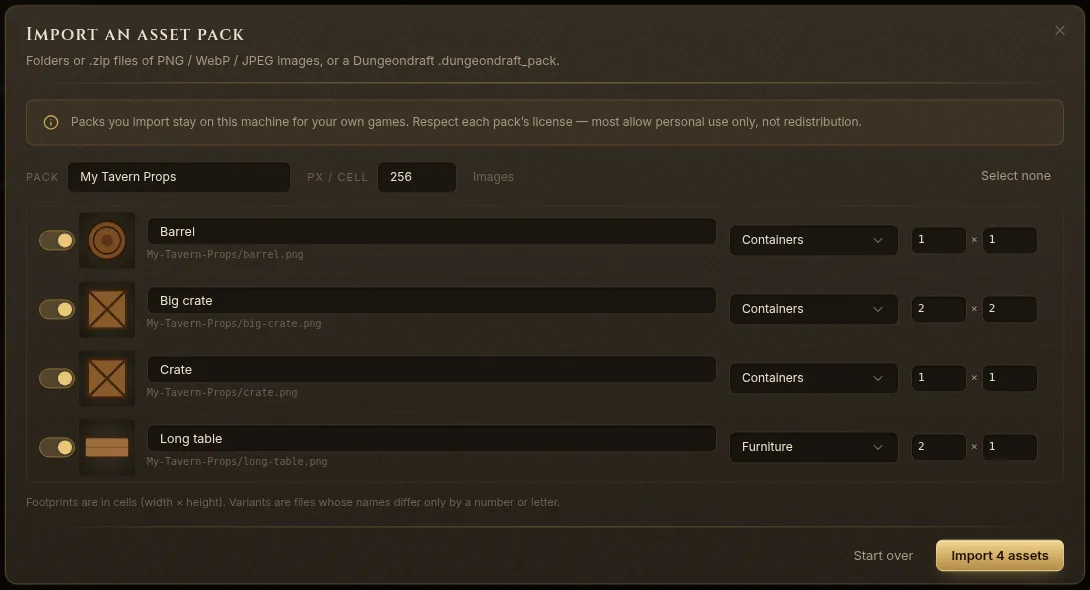
- Review what Fablekeep found:
- The Pack name, and its px / cell: how many pixels of the art make one grid cell (256 by default). Footprints are worked out from it.
- Each asset’s name, category and footprint in cells (width × height). Fix any that look wrong.
- Untick anything you don’t want. Files whose names differ only by a number or letter become variants of one asset.
- Click Import 4 assets (the number matches what you ticked).
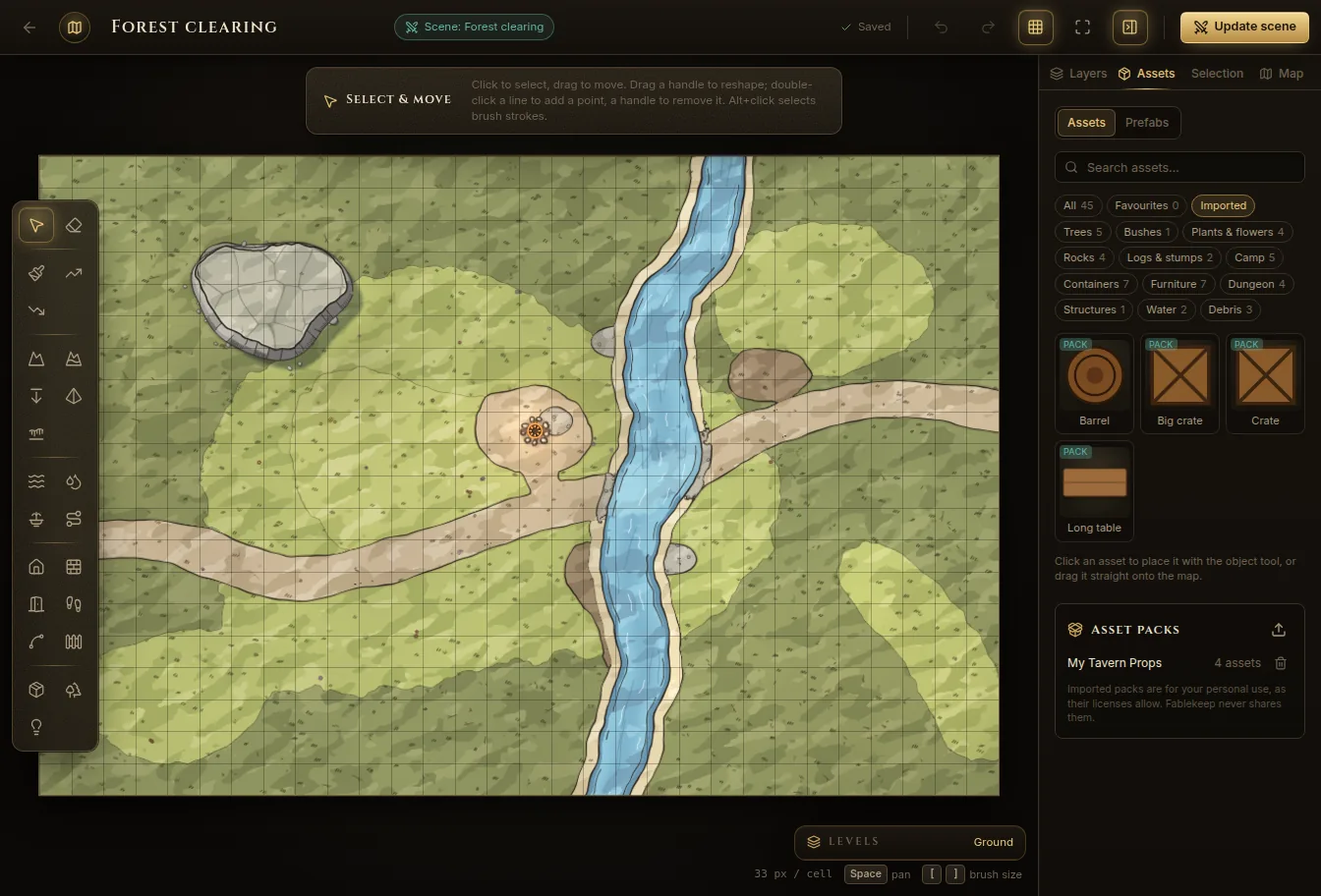
The pack’s assets appear in the Battlemap Forge under Assets → Imported, next to the built-in ones. Click one to place it with the object tool, or drag it onto the map.
Manage your packs
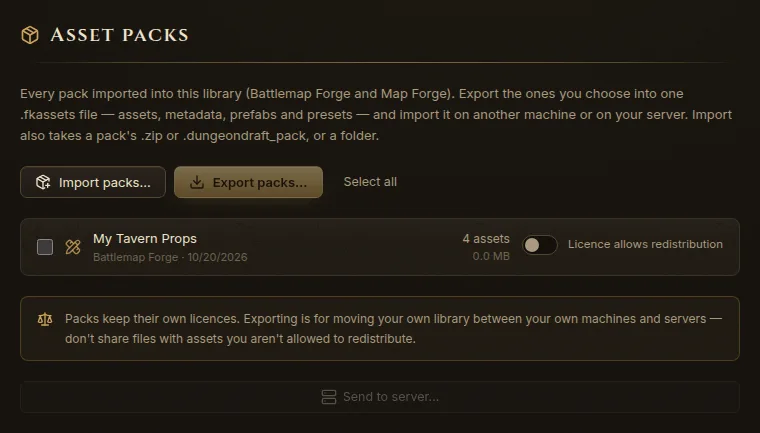
Settings → Asset packs lists every pack in your library (Battlemap Forge and Map Forge packs) with its number of assets.
- Export packs… saves the packs you tick into one
.fkassetsfile — assets, metadata, prefabs and presets — to move your library to another computer or your own server. Import packs… on the other computer takes it back in. - Send to server… uploads packs straight to another Fablekeep you run.
- To remove a pack, use Remove pack in the Battlemap Forge’s Asset packs list. Maps that use its assets show markers instead.
Import a Universal VTT map
Maps exported from Dungeondraft, DungeonFog and other tools as Universal VTT (.dd2vtt) bring their walls, doors and lights with them.
- In Battle maps, click Import Universal VTT and pick the file.
- Fablekeep creates a battle map with the image, a matching grid, and the walls, doors and lights from the file, with vision turned on.
To add the walls and lights of a .dd2vtt to a battle map you already have, open the map, pick Walls & doors, and use Import .dd2vtt at the bottom of the panel.
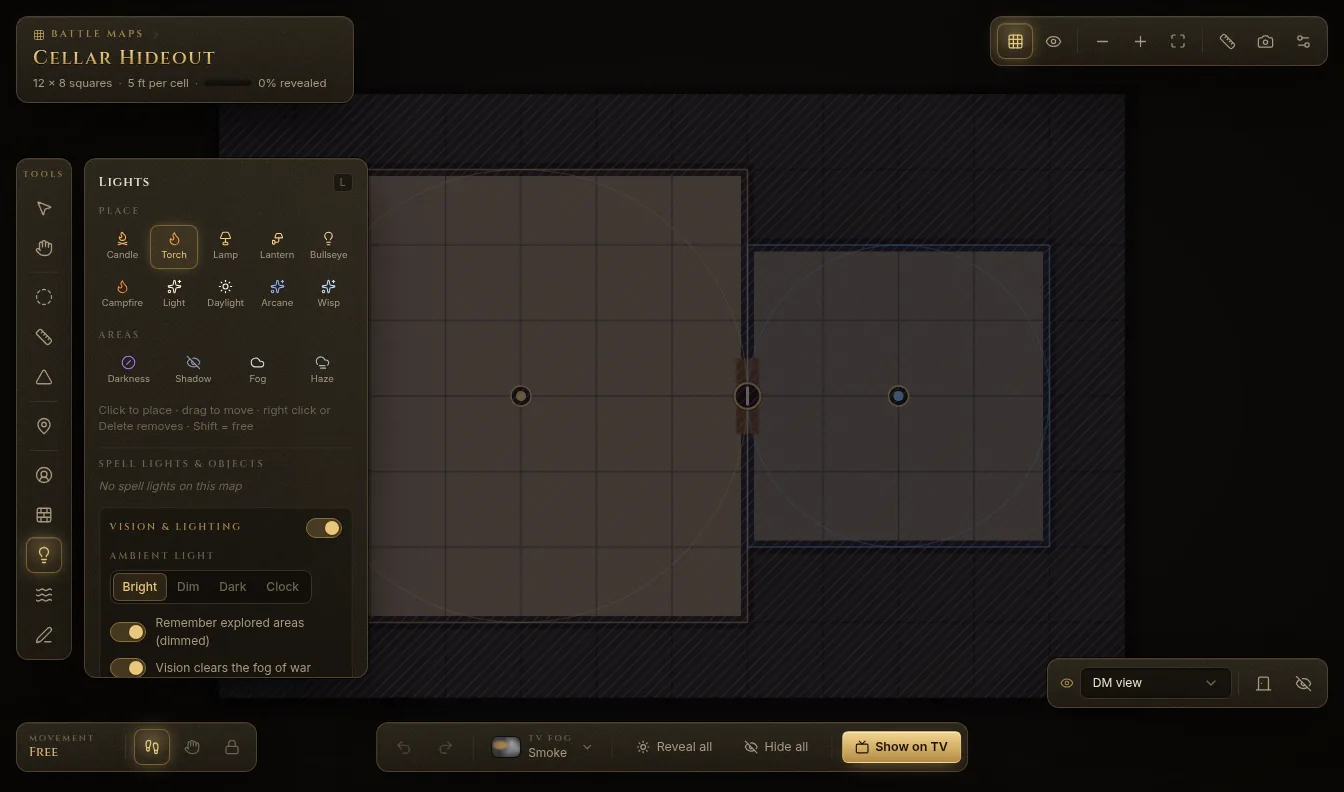
See Walls, doors, lights and vision for what you can do with them.
Art for monsters, spells and items
In the Compendium, Import → Import art pack… takes a folder or .zip of images and matches the file names to monsters, spells and items. Check the matches, reassign or skip, and apply: the pack name becomes the art credit. You can also set your own picture on any entry with Art. See The compendium.
Licences and sharing
- Imported packs stay on your computer, for your own games. Respect each pack’s licence: most allow personal use only, not redistribution.
- A Personal world export (for your own computers and servers) includes everything, packs too.
- A Share / publish as a module export leaves out every pack whose licence isn’t marked as allowing redistribution, and compendium art from art packs.
- If a pack’s licence does allow you to share it, turn on Licence allows redistribution for it in Settings → Asset packs. It’s off by default for every pack.