The TV is the players’ window into your world. Fablekeep shows it in one of two ways:
- A TV plugged into your laptop — the simplest: an HDMI cable and Open TV.
- A screen on your network — a smart TV’s browser, a tablet or another computer, paired with a six-digit code. No cable needed.
Either way, the TV only ever shows what you send it. Secrets, hidden places and DM-only notes never reach it.
A TV plugged into your laptop
- Connect the TV to your laptop with an HDMI cable (or a USB-C adapter).
- Press Win+P and choose Extend, so the TV is a second screen and not a copy of yours.
- In Fablekeep, click Open TV at the top right of the Display Dock (or press Ctrl+Shift+D).
Fablekeep opens the players’ view full screen on the TV. If only one screen is connected, it opens in a normal window on your screen instead, which is handy for testing.
The same button then reads Close TV, and Ctrl+Shift+D closes it again.
Choose the screen
With more than one extra screen, or if the TV opened on the wrong one:
- Hold Shift and click Open TV.
- In Open the TV on…, pick the screen the players can see.
Fablekeep remembers your choice on this computer. You can also change it in Settings → Displays → TV screen.
The idle screen
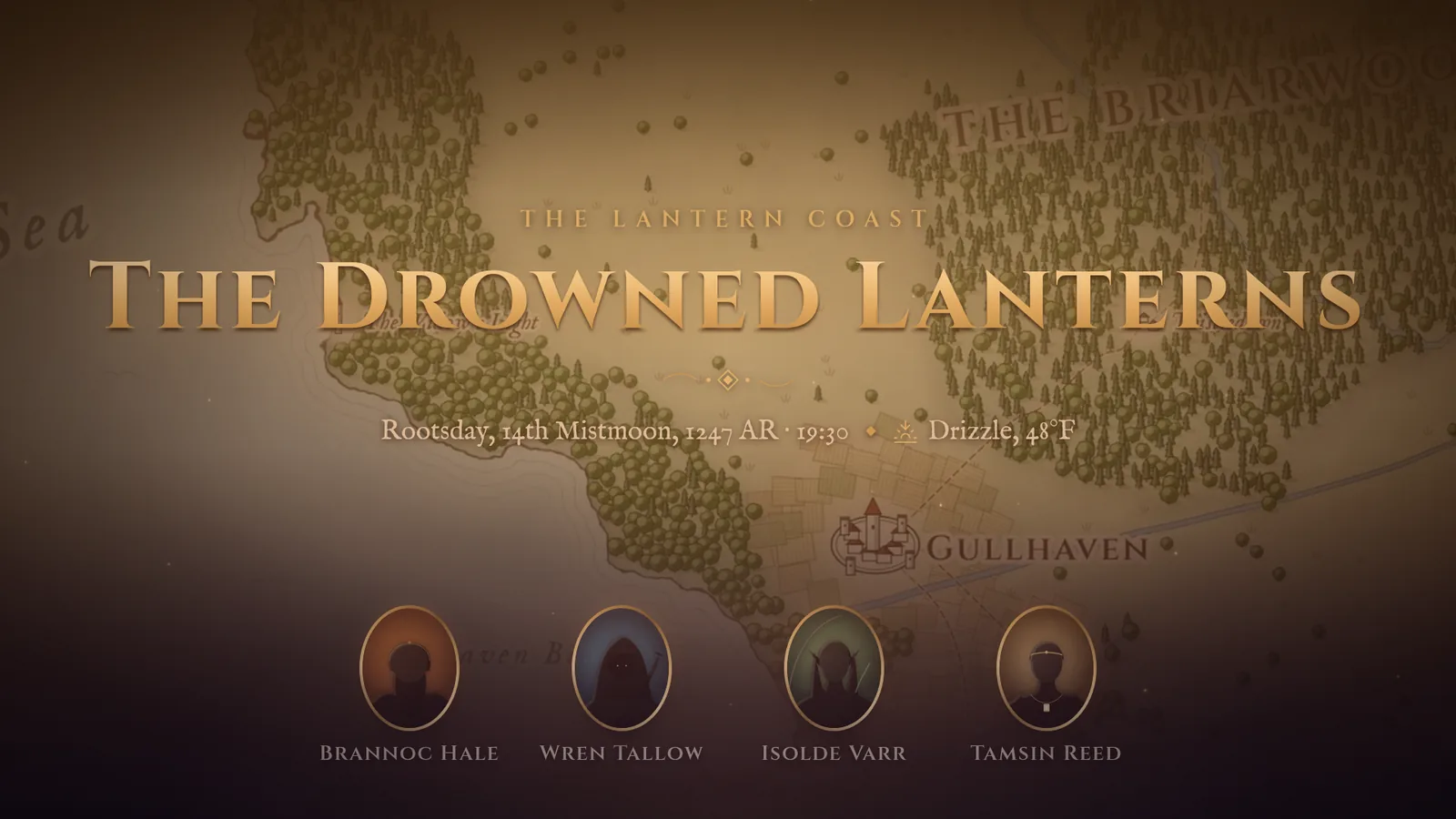
When nothing is on the TV — or when you press B for Blackout — the TV shows its idle screen: the campaign’s title over its cover art, the in-game date and weather, and the party’s portraits, lit by candlelight.
It’s a good thing to leave up while the players arrive.
A screen on your network
Any device with a web browser on your Wi-Fi can be the TV: a smart TV, a tablet at the far end of the table, an old laptop hooked to a projector.
On your laptop
- In the Display Dock, click Pair a screen (the link icon next to Open TV).
- Turn on Allow screens on your network. If Windows asks whether to let Fablekeep through the firewall, allow it.
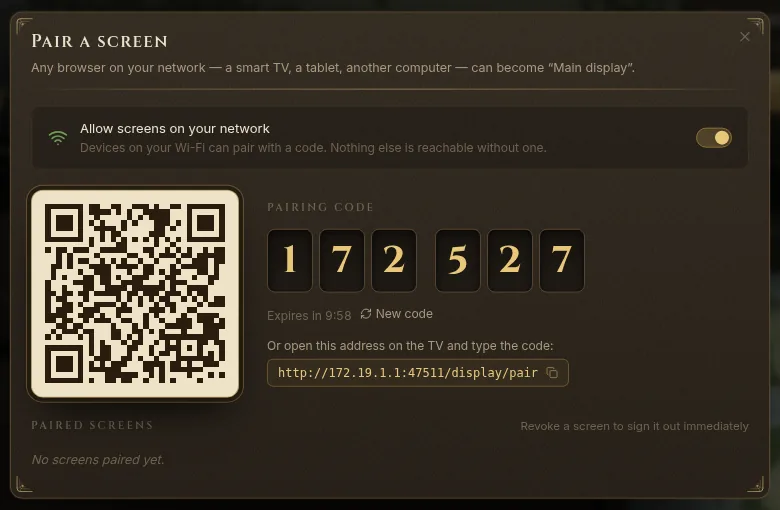
- A Pairing code of six digits appears, with a QR code and an address. The code expires after ten minutes; New code gives you another.
On the TV
- Scan the QR code with the device’s camera, or open its browser and type the address shown under Or open this address on the TV and type the code.
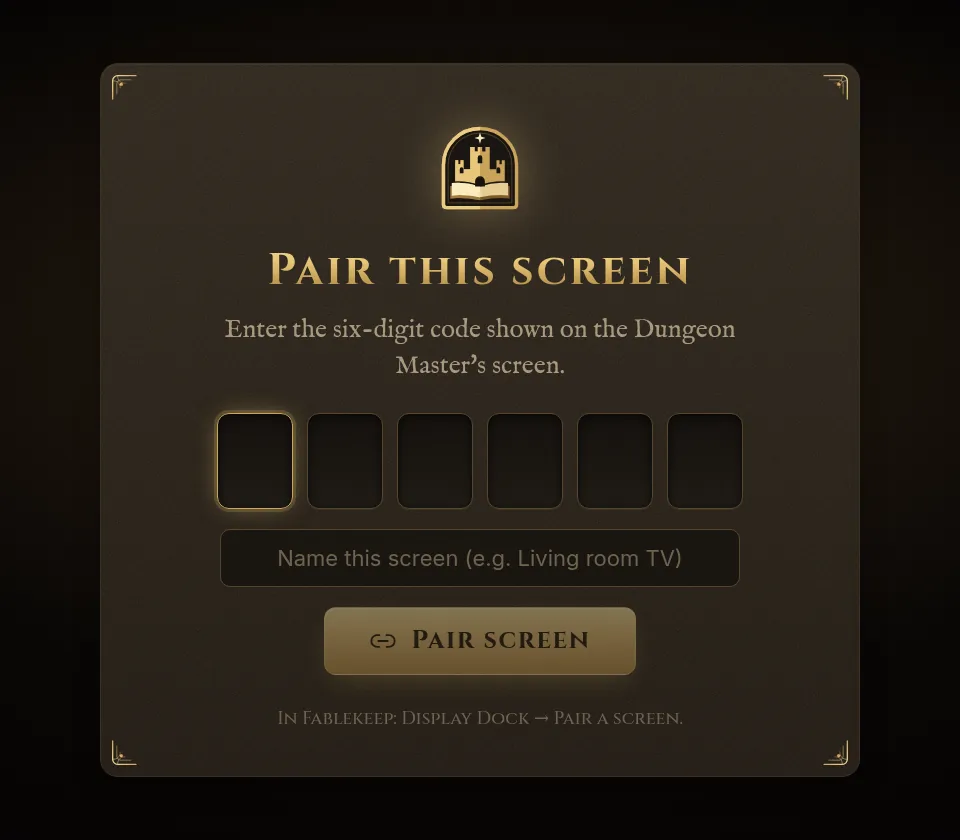
- Type the six digits.
- Give the screen a name if you like (for example “Living room TV”) and press Pair screen.
The screen joins straight away and shows the idle screen. It stays paired, so next time it only needs to open the same address.
Paired screens
Paired screens are listed under Paired screens, in the same dialog and in Settings → Displays, with Online now or when they were last seen. Revoke signs a screen out at once: it goes dark and has to pair again with a new code.
More than one display
A display is one stage with its own Preview and Program. Most tables need just the one, Main display. If you want a second, independent picture — say the TV for everyone plus a tablet at the far end showing something else — add another:
- Open Settings → Displays.
- Type a name in New display name and click Add display.
- Switch between displays from the menu at the top left of the Display Dock.
Each display also has Screen setup: orientation, rotating the whole picture for a TV mounted sideways or laid flat on the table, a real-size grid for miniatures, and how handouts are revealed.
Keep it smooth
- If the TV computer is slow, turn on Reduce effects in Settings → General: fewer particles and shaders.
- Reduce motion in the same place minimises animations on your screen and on the TV.
- On a laptop running on battery, Battery saver lightens your own screen; the TV looks the same.
Run Fablekeep on another computer
You can leave Fablekeep running on a desktop computer elsewhere in the house and prep or play from a laptop at the table.
- On the computer running Fablekeep, open Settings → Network and turn on Allow players to join.
- Under Remote DM access, choose a Password or PIN, type it again under Repeat it, and click Set & enable.
- On the laptop, open the address shown in Settings → Network followed by
/dm/login, type the password and name the device.
Signed-in devices lists every laptop signed in this way; Sign out removes one. See Online and hybrid play for the network addresses.