Your worlds live on your own computer, in files you own. Nothing is stored in the cloud, so it’s worth knowing where they are and how to keep a copy.
Where your worlds live
Everything Fablekeep keeps — worlds, backups, the library database and your settings — is in the data folder:
%APPDATA%\Fablekeep
It is kept when Fablekeep updates and when you uninstall it. In the desktop app, Settings → About → Open data folder opens it.
Fablekeep saves as you work. There is no Save button to forget.
Backups
A backup is a full copy of one world, with all its campaigns, maps and assets.
- Automatic. When you end a session, Fablekeep backs the world up (the Back up the world afterwards option in the End session dialog). Sandbox rehearsals don’t make backups.
- By hand. On Your Worlds, open a world’s More menu (…) and choose Back up now. Large worlds can take a few minutes.
Backups go to %APPDATA%\Fablekeep\backups, one folder per world.
In Settings → Backups you can:
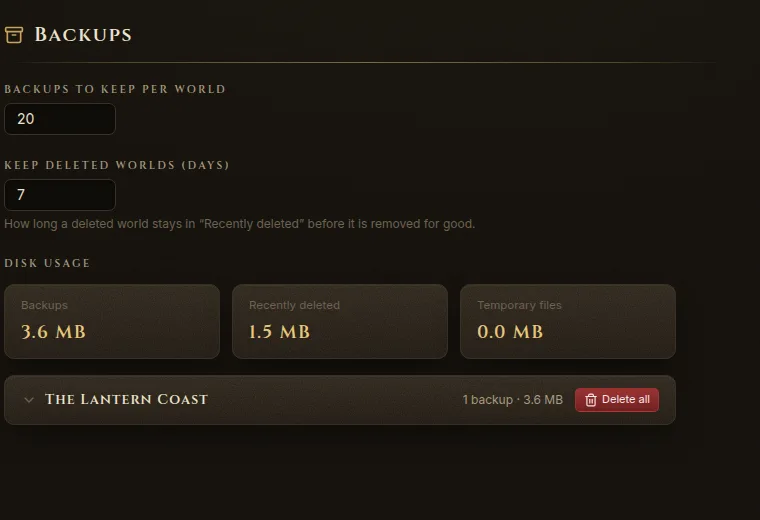
- Set Backups to keep per world (20 by default). The oldest ones are removed when there are more.
- See the Disk usage of backups, recently deleted worlds and temporary files.
- Open each world’s list of backups and delete one, or Delete all for that world. Deleting backups never touches the world itself.
Restore a backup
- Go to Your Worlds: open the world menu at the top left and choose All worlds.
- Click Import .fablekeep.
- Pick the backup file from
%APPDATA%\Fablekeep\backups\….
The backup comes back as a world in your list. If the original is still there, the import gets a new id, so nothing is overwritten.
Recently deleted
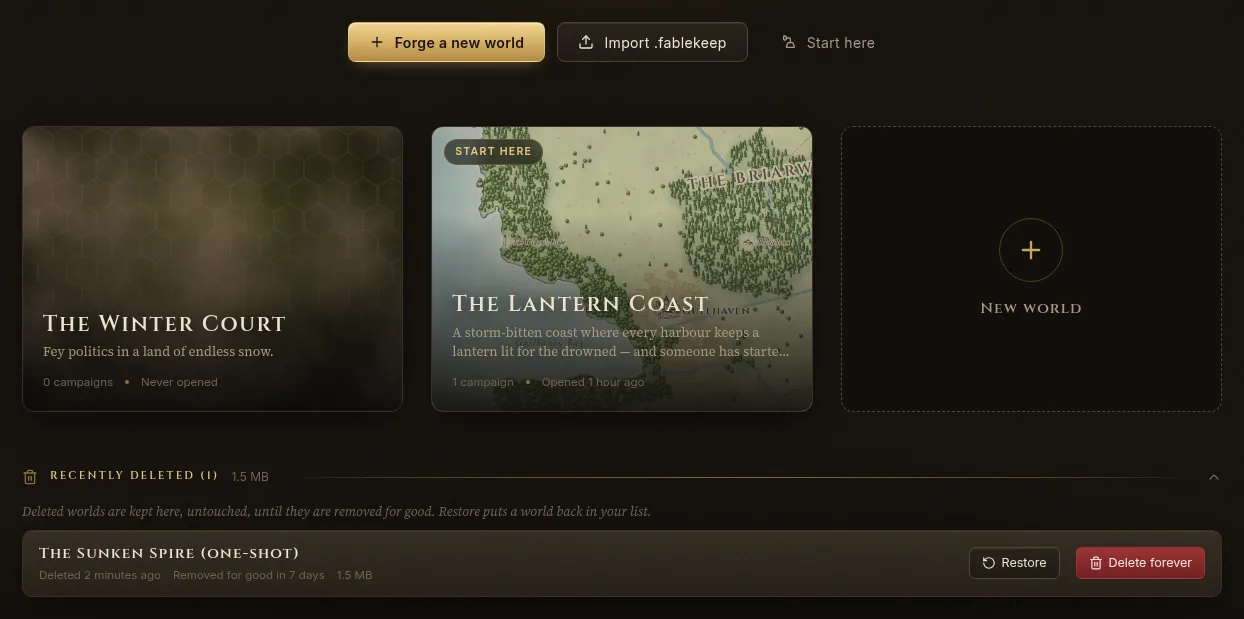
Deleting a world from Your Worlds doesn’t remove it right away. It moves to Recently deleted, at the bottom of the page, and stays there, untouched, for 7 days (change it in Settings → Backups → Keep deleted worlds (days)).
- Restore puts it back in your list.
- Delete forever removes it from this computer now. Its backups in Settings → Backups are kept.
Export a world
A .fablekeep file is one world in a single file. Use it to move a world to another computer, to keep a copy somewhere safe, or to share an adventure.
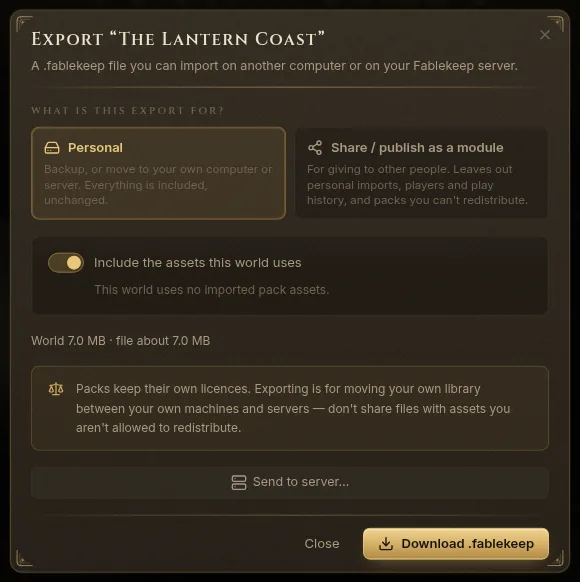
- On Your Worlds, open the world’s More menu (…) and choose Export. (Or click Export on the world’s Overview.)
- Under What is this export for?, choose:
- Personal — a backup, or moving to your own computer or server. Everything is included, unchanged.
- Share / publish as a module — for giving to other people. See below.
- Leave Include the assets this world uses on to bring along the imported pack assets the world uses (tiles, objects, tokens). Turn it off for a smaller file if the other computer already has the same packs.
- Click Download .fablekeep (or Download shareable .fablekeep).
To open it on the other computer, click Import .fablekeep on Your Worlds there.
Share a world with other people
Share / publish as a module prepares a copy that’s safe to give away. Before you download, Fablekeep lists What the shared file leaves out:
- Player accounts and play history (chat, dice, journals, the session log).
- Text imported for personal use, such as the features, notes and backstories of characters imported from a character sheet (features become “Imported feature — not included”), and imported homebrew compendium entries, which keep only their names.
- Asset packs whose licence isn’t marked as allowing redistribution.
- Compendium art from art packs.
Images you uploaded into the world itself (maps, portraits, handouts) are included, so make sure you may share them.
Asset packs and their licences
Paid asset packs — map tiles, objects, tokens, Dungeondraft packs — are usually licensed for your personal use only. That’s why a shared export leaves them out unless you say otherwise:
- Open Settings → Asset packs.
- On a pack whose licence lets you redistribute it, turn on Licence allows redistribution.
Only packs marked like this are embedded in shared exports. It’s off by default for every pack. Check the pack’s licence before you turn it on.
Move asset packs between computers
Asset packs live in your library, not inside a world. To move them:
- In Settings → Asset packs, click Export packs…, choose the packs and export them as one
.fkassetsfile. - On the other computer, click Import packs… in the same place and pick the file.
See Importing maps and asset packs for more.