Fog of war hides what the party hasn’t explored. Vision goes one step further: with walls and lights on a battle map, the TV shows only what the characters can actually see from where they stand — around corners, by torchlight, with darkvision.
Vision is optional and per battle map. Maps published from the Battlemap Forge already have their walls, doors and lights; Universal VTT imports bring theirs too (see Importing maps and asset packs). For any other map, draw them yourself.
Turn vision on
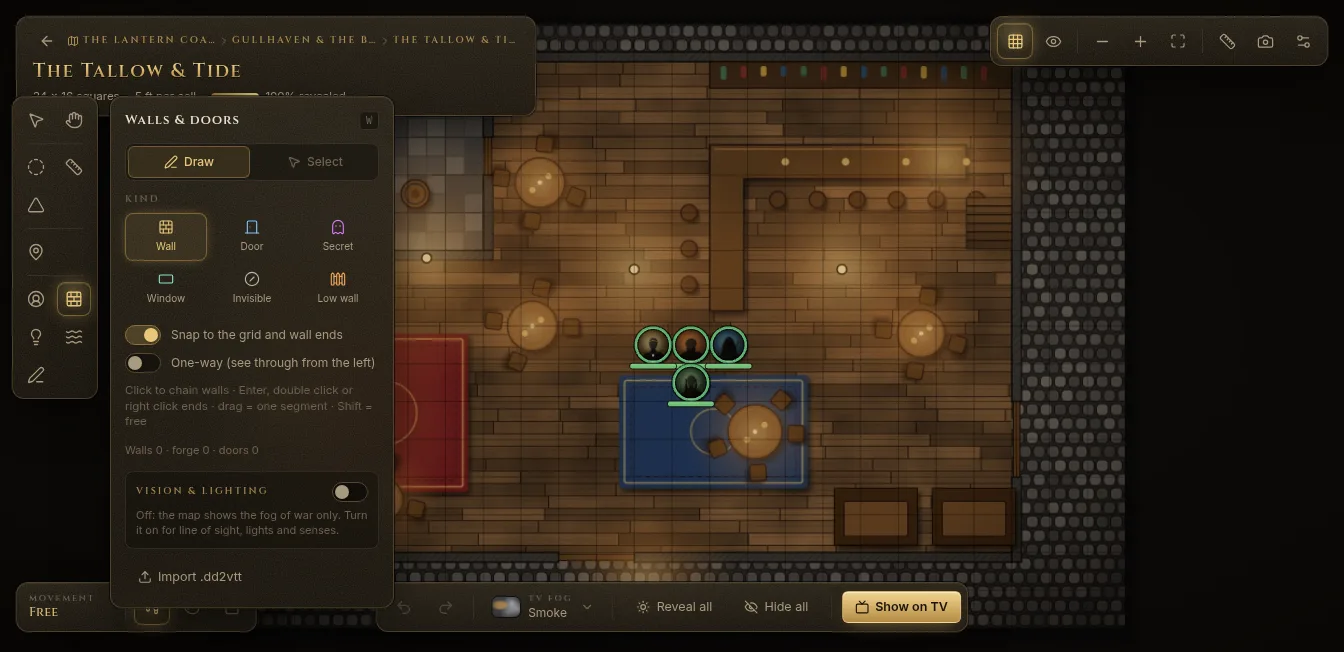
Open the battle map and pick Walls & doors or Lights on the tool strip. At the bottom of the panel, Vision & lighting is off by default: the map shows the fog of war only. Turn it on for line of sight, lights and senses, then choose:
- Ambient light — Bright (daylight: everyone sees what’s in line of sight), Dim (dusk, moonlight), Dark (only lights and darkvision show the map) or Clock, which follows the campaign clock: day, dusk and dawn, night.
- Out of sight — Fog: unexplored areas stay under the fog of war and explored ones are a dim memory. Shadow: the map is always revealed, and what’s out of sight is darkened and faded; best for towns and outdoors. Tokens out of sight stay hidden either way.
- Remember explored areas (dimmed) and Vision clears the fog of war.
Walls and doors
- Pick Walls & doors (the grid icon on the tool strip) and make sure Draw is selected.
- Choose the Kind:
- Wall — blocks movement, sight and light.
- Door — blocks while closed; click its glyph to open or close it.
- Secret — a wall to the players until they find it.
- Window — blocks movement, not sight or light.
- Invisible — blocks movement only (a force field, a ledge).
- Low wall — gives cover, doesn’t block sight (a pool rim, a low wall).
- Click to chain walls; press Enter, double-click or right-click to finish. Drag for a single segment, and hold Shift to draw freely instead of snapping to the grid.
One-way (see through from the left) makes a wall you can see through from one side only. Doors can start Closed, Open or Locked.
To change walls, switch to Select: click a wall (Shift adds more), drag its ends, Alt+click to split it, Delete to remove it. Walls that came from the Battlemap Forge are edited there.
Buildings and roofs
A closed loop of walls can become a building: select one of its walls and use Building / roof. From outside, players see the roof and nothing inside or behind it, until they get in.
Lights
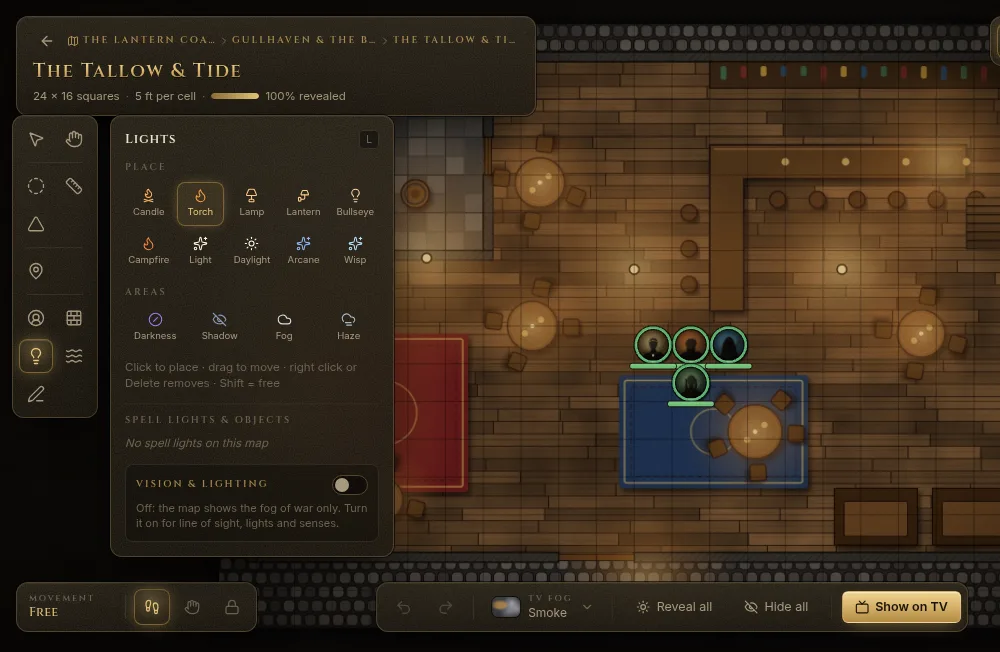
- Pick Lights (the bulb icon).
- Under Place, choose a preset — Candle, Torch, Lamp, Lantern, Bullseye, Campfire, Light, Daylight, Arcane or Wisp — and click the map.
- Select a light to change its Bright light and Dim light beyond radii, Colour, Animation (steady, torch, flicker, fire, pulse, arcane shimmer), and for a bullseye lantern its Cone and Direction.
Drag a light to move it; right-click it or press Delete to remove it. Hide the source from players (still lights) keeps the light but hides where it comes from.
Darkness and obscured areas
Under Areas in the same panel, click the map to place:
- Darkness — magical darkness, like the Darkness spell. Darkvision can’t see in it; Devil’s Sight and truesight can.
- Shadow — ordinary darkness: lights and darkvision still work.
- Fog — heavily obscured (Fog Cloud, thick smoke). It blocks sight; blindsight still works.
- Haze — lightly obscured (mist, foliage).
Right-click an area to remove it.
Senses
Each character’s senses come from their sheet: darkvision, blindsight, truesight and Devil’s Sight are used automatically. Tokens carrying a light (a torch, a lantern, the Light cantrip) light up what’s around them; set it under Light in the token’s HUD (see Tokens).
What the TV shows
When a battle map is on the TV, a small switch at the bottom right of the map chooses the TV’s eyes:
- Fog only — the fog of war and every token you haven’t hidden.
- Party — what the characters at the table see together (line of sight, light, senses).
- Directed — your directed view: the fog of war, and only the tokens the party could plausibly see.
You always see the whole map. To check what the players get, use Preview as players (Shift+P).