Fablekeep treats real dice as first class. At the table, players roll their own dice and you (or their phone) record the result; 3D dice are there when you want them, for remote players or for a big moment on the TV. Every roll lands in the log.
The dice tray
Open Dice tray on the quick tools rail (or press Alt+D).
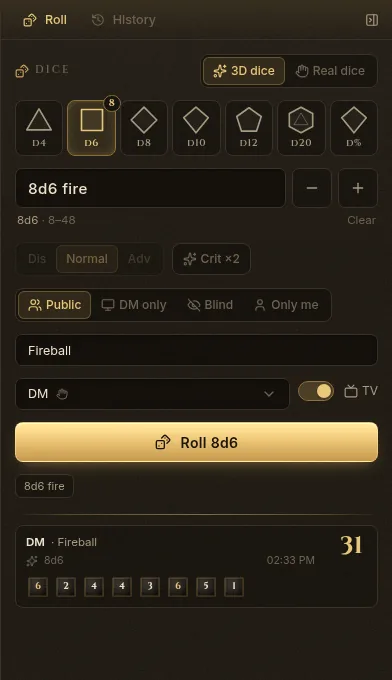
- Choose 3D dice (Fablekeep rolls) or Real dice (you roll at the table and type the result).
- Build the roll: click a die (D4 to D%) to add one — right-click removes one — or type a formula such as
1d20+5,4d6kh3,8d6 fireor2d6!. The − and + buttons change the modifier. - For a d20, pick Dis, Normal or Adv. Crit ×2 doubles the damage dice (not the modifiers).
- Choose who sees it: Public, DM only, Blind or Only me.
- Add a Flavor if you like (“Stealth”, “Longsword”, “Fireball…”).
- Pick who is rolling — DM, or a character you roll for.
- Turn on TV to show a public roll on the TV.
- Click Roll (or Enter the real dice with real dice).
With Real dice, a pad opens: type Each die or just the Total, then Record.
The tray’s History tab lists every roll of the campaign.
Who sees a roll
| Mode | Who sees the result |
|---|---|
| Public | Everyone (and the TV, if enabled) |
| DM only | The roller and the DM |
| Blind | Only the DM — not even the roller |
| Only me | Only the roller (and the DM) |
Dice on the TV
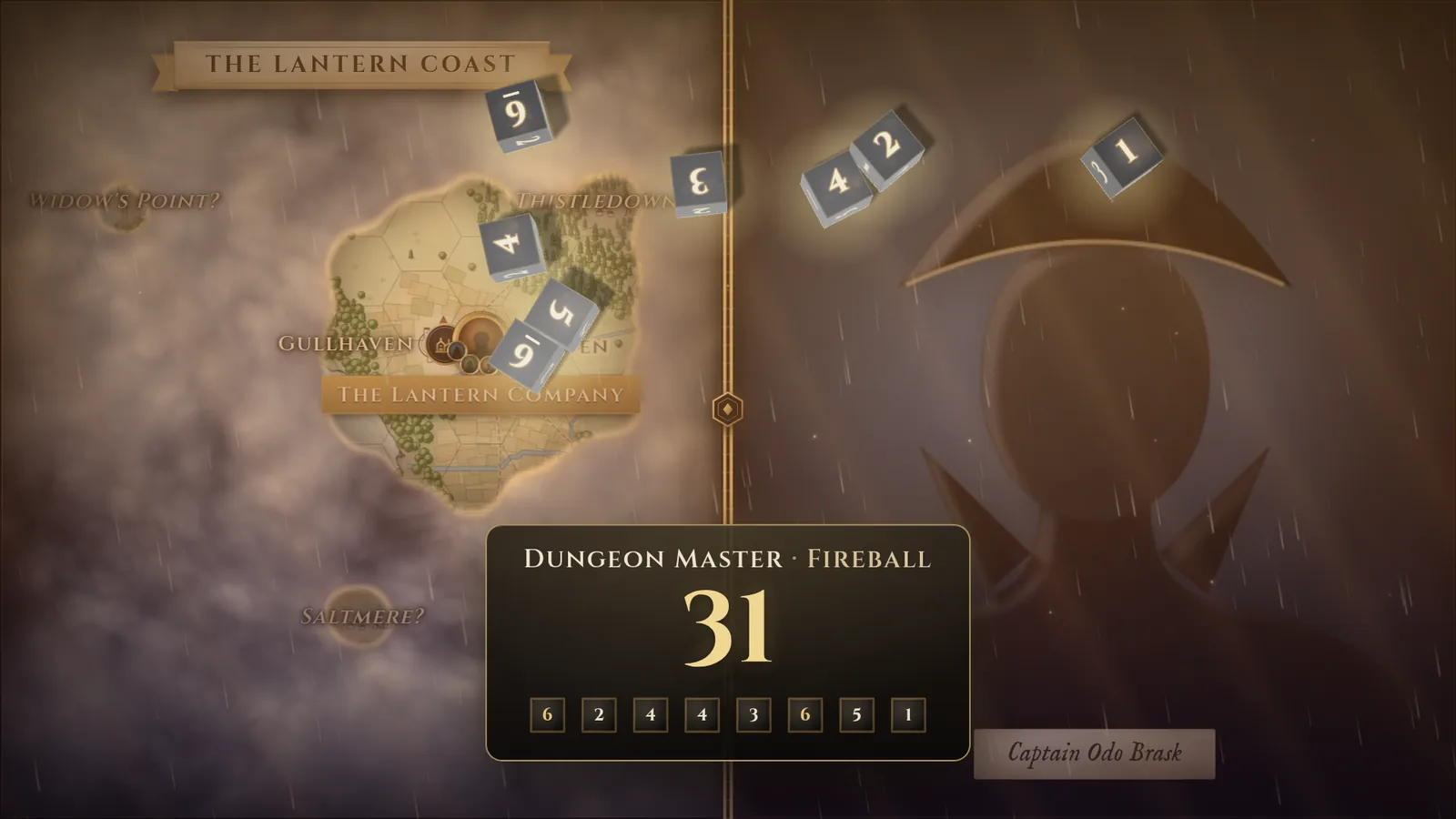
A public roll sent to the TV tumbles across it as 3D dice, then shows a large result card with who rolled, the flavor, the total and each die.
Settings → Dice decides which rolls reach the TV:
- Dice cinematic — public rolls tumble across the TV and show a result card.
- Which rolls: When asked (only rolls you send with the tray’s TV switch), Players (players’ public 3D rolls, plus yours you send), or All.
- Real dice cards — typed real-dice results sent to the TV show their result card, without tumbling dice.
- Result card stays a few seconds — you choose how many.
In the same place, Your dice picks the colour set of your 3D dice (Obsidian, Gilded, Bone, Crimson, Arcane, Jade, Frost, Amethyst or Custom); each player picks their own. Your rolls and Players at the table set whether the tray starts on 3D or real dice. Players may roll blind lets players make rolls only you see. Turn off 3D dice under This screen on a slow computer: you get only the result card.
Ask players to roll
Click Request a roll on the quick tools rail.
- Choose the kind of roll: Skill, Ability check, Saving throw, Tool, Initiative, Concentration, Death save or Custom.
- Pick the skill or ability, a DC if you want one (and Show the DC to players), and advantage.
- Choose who sees the results.
- Under Who rolls, pick Everyone or particular characters. Group check uses the 2024 rule: the group succeeds if at least half succeed.
- Click Ask (the button shows how many characters you’re asking).
Players with a phone or the player client get a prompt with their bonus filled in (see the phone companion). In the log, the request card fills in as results arrive. For a player without a device, click Roll for them or type their Total. Ask again repeats it; Close ends it.
The log
Click Log on the quick tools rail (or Ctrl+Shift+L). It collects the session’s rolls, chat, whispers, roll requests and the cards of resolved actions.
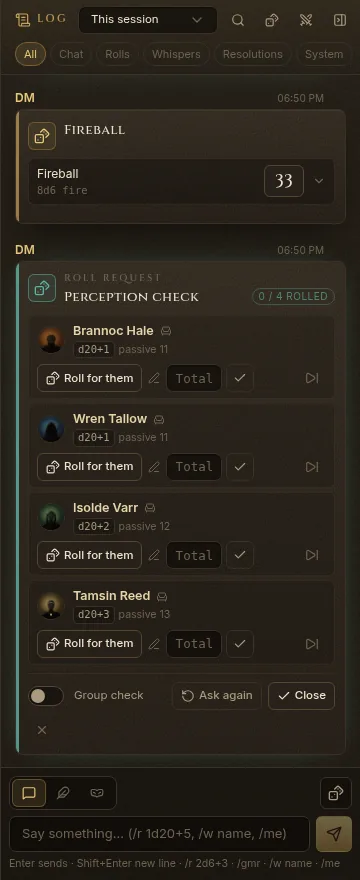
- The filters at the top show All, Chat, Rolls, Whispers, Resolutions or System.
- The search button finds messages, rolls and names.
- The menu at the top shows This session, an earlier session, Outside sessions or Everything. Browsing an earlier one, Back to now returns you.
Writing in the log
Type in the box at the bottom and press Enter (Shift+Enter for a new line). Shortcuts work as you type:
/r 2d6+3— roll dice;/gmr 1d20— roll for your eyes only;/w name— whisper to one player;/me draws her blade— an emote.
The buttons beside the box switch between Say, Emote and Whisper.
Resolution cards
When you resolve a spell or an attack during a fight, its card goes to the log: who acted, the targets, hits and misses, saves, damage and conditions. Apply opens the resolution to roll pending saves, adjust damage for resistance or vulnerability, and apply it; Undo puts the hit points back. Players’ change requests (an item, a restored slot) also arrive here for you to approve.