Fablekeep can run a small MCP server (Model Context Protocol) on your computer. Connect Claude Desktop or Claude Code to it, with your own Claude account, and Claude can read the world you have open and build things in it for you: regions and places, NPCs and shops, random tables, encounters, session plans, recaps, even battle maps and world maps from your own assets.
It is optional and off by default. You need AI features turned on first.
Turn on Claude
- Open Settings (Ctrl+,) and go to Claude (MCP). (If you don’t see it, turn on the AI features switch under AI features first.)
- Under Connect Claude, click Turn on Claude.
Fablekeep creates a private Access token the first time and shows the Endpoint Claude should connect to. The status changes to Waiting for Claude to connect.
By default the endpoint is only reachable from this computer: other devices on your network are refused, even with the token.
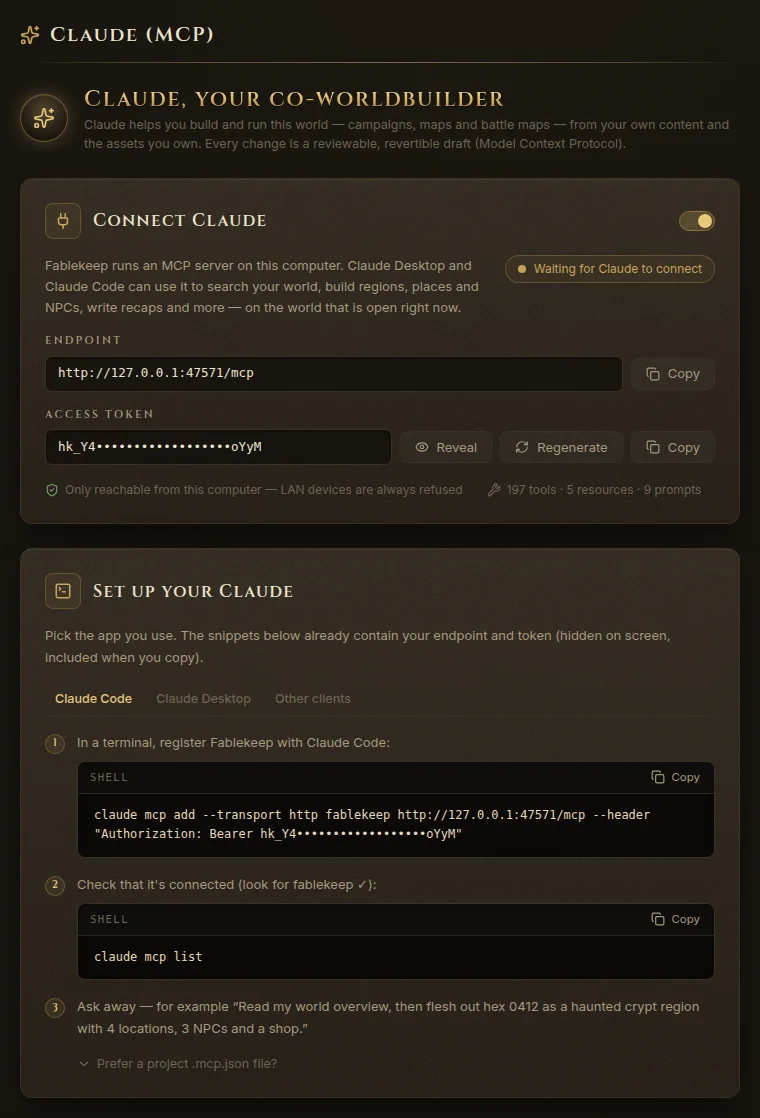
Set up your Claude
Under Set up your Claude, pick the app you use. The snippets already contain your endpoint and token: the token is hidden on screen but included when you click Copy.
Claude Code
- In a terminal, paste the command from step 1 (it starts with
claude mcp add) to register Fablekeep with Claude Code. - Run
claude mcp listand look for fablekeep ✓. - Ask away — for example, “Read my world overview, then flesh out hex 0412 as a haunted crypt region with 4 locations, 3 NPCs and a shop.”
If you prefer a project .mcp.json file, open Prefer a project .mcp.json file? and copy that snippet instead.
Claude Desktop
- Open Claude Desktop → Settings → Developer → Edit Config, or open
%APPDATA%\Claude\claude_desktop_config.json. - Add Fablekeep under
mcpServerswith the snippet shown in Fablekeep, and save. - Restart Claude Desktop. Fablekeep’s tools appear under the tools (hammer) menu.
Other clients
Any MCP client that speaks Streamable HTTP can connect with the endpoint and the Authorization header shown under Other clients.
What Claude may do
Claude always works on world content as reviewable drafts. The switches under What Claude may do widen what it may touch:
- Allow Claude to change campaign state — advance the clock, reveal fog of war and add events to the campaign timeline. Off by default: these are things that happen at the table.
- Allow Claude to open worlds — lets Claude switch Fablekeep to another of your worlds (the DM app follows). Listing your worlds is always allowed.
- Allow Claude from other devices — lets Claude on another computer on your network connect with the token. It also needs Allow players to join on in Settings → Network, and can only be changed on the computer running Fablekeep.
Tools Claude can use lists every tool, marked as read or draft (and campaign, for the ones that need the campaign-state switch).
Review AI drafts
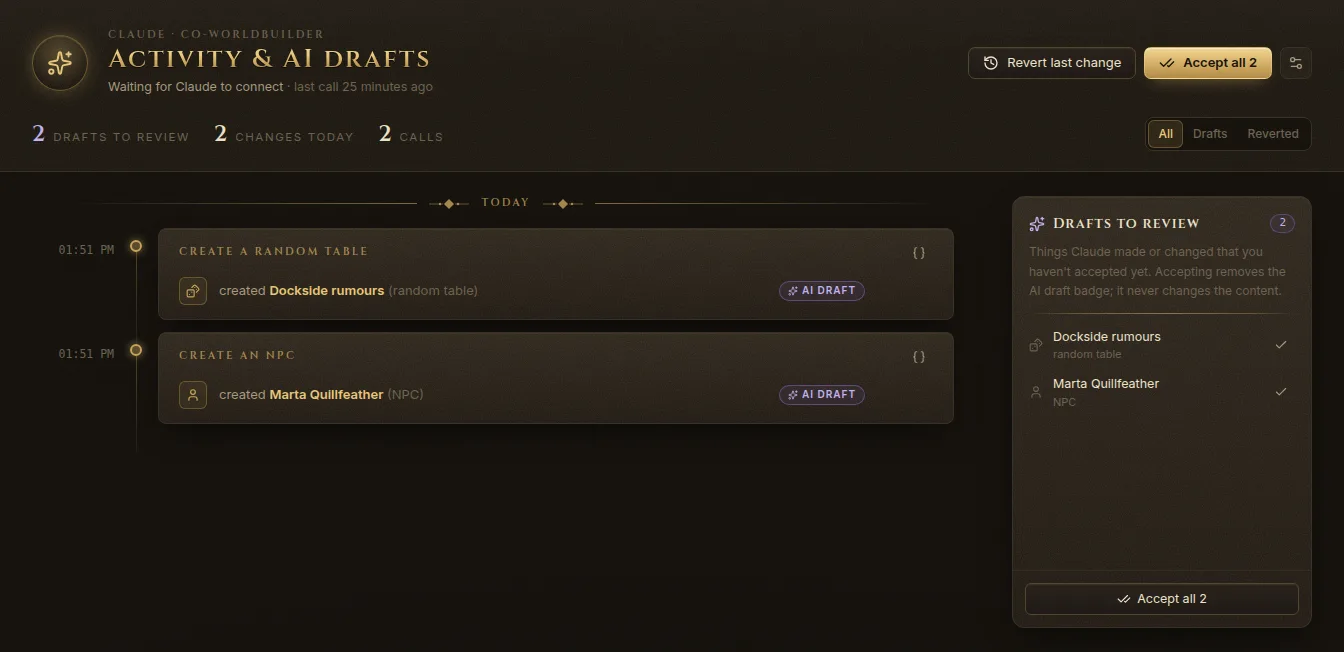
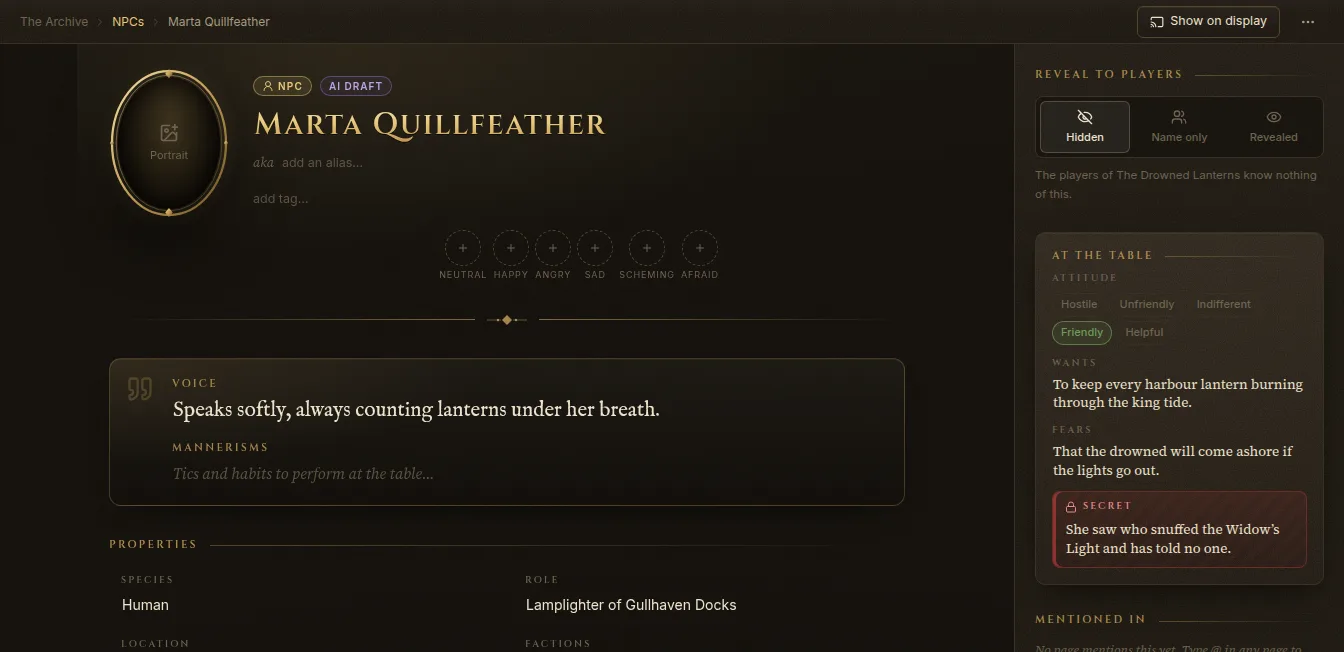
Everything Claude creates or edits is marked AI draft and logged.
- Click Claude on the left rail to open Activity & AI drafts. It lists every call Claude made, grouped by day, and a Drafts to review list.
- Click an item to open it. On its page you’ll see the AI draft chip next to its type.
- When you’re happy with it, click Accept, or Accept all to accept every draft at once. Accepting only removes the badge; it never changes the content.
- To undo something, click Revert on that change, or on the whole call. Reverting deletes what Claude created or restores how it was before.
If you or Claude edited something after that change, Fablekeep warns you (Edited since Claude changed it) before reverting, because those edits are thrown away too.
Keep it safe
- Regenerate the token if you think someone else has it. Connected sessions are closed and the old token stops working.
- Turning off Connect Claude closes every connected session at once.
- Claude never makes images, and its work never reaches the TV until you show it.
- Read what Claude writes before you use it at the table. Don’t use it for sexually explicit, suggestive or other adult content, or anything else the Acceptable Use Policy forbids — whatever your provider allows.