Every campaign has its own clock: a date in your world’s calendar, a time of day, the moons and the weather. The clock drives a lot — scheduled events, weather, the light on the TV — so it pays to move it on as the story moves.
The campaign clock
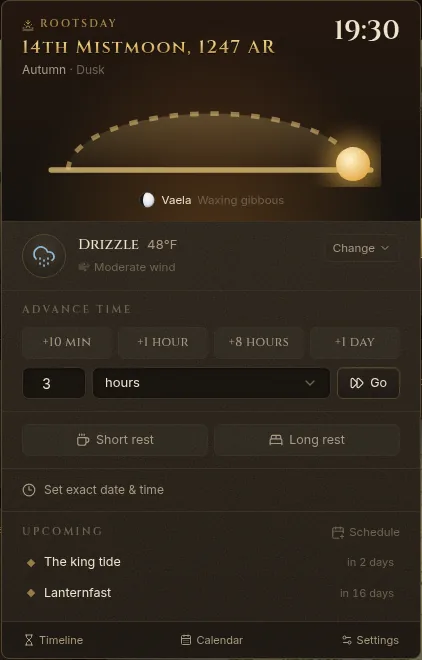
The clock sits in the top bar: the date, the time and the weather. Click it to open the Campaign clock:
- the weekday and date, the time, the season and time of day (dawn, day, dusk, night), the sun’s arc and each moon with its phase;
- today’s weather, with Change;
- Advance time;
- Short rest and Long rest;
- Set exact date & time;
- Upcoming events, with Schedule;
- links to the Timeline, the Calendar and the campaign’s Settings.
Move time on
In the clock, click +10 min, +1 hour, +8 hours or +1 day, or type an amount, choose the unit and click Go. From anywhere, Ctrl+K has Advance 1 hour, Advance 1 day and Advance time… (with an optional reason, such as “Waiting for the tide…”).
When time moves on, Fablekeep:
- fires the scheduled events you reach (with a reminder, and a notice on the TV if you asked for one);
- rolls the new days’ weather;
- shows a time-skip card on the TV (“Three days later…”) when the jump is long enough;
- records long jumps on the campaign timeline.
Set exact date & time jumps straight to a moment — for example, at the start of a new adventure.
Rests
- Short rest — 1 hour passes; characters can spend Hit Dice and recover short-rest features.
- Long rest — 8 hours pass. Tick Restore the party’s sheets (HP, slots, uses) and everyone wakes with full hit points, spell slots and features.
Players can also take rests from their own sheets on the phone companion.
Your own calendar
Fablekeep comes with ready-made calendars, but your world can have its own months, weekdays, festivals, moons, seasons and eras. The calendar belongs to the world, so every campaign in it shares it.
Open the clock and click Calendar (or Ctrl+K → Edit calendar).
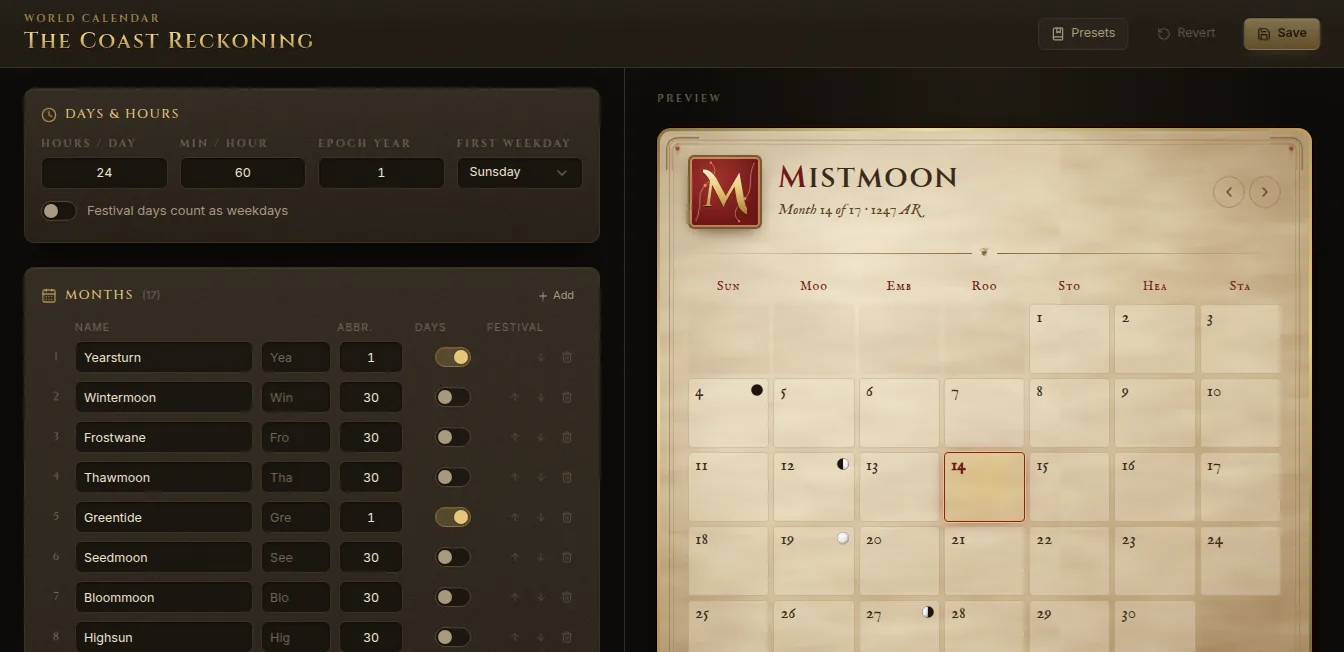
- Presets loads a ready-made calendar to start from. It replaces what’s in the editor, but nothing is saved until you click Save.
- Days & hours — hours per day, minutes per hour, the Epoch year and the First weekday.
- Months — name, abbreviation and number of days. Turn on Festival for festival days that sit between months. Add adds a month; the arrows reorder them.
- Weekdays — their names and how many.
- Leap years — every N years, with exceptions, and where the extra days go.
- Moons — each with a cycle in days, an offset and a colour; their phases show on the clock.
- Seasons — when each starts, and the weather it brings.
- Eras — names for spans of years, counting up or down.
The Preview on the right shows the month as it will look. Fix any issues the editor points out, then click Save (or Revert to discard your changes).
The timeline
Timeline on the rail shows your world’s history and your campaign’s story on one zoomable line.
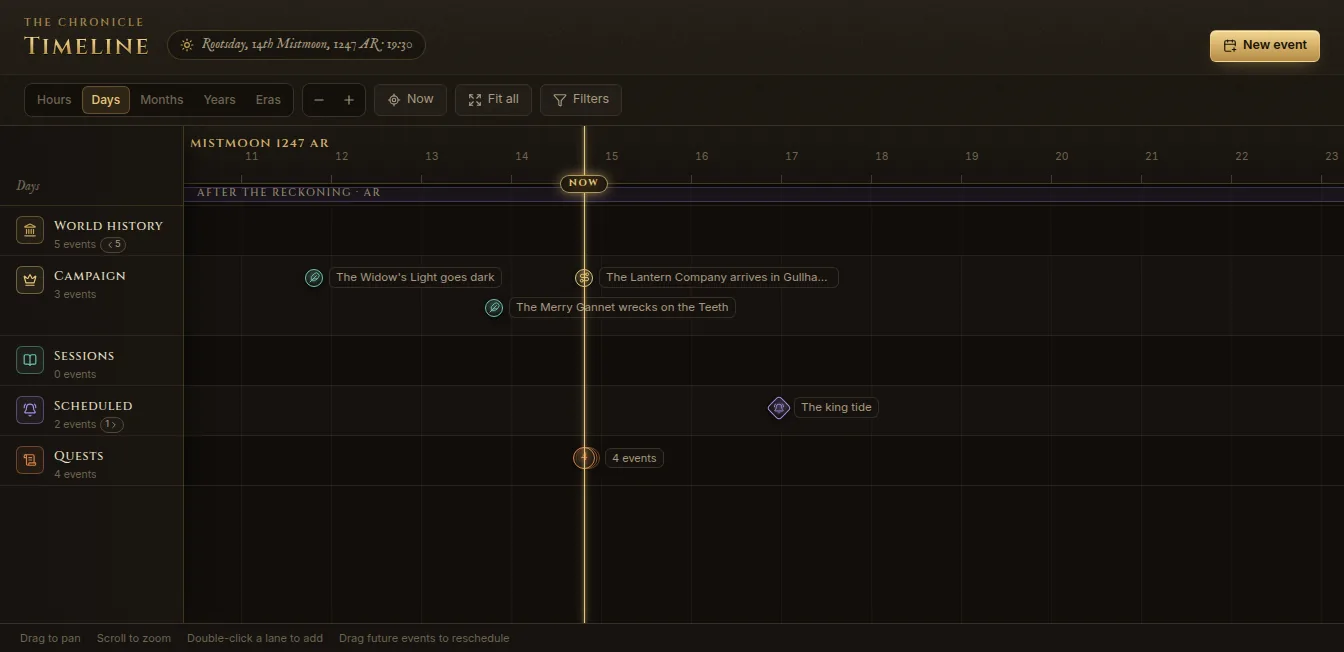
It has five lanes:
- World history — the world’s lore, shared by every campaign.
- Campaign — what has happened in this campaign. Travel, rests and time skips add themselves here (turn Show automatic events off in Filters to hide them).
- Sessions — each session you’ve played.
- Scheduled — what will happen.
- Quests — your quests over time.
Zoom with Hours, Days, Months, Years and Eras, or the − / + buttons, or scroll. Now (N) jumps to the present; Fit all (F) shows every event. Drag to pan.
Add an event
Click New event, or double-click a lane. Choose Campaign event, Scheduled event or World history event, then fill in:
- the Title and Date — with a Precision of Exact, Day, Month or Year for history whose exact moment nobody knows;
- Has an end date for events that last;
- for scheduled events: Remind me when it happens, Show a notice on the TV and Repeats;
- the Kind, a Color, Tags and Notes (
@mentions work).
Drag a future event sideways to reschedule it. Click an event to see it in the inspector, where Advance the clock to this moment moves time straight to it.
Weather
With Generate daily weather on, Fablekeep rolls the weather each day, per region: the climate and the season decide what’s likely, and yesterday’s weather shapes today’s. It can be anything from clear skies, fog and drizzle to thunderstorms, blizzards, sandstorms or ashfall.
To set it yourself, click Change next to the weather in the clock. The weather then shows Set by DM.
The weather settings are in Campaign settings → Time & weather: Generate daily weather, the Default climate (used when the party isn’t standing in a biome), the Temperature unit, and the clock options (12- or 24-hour Clock format, the Time-skip card on the TV and its threshold, Log time jumps).
On the TV
The weather shows on the TV over maps: rain, snow, fog and haze, with lightning (and thunder) in a storm. The light follows the time of day — the warm low light of dawn and dusk, the dark of night. To set the light yourself, use Atmosphere in the Display Dock.