Something not behaving? Find the symptom below. If nothing here helps, get in touch and send us a diagnostics report.
The TV
The TV opens on the wrong screen
Hold Shift and click Open TV in the Display dock, then pick the screen the players can see. Fablekeep remembers your choice.
If the TV window covers your own screen, check that Windows is set to Extend the display, not duplicate it (Win+P).
The TV window doesn’t appear, or I closed it
Press Ctrl+Shift+D to open or close the TV window, or click Open TV again.
If you use Fablekeep in a web browser rather than the desktop app:
- “The browser blocked the TV window” means pop-ups are blocked. Allow pop-ups for Fablekeep and try again.
- After a reload, The TV window was open asks for one click: click Reopen the TV.
See Set up the TV for second screens, smart TVs and paired screens.
The TV is slow or stutters
On the computer that shows the TV, open Settings → General and turn on Reduce effects (fewer particles and shaders). Reduce motion also cuts animations on your screen and the TV.
Players can’t connect
When a phone or laptop can’t open the join address, go through these in order:
- Same network. Phones must be on the same Wi-Fi as the computer running Fablekeep (not on mobile data, not on a guest network).
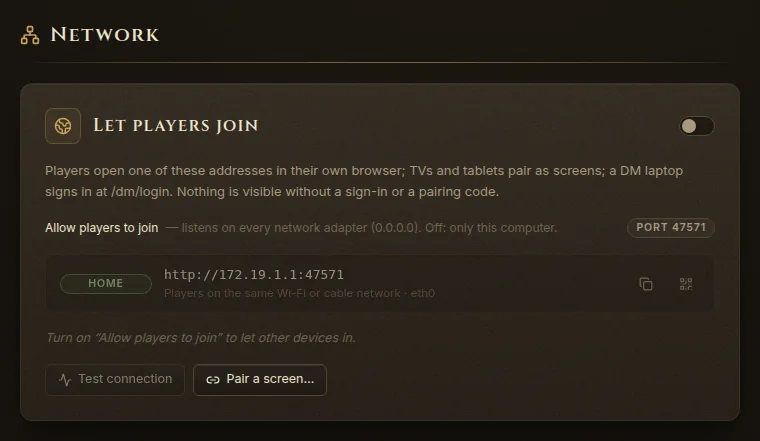
- Allow players to join. In Settings → Network, the Allow players to join switch must be on. While it is off, only your own computer can reach Fablekeep.
- Test connection. In the same place, click Test connection. Each address should show Reachable. The test runs from your computer, so it proves Fablekeep answers; it can’t see the player’s side.
- Firewall. If the test passes but players still can’t connect, it’s almost always the Windows firewall. The first time Fablekeep started, Windows asked which networks to let it through; many Wi-Fi networks (and Hamachi or ZeroTier) count as “public” and stay blocked. Under Firewall in Settings → Network, click Allow port … and accept the Windows prompt.
- The right address. Players must open the address shown in Settings → Network (or scan the invite QR code), including the port number.
For players outside your home (Tailscale, ZeroTier, Hamachi, a port forward or your own server) see Online and hybrid play.
Licence messages
| Message | What to do |
|---|---|
| “That licence key wasn’t recognised.” | Copy and paste the key from your receipt instead of typing it, and check nothing is missing at either end. |
| “This licence is already active on all its computers.” | Remove a computer you no longer use in Settings → Licence → Activations on another computer, or write to us. |
| “Couldn’t reach the licence server.” | Check the internet connection and try again, or ask us for an offline activation code. |
| “This activation code was made for another computer.” | Offline codes only work on the computer whose ID you sent. Ask for a new one with this computer’s ID. |
| Connect once to renew your licence | Fablekeep couldn’t check your licence for 90 days (or the computer’s clock went back). Connect to the internet and click Reconnect. |
Your worlds are never touched by any of these. See Install and activate for activations, offline codes and updates.
The laptop is slow or the fan is loud
Turn on Battery saver in Settings → General. Maps run at 30 fps and normal resolution, the dock’s live previews pause and decorative animations stop on your screen. The TV is not affected. The setting is saved per computer.
If the TV runs on the same laptop, Reduce effects helps too.
“Lost the connection to Fablekeep”
This notice means your screen lost contact with Fablekeep for a moment. It reconnects by itself (“Reconnecting… your work is safe.”), and shows Reconnected when it’s back.
If you use Fablekeep from another computer (Remote DM access) or the players’ devices keep dropping, check the network and that the computer running Fablekeep hasn’t gone to sleep.
Fablekeep crashed
If you see The candle guttered, something went wrong in the app. Your world is safe: everything is saved on disk as you work.
- Click Try again, or Reload Fablekeep.
- If it happens again, click Copy diagnostics and paste the report into an email to us.
If only one tab breaks (A page tore loose), the rest of the desk keeps working: click Try again on that tab.
Where the logs are
The data folder is %APPDATA%\Fablekeep, and the log is %APPDATA%\Fablekeep\logs\fablekeep.log (older logs rotate to fablekeep.log.1 … .5). In Settings → About, Open data folder and Open logs take you there.
Uninstall or reinstall
Uninstall Fablekeep like any Windows app: Settings → Apps → Installed apps → Fablekeep → Uninstall. Your worlds, backups and settings stay in %APPDATA%\Fablekeep, so reinstalling picks them up again.
To move to a new computer, deactivate the old one first in Settings → Licence to free its seat, then install Fablekeep on the new one and move your worlds.
FAQ
Does Fablekeep need the internet? Only to activate and to renew the licence check every 90 days. Playing, phones and the TV all work offline on your own network.
Do my players need to install anything? No. Phones and laptops use a web browser.
Can my players see my secrets? No. Hidden places, DM-only notes and secret blocks are left out before anything is sent to the TV or the players.
Where are my worlds stored?
On your computer, in %APPDATA%\Fablekeep. See Backups, export and sharing.
Does Fablekeep generate AI art? No. The optional AI features only work with text and your own content.