No map for your world yet? The Map Forge draws one for you. You paint a rough guide — where the land is, where the mountains run, where the forests and rivers go — and the forge turns it into a finished, hand-drawn or painted map that drops straight into the atlas with its hex grid already calibrated.
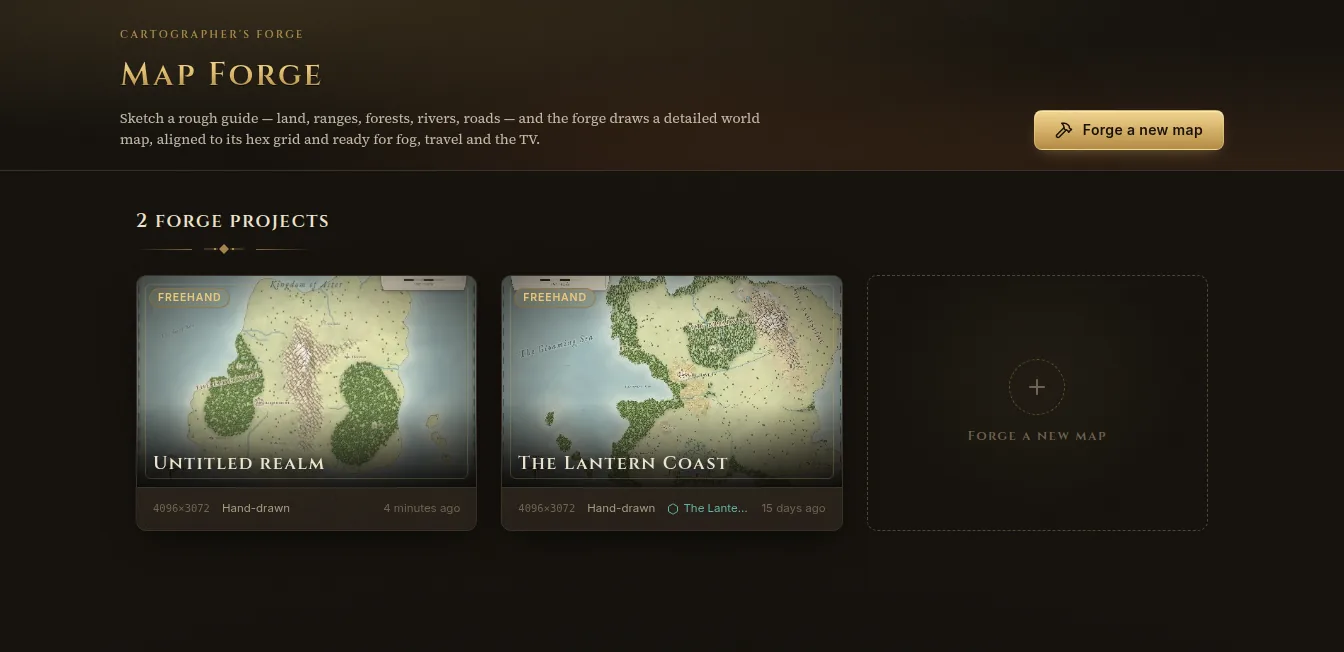
Start a project
- Open Map Forge on the rail and click Forge a new map.
- Type a Name.
- Under Start from, pick a template:
- Start from scratch — an empty sea; only what you paint becomes land.
- Blank sheet — a random world from the seed; paint over it to steer it.
- Continent — a mountain spine, two great forests, rivers, roads and towns.
- Archipelago — scattered isles and island chains in an open sea.
- Hex grid — paint biomes hex by hex, like a printed hexcrawl.
- Choose a Map size (from 4096 × 3072 up to 8192 × 6144 pixels) and a Style: Hand-drawn (inked trees, peaks and hills) or Painted (washes, relief and contours).
- Click Open the forge.
The editor
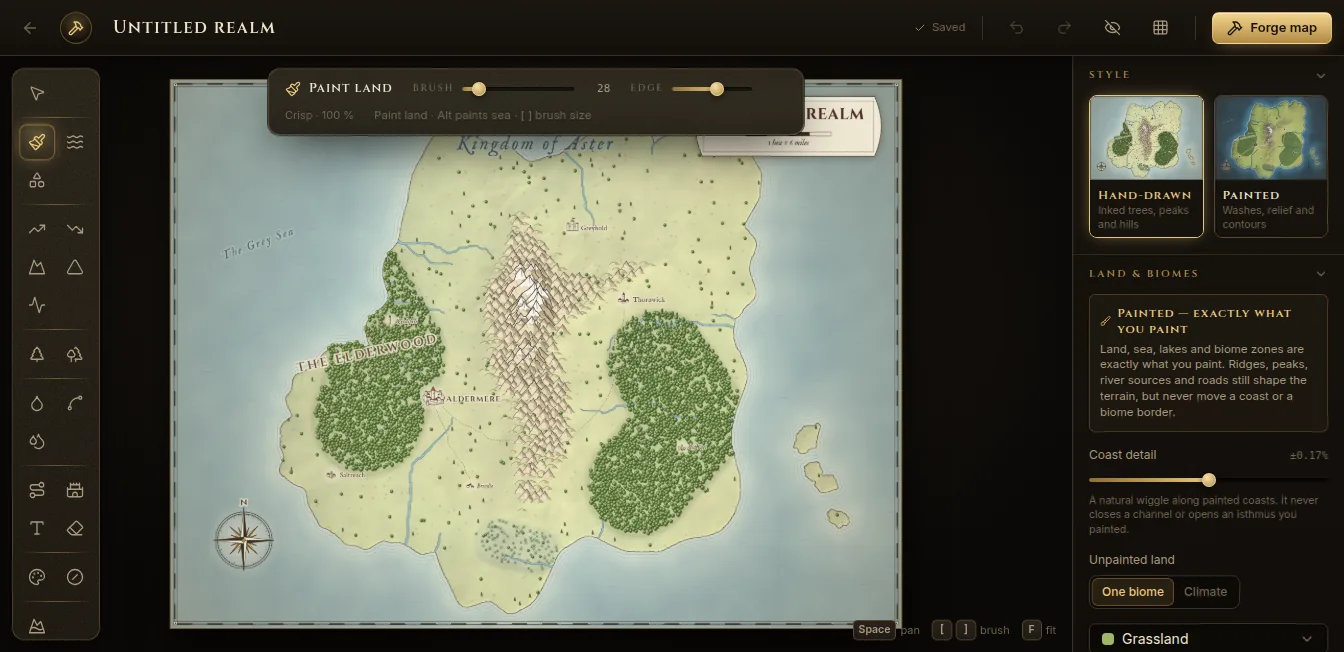
The editor shows your guide with a live preview of the map. The tools are on the left, grouped:
| Group | Tools |
|---|---|
| Land | Paint land (B), Paint sea (S), Quick shapes (O) — drag a blob or an island chain |
| Relief | Raise ground (U), Lower ground (D), Mountain ridge (M), Peak (P), Rift / canyon (C) |
| Biomes | Biome zones (G), Tree density (J) |
| Water | River source (W) — the river finds its own way downhill to the sea; Draw a river; Lake (L) |
| Places | Road (R) — follows the easiest ground between towns; Settlement (T); Region label (X); Eraser (E) |
| Look | Colour wash (K), Erase symbols (Q) |
Select & move (V) moves settlements, labels and other markers; Delete removes the selected one. Symbols (A) lets you place, move, scale or delete mountains, hills, trees and other symbols one by one.
When you pick a tool, a small panel shows its options and a hint. For brushes, [ and ] change the size, and Alt usually does the opposite (paints sea instead of land, lowers instead of raises). Hold Space and drag to pan; F fits the map to the window; Ctrl+Z and Ctrl+Y undo and redo.
The side panel
On the right:
- Style — switch between Hand-drawn and Painted at any time.
- Terrain and climate settings — how much detail the coasts get, what unpainted land becomes, rivers.
- Seed — Re-roll gives the same guide a different random world. Show 4 variations shows four other seeds side by side; click one to adopt it.
- Symbols — mountains, hills and forests follow the biomes and the seed automatically. Make editable freezes a family so you can edit its symbols by hand with Symbols.
- Map & grid — size, hex orientation, hexes across, distance per hex and numbering, so the map arrives in the atlas already calibrated.
- Cartography — names and labels, the compass rose, the border, the title cartouche, and whether settlements are drawn into the image.
Everything saves as you work (“Saved” at the top).
Forge the map
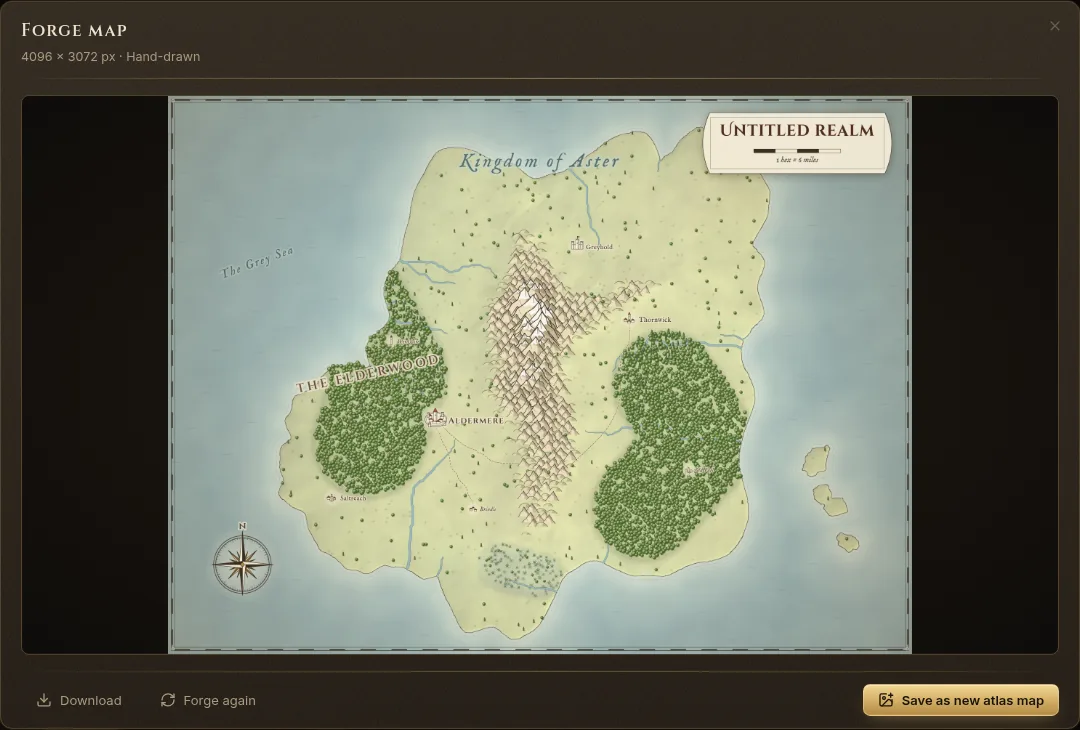
- Click Forge map at the top right. The forge draws the full-size map — raising the land, inking forests and peaks, tracing rivers and roads, lettering.
- Check the result. Forge again tries again; Download saves the image to your computer.
- Click Save as new atlas map.
The map appears in the Atlas, with its hex grid, ready for regions, fog and travel. Each settlement gets an atlas marker.
Change it later
A forge project stays editable. Open it from the Map Forge page, change the guide, the seed or the style, and forge again.
When a project is linked to an atlas map, the result offers Replace map image: the atlas map gets the new image, and its grid, hexes, regions, fog of war and markers are kept. If the map has regions, you can also create a location for every settlement in one of them, linked to its marker.
To delete a project, use Delete project on its card. Atlas maps already forged from it are kept.