A battle map is the close-up of a fight or a dungeon: a tavern, a crypt, a forest clearing. You can upload one you already have (an image or an animated map), build one in the Battlemap Forge, or import a Universal VTT file with its walls and lights (see Importing maps and asset packs).
Click Battle maps on the left rail to see them all, grouped by the place they belong to.
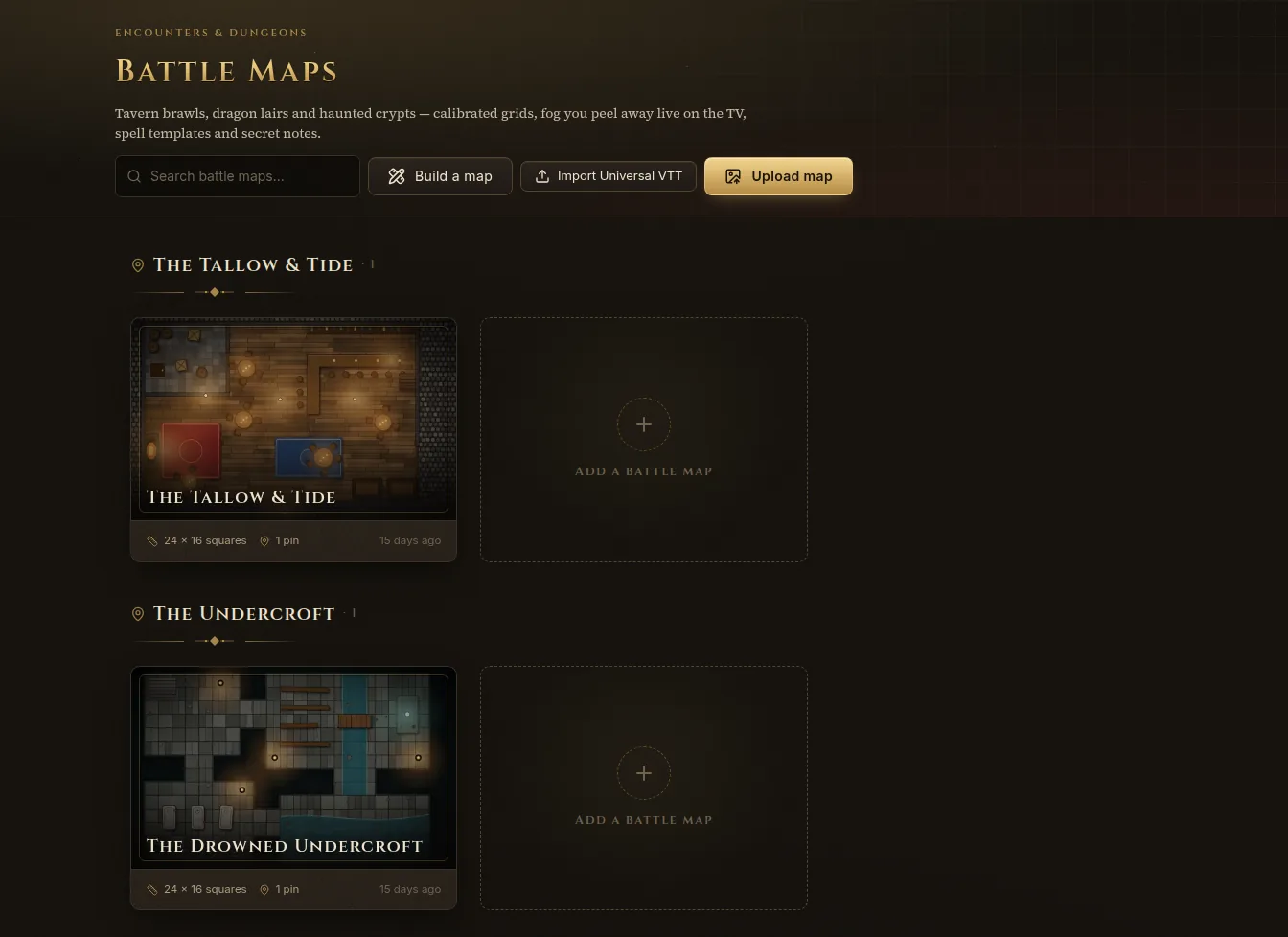
Add a battle map
- In Battle maps, click Upload map (or drop a file on the page).
- Choose an image (PNG, JPG or WebP) or a looping animated map (WebM or MP4).
- Give it a Name and pick the Type:
- Battle map — with a grid, fog of war, templates and pins.
- Image — a plain picture to show, with no fog.
- Click Create battle map.
Large images are tiled automatically so they zoom smoothly. While it says Preparing, you can already work; sharper detail appears when it’s done.
Calibrate the grid
Most printed maps have their own grid. Line Fablekeep’s grid up with it so tokens, measuring and templates match.
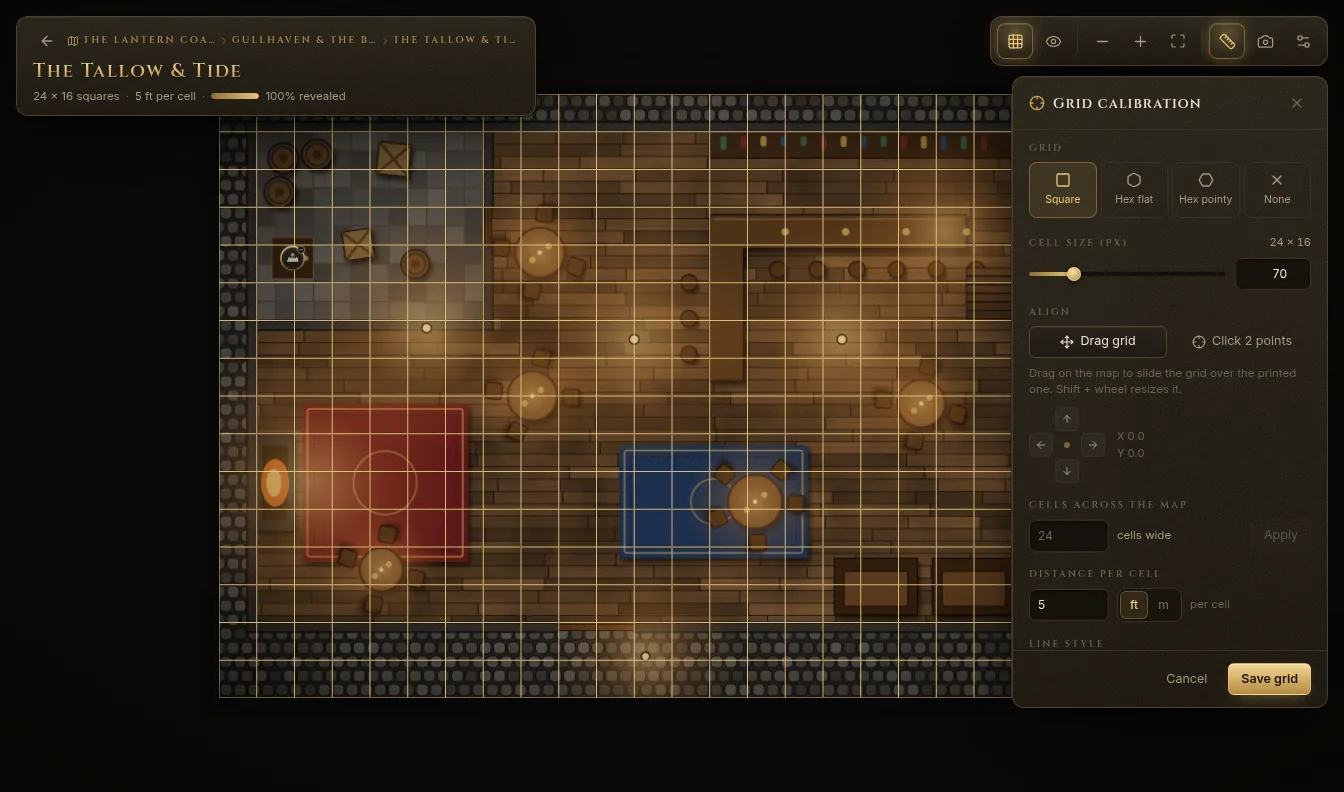
- Open the map and click Calibrate grid (the ruler at the top right).
- Choose the Grid: Square, Hex flat, Hex pointy or None (gridless).
- Set the Cell size (px), or use Align:
- Drag grid — drag on the map to slide the grid over the printed one. Shift + mouse wheel resizes it.
- Click 2 points — click two opposite corners of one printed square (or the centres of two neighbouring hexes).
- Or type how many Cells across the map there are and click Apply.
- Set the Distance per cell in feet or metres, the line style and opacity, and whether to Show grid to me and Show grid on the TV.
- Click Save grid.
The tools
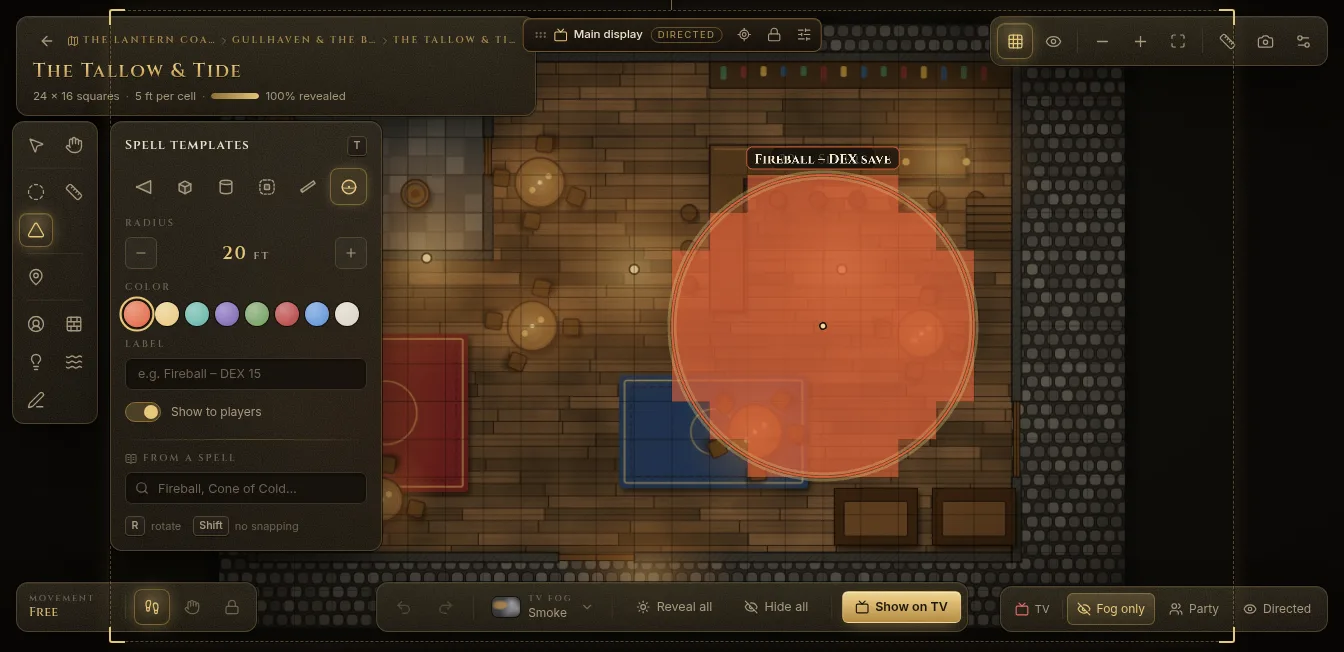
The tool strip on the left of the map:
| Tool | Key | What it does |
|---|---|---|
| Move | V | Select and move tokens, templates and pins. |
| Pan | H | Move around the map. |
| Fog | F | Reveal or hide areas. See Fog of war. |
| Measure | M | Drag across the map, or click to add waypoints. Show to players shares the ruler on the TV. |
| Template | T | Spell areas. See below. |
| Note Pin | P | DM-only notes on the map. See below. |
The same strip also has Tokens, Walls & doors, Lights, Ambience and Draw (see Tokens and Walls, doors, lights and vision).
Measuring follows the 2024 rules: each diagonal costs 5 ft. You can switch to 5 / 10 ft alternating in Settings → Campaign → Diagonal movement.
Spell templates
- Press T or pick Template.
- Choose a shape: Cone, Cube, Cylinder, Emanation, Line or Sphere, and its size.
- Pick a Color and, if you like, a Label (for example “Fireball – DEX 15”).
- Click the map to place it. Press R to rotate; hold Shift to place it without snapping.
Even quicker: type a spell under From a spell (“Fireball”, “Cone of Cold”…), pick it, and click the map. The shape, size and label come from the spell.
Show to players decides whether the template appears on the TV. Persistent (lasts rounds) keeps it for a number of rounds during combat. To remove a template, select it and press Delete.
Note pins
Pins are your private notes on the map: traps, secret doors, loot.
- Press P or pick Note Pin, then click the map.
- Give it a title, an Icon and DM notes.
- To show it to the players, turn on Revealed in this campaign. Players see a marker with the Label players see, never your title or notes.
Always visible (landmark) keeps a pin on the TV from the start, for things like an exit or a well-known statue.
Snapshots
Scene snapshots (the camera icon at the top right) save the fog, templates, revealed pins and view. Restore one in a click — handy for a “before the ambush” state or to reset a dungeon for another group.
Show it on the TV
Click Show on TV at the bottom of the map. The players see the map with its fog, revealed pins and visible templates, never your notes. Preview as players (Shift+P) shows you the same thing on your screen.
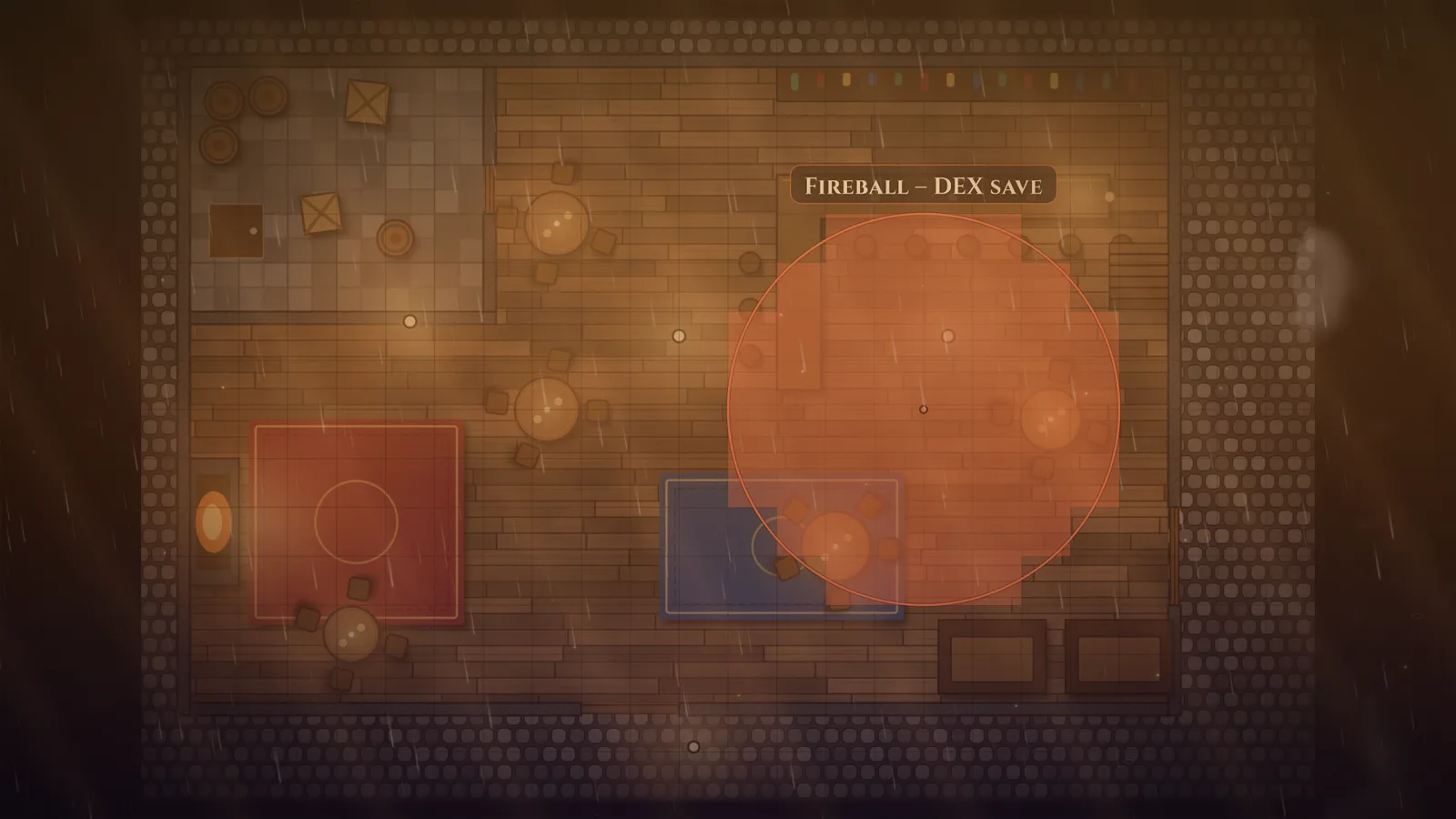
More ways to put it on the TV:
- In the map’s inspector, Show on pane… sends it to one pane of a split layout, and Split and show alongside splits the TV in two and keeps what’s on the left.
- Quick switch (Q) swaps the focused TV pane between the battle map and the travel map; Shift+Q swaps every pane.
See The Display Dock for layouts and transitions.
Levels and difficult terrain
Maps made in the Battlemap Forge can have several Levels (cellars, upper floors, roofs). Switch levels from the map, and choose which one is On the TV. When a map marks difficult terrain, a triangle button at the top right shows it (only to you).
Scene properties
Scene properties (the sliders icon at the top right) holds the map’s fog defaults (new campaigns start Fogged or Revealed), the Fog style on the TV, the grid and your Notes (read-aloud, encounter notes, tactics). To rename or delete a map, use More on its card in Battle maps.