A session in Fablekeep is one evening of play. Each one has its prep, a log that writes itself while you play, your notes, a recap for the players and the XP you award. They all live under Sessions on the rail.
The Sessions page
Sessions shows the Chronicle of Sessions: how many you’ve played, the time at the table, the XP awarded, and every session in order — played ones with their recap, planned ones with their prep.
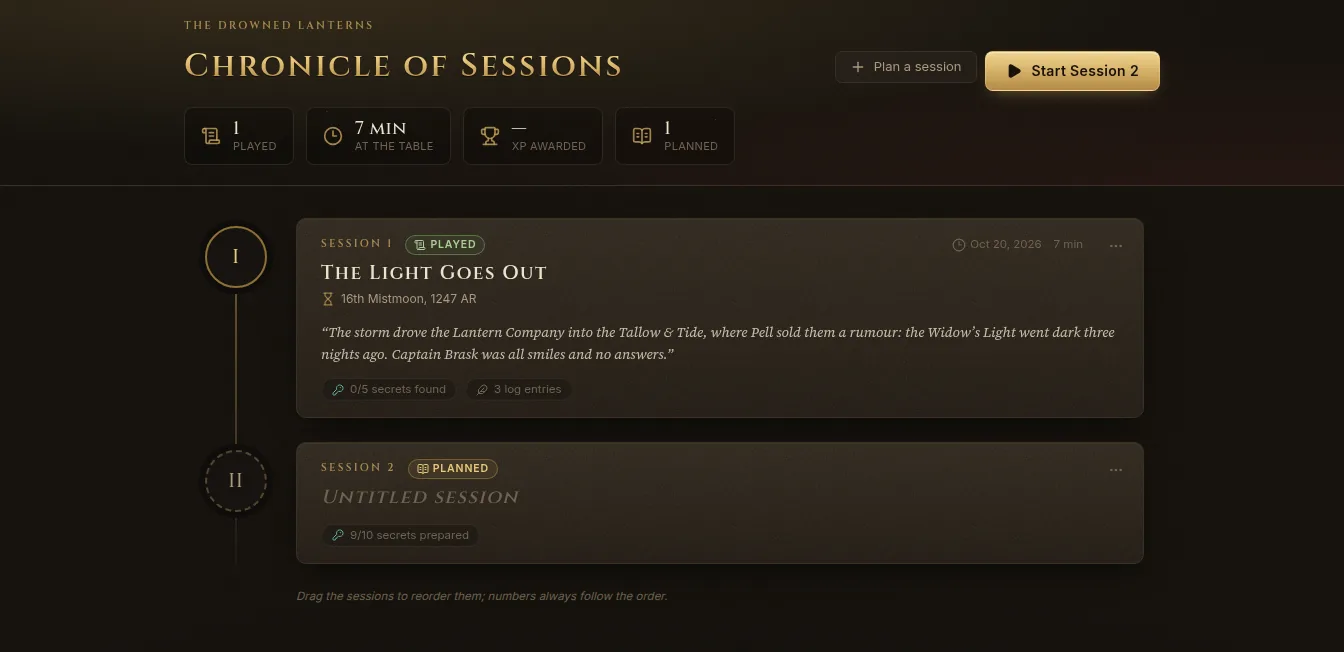
- Plan a session adds the next session.
- Start Session N starts the next one.
- Click a session to open its page. Drag sessions to reorder them; the numbers always follow the order.
- A session’s ⋯ menu has Open, Plan in the copilot, Move up, Move down and Delete.
The session page
Each session has a title, an optional date it’s Planned for, and tabs:
- Plan — the scenes, places and encounters you expect, for the copilot. See Session plans and the copilot.
- Prep — the Lazy DM checklist: characters, a strong start, scenes, secrets and clues, locations, NPCs, monsters, rewards.
- Notes — your private notes: rulings, loose threads, ideas for later. Type
@to link entries. - Recap — what the players remember. Show on TV puts it on the TV as the “Previously on…” scroll.
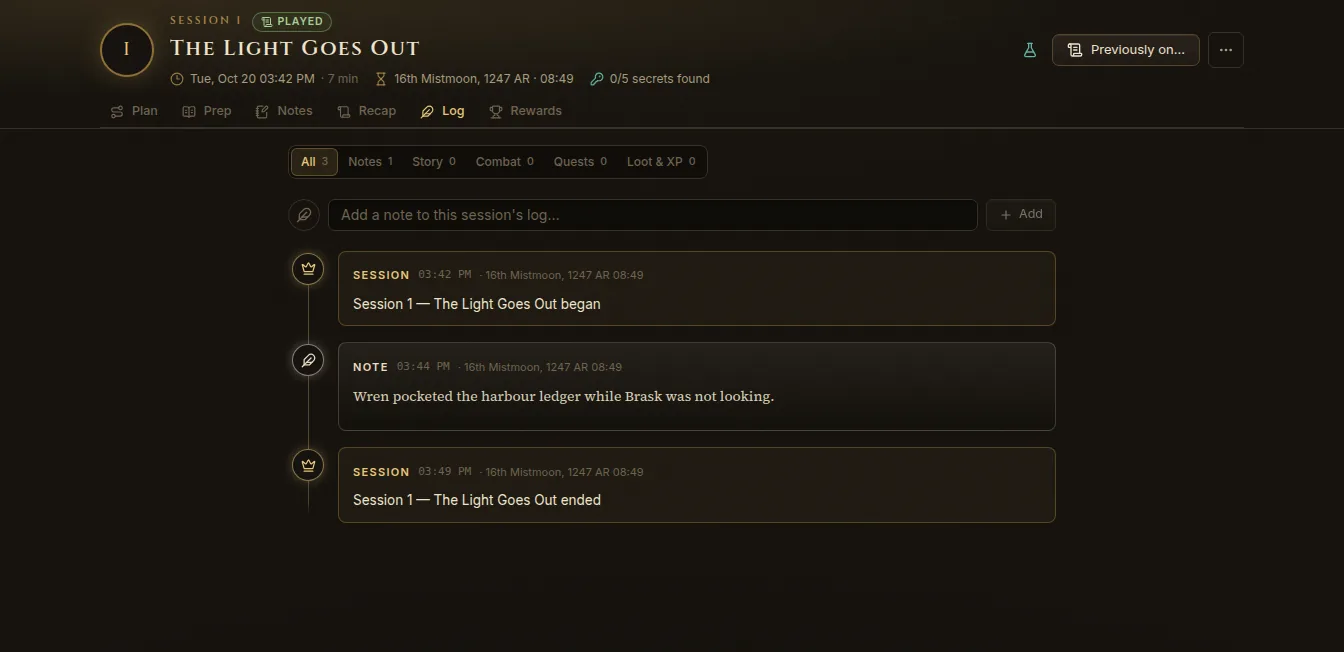
- Log — everything that happened during the session.
- Rewards — the XP awarded.
Play: start a session
When the players are seated, click Play at the top right (or Start Session N on the Overview or the Sessions page). In Start a session:
- Give it a Title if you like.
- Session title card on the TV — “Session 1 — …” fades in on the TV.
- “Previously on…” scroll — unrolls the last session’s recap after the title card.
- Click Start Session N. (Play mode only switches to Play mode without starting a session.)
While a session is live:
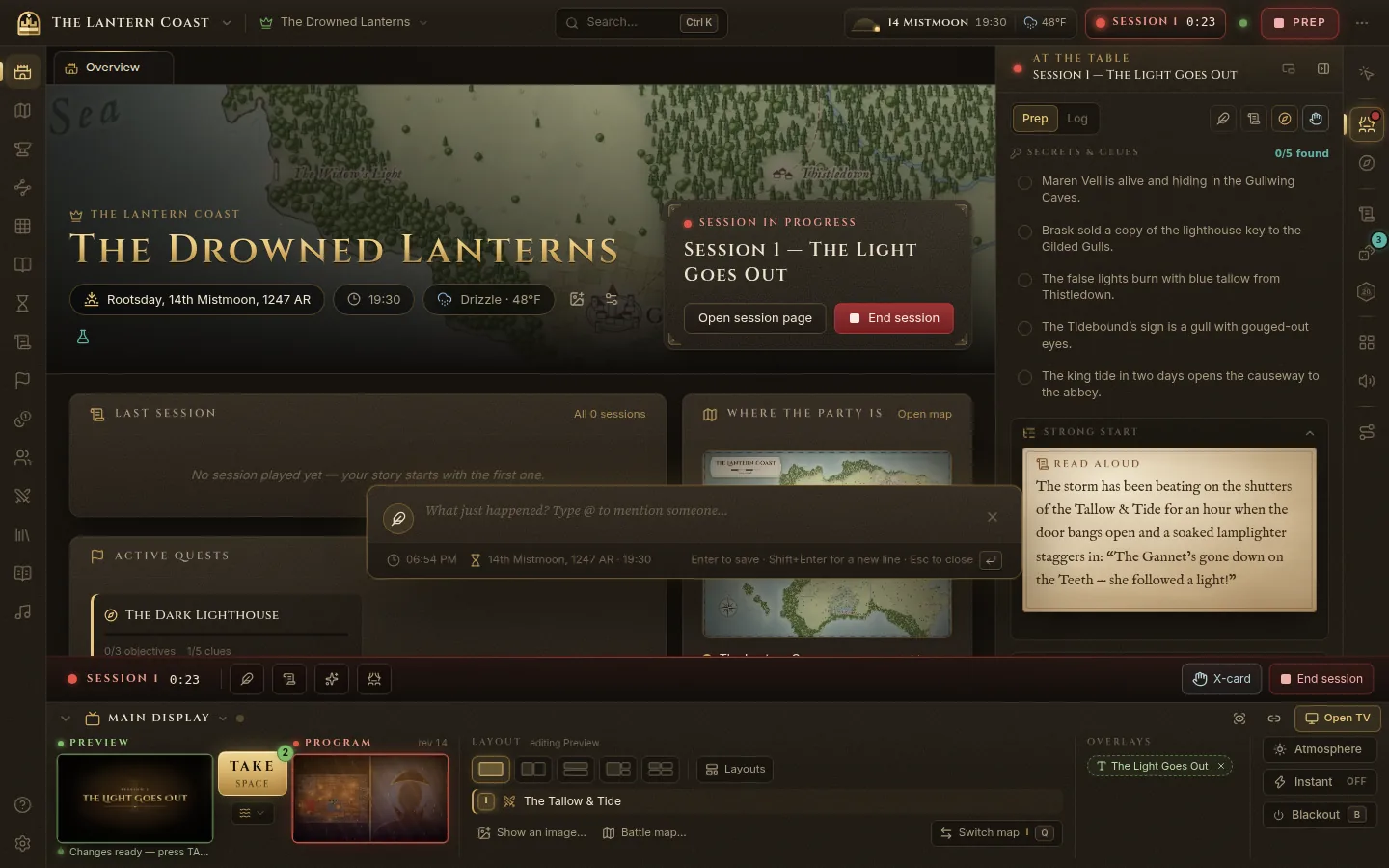
- a red Session N pill with a timer sits in the top bar — click it to End session;
- a strip above the Display Dock has the session timer and buttons for a Quick note, Previously on…, the Session title card and the “To be continued…” card on the TV, plus X-card and End session;
- the At the table panel opens on the right with your Prep (secrets and clues to tick off as they’re found, the strong start, scenes) and the session Log. Fold it to a pill, dock it in the side column or float it over the map.
Quick notes
Press N anywhere (or click the quill on the strip) and type what just happened. Enter saves it to the log with the real time and the in-game date; Shift+Enter adds a new line; Esc closes it. Type @ to mention an NPC, a place or a quest.
The automatic log
While a session is live, Fablekeep writes the log for you: travel, time skips, reveals, handouts shown, fights, quests, loot, XP, rolls and safety events, next to your own notes. On the session’s Log tab, filter it by Notes, Story, Combat, Quests or Loot & XP, and Add a note afterwards.
End the session
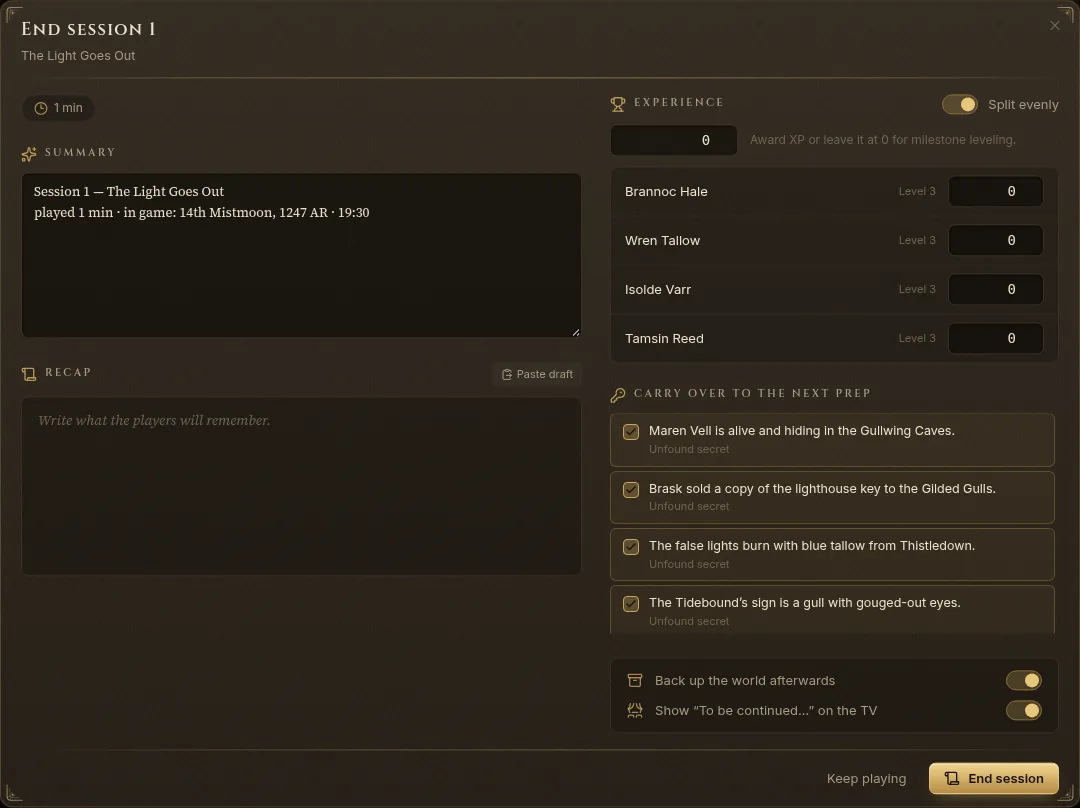
Click the Session N pill (or End session on the strip). The End session N window has:
- the time played and the in-game time, and an automatic Summary of the log;
- Recap — write what the players will remember. It becomes the next “Previously on…”;
- Experience — the Total XP (Fablekeep suggests what was earned in combat), shared out with Split evenly or set per character. Leave it at 0 for milestone levelling. XP is written to the character sheets;
- Carry over to the next prep — secrets and quest clues the party didn’t find, ticked to roll into the next session’s prep;
- Back up the world afterwards;
- Show “To be continued…” on the TV.
Click End session, or Keep playing if you opened it too soon.
Quests and the treasury
Two pages on the rail keep track of the campaign between sessions:
- Quests — the Quest board, with columns for Rumors, Active, Completed, Failed and Abandoned. Drag quests between columns as the story moves. Each quest has objectives, clues (to pull into a session’s prep), a quest giver, rewards and links. Active, completed and failed quests show on the players’ phones, with only the clues they’ve found.
- Treasury — the Party purse (platinum, gold, electrum, silver, copper; Gain, Spend, Consolidate coins) and the party Stash of items. Add loot puts coins and items into the treasury in one go and logs it in the live session. The treasury also holds Shops: stock a shop from the compendium and sell to the party in a click.
Safety tools
Open Settings → Safety tools:
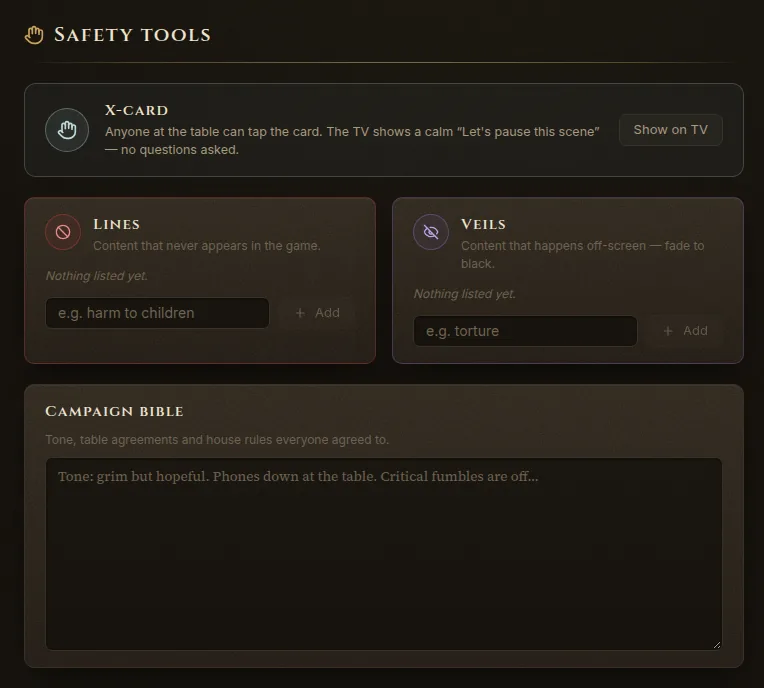
- X-card — anyone at the table can ask to pause. During a session, click X-card on the strip (or press Ctrl+K → “X-card”): the TV shows a calm “Let’s pause this scene” — no questions asked. Click it again when everyone is ready. Show on TV here lets you show the table what it looks like.
- Lines — content that never appears in the game.
- Veils — content that happens off-screen, fade to black.
- Campaign bible — tone, table agreements and house rules everyone agreed to.